




 en | USD


 CHAT WITH GODLIKE TEAM


How to setup your RUST server
Last modified on 27 November 2025 in
- 2 min read
- 10889
- 0


How to connect to your Rust server
Option 1: Via Rust
Using Rust servers hosting to connect to your server through the game panel:
- Find your server IP on the panel on tab Overview on Godlike panel

- Copy our IP:PORT
- Open rust
- Press F1 to open console Type in: `connect ip:port` and hit enter!
Option 2: Via Steam
- Open your Steam and go to View > Servers
- Click Add a Server and fill in the IP found on the panel
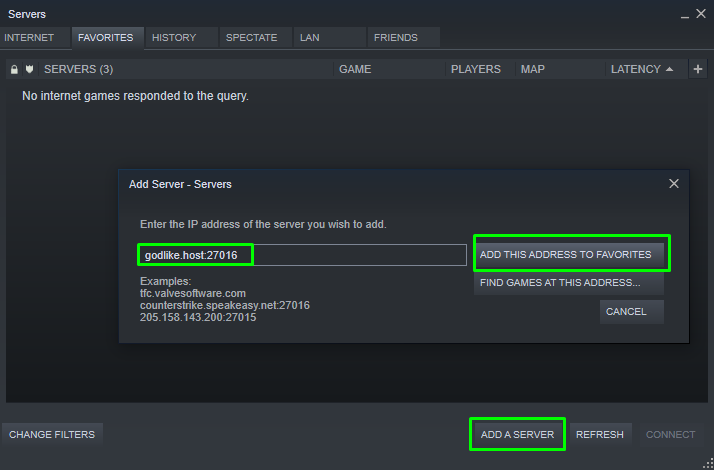
- Click Add this server to favorites, wait a few seconds and you are all set!
How to Add a Custom Map to Your Rust Server
If you want to use custom maps on your Rust server hosting, you'll need to use the RustEdit Oxide extension.
This article assumes you already have Oxide installed.
- Download the RustEdit Oxide extension, located here. The file you downloaded should be called
Oxide.Ext.RustEdit.dll. - On your control panel, navigate to the File Manager
- Upload
Oxide.Ext.RustEdit.dllto the/RustDedicated_Data/Managed/folder. - After the extension has finished uploading, navigate to the
/server/my_server_identity/cfg/folder and edit the server.cfg file. If it doesn't exist, create it. - At the bottom of your
server.cfg, add a new line and add the textlevelurl "(url)", replacing the(url)with a direct download link to your custom map file. An example configuration has been provided below:
server.description "Welcome to my Rust server!"
server.url "https://discord.gg/"
levelurl "https://www.dropbox.com/"
You can use a service like Dropbox to upload your map file and generate a direct link. Simply upload the file to Dropbox, then create a share link by clicking the "Share" button followed by "Create Link". Paste that generated link into your server.cfg, replacing the ?dl=0 with ?dl=1 as shown in the example.
Save the changes you've made to the server.cfgfile, then restart your server. Your server should now load with the custom map that you added.