


 en | USD


 CHAT WITH GODLIKE TEAM





Gameplay and Management
On a Left 4 Dead 2 server, a player with administrator rights can not only manage other players (such as blocking and banning) and handle technical issues, but also make significant in-game changes during play: changing maps, adding numerous mobs (even spawning a boss at the start of the game), adjusting difficulty levels, and much more. This will definitely make the game on the server more enjoyable, depending on your players' preferences.
TIP
How to Add an Administrator to Your Server
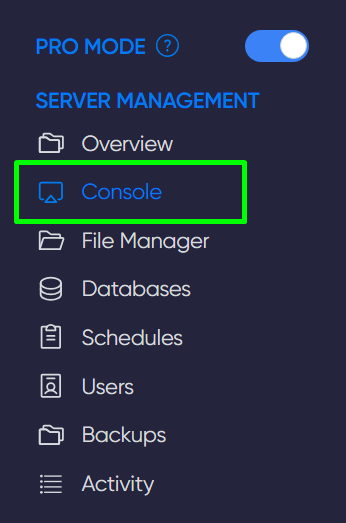
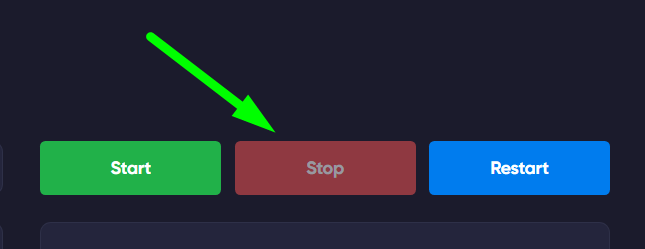
1) First, log into the game panel and stop the server. This can be done in the Console section.
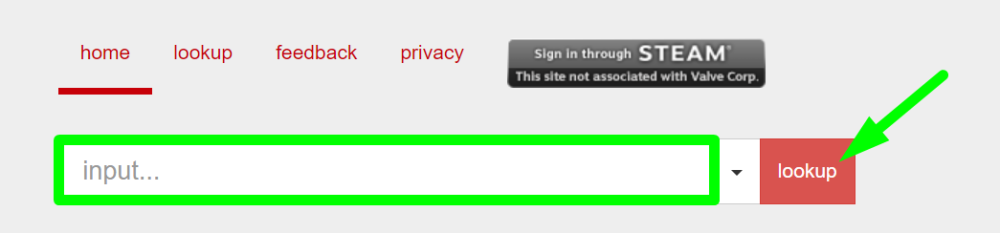
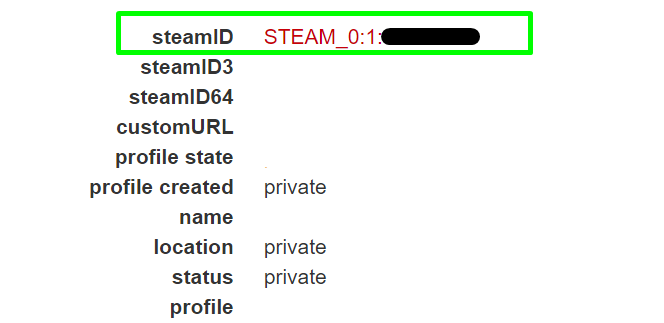
2) Next, copy the link to your profile and enter it on this website to obtain your SteamID in the required format.
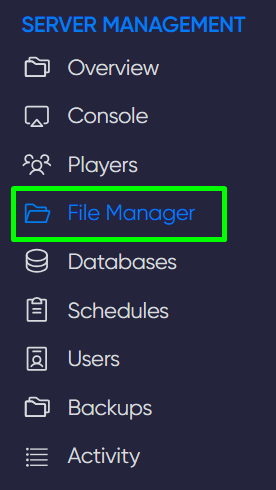
3) Now, go to the File Manager section of the game panel, follow the path to left4dead2/addons/sourcemod/configs, and open the file admins_simple.ini.

4) Open this file and write at the bottom: "SteamID" "99:z". (as shown in the screenshot)
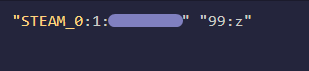
Save the file and you can start the server.
IMPORTANT
Enter the correct SteamID that you obtained from the website above
Now you know how to add an administrator to your Left 4 Dead 2 server and can conveniently manage the gameplay. Play together with GODLIKE.