


 en | USD


 CHAT WITH GODLIKE TEAM





Satisfactory Commands for Server Management
Using Satisfactory server hosting console commands provides the convenience and speed to manage the server efficiently: change the map, shut down the server, or ban a player who violates server rules.
TIP
Enabling Console Commands Satisfactory Server
Below, we'll tell you how to enable the console application on the Satisfactory server, provide a step-by-step guide, and talk about basic Satisfactory admin commands.
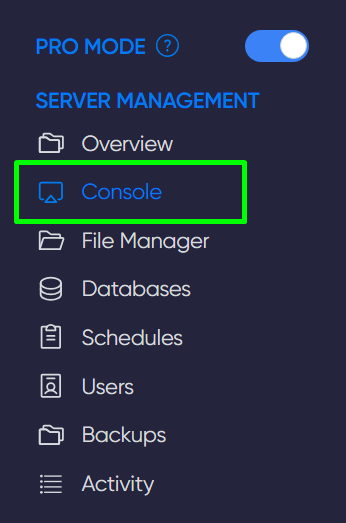
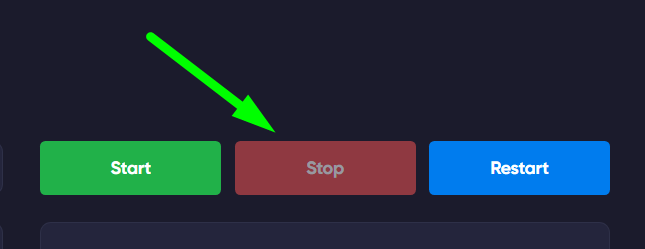
1) Turn off the Satisfactory server through the game panel.
2) Navigate to the folder at %LOCALAPPDATA%\FactoryGame\Saved\Config\WindowsNoEditor.
3) Open the Input.ini file as a text document.
4) At the very bottom of the file, enter the following two lines:
[/script/engine.inputsettings]
ConsoleKey=F1
IMPORTANT
In the ConsoleKey= line, enter the key you will use to open the console
Save the file. Done.
Satisfactory Server Console Commands
Below is a list of commands that you can use through the console:
| Stat FPS | Displays the FPS indicator in the game |
| t.MaxFPS <number> | Sets the maximum FPS |
| ToggleDebugOverlay | Displays information about position, game session time, and game world time |
| Suicide | Respawns your character |
TIP
Now you know how to use the console and what useful commands are available for it. We wish you a pleasant gaming experience! Play with GODLIKE.