Minecraft’s world is large, insanely large — 3.6 billion squared kilometers, it’s roughly 7 times bigger than the area of Earth. While little to no player actually explore the world this much, the problem still remains — many players tend to stray out in different directions, building bases far apart, to the point that even using the faster navigation method(e.g. elytra) in the game, going from point A to point B takes a few minutes. While it doesn’t seem that much, when you constantly need to move around different points, it gets annoying and kills the mood pretty quickly.

Make your own FREE minecraft server
MINECRAFT FREE SERVER
What could be the solution to such problem, you may wonder? Teleport! No, you haven’t missed any new update of the game, there are no functional blocks that would teleport you from point A to point B. However, there is a built in command, that does exactly that:
/tp
Though, like many of you may know, this command is considered to be a cheat. So, it will only work if you have cheats enabled in singleplayer world, or if you operator(OP for short) privileges on a server you are playing on. But with that in mind, now you might wonder “How do i get / enable those privileges?”. Hence, here’s the detailed guide, on how to do exactly that on you Godlike server. Then we will talk more about the /tp command itself. Let’s dive in!
How to get / enable OP on a Godlike server?
To get OP on your Godlike Minecraft server, head over to the Game Panel, then if you have multiple servers, choose the server on which you will grant OP to the player. Make sure the server is running, and the player to which you will give OP is connected.
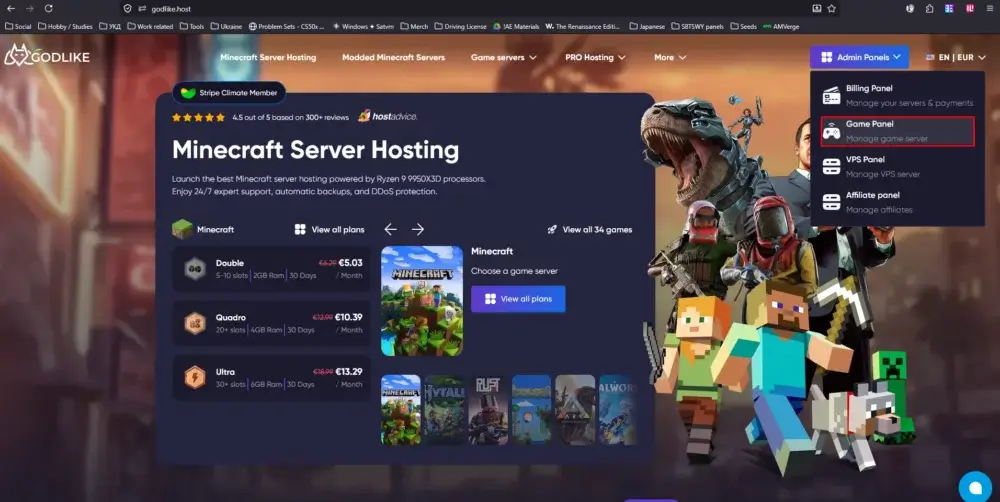
Then, using console window, type the following command(repeat as much as necessary):
op <player> - replace <player> with the in game nickname of the player that should get OP.
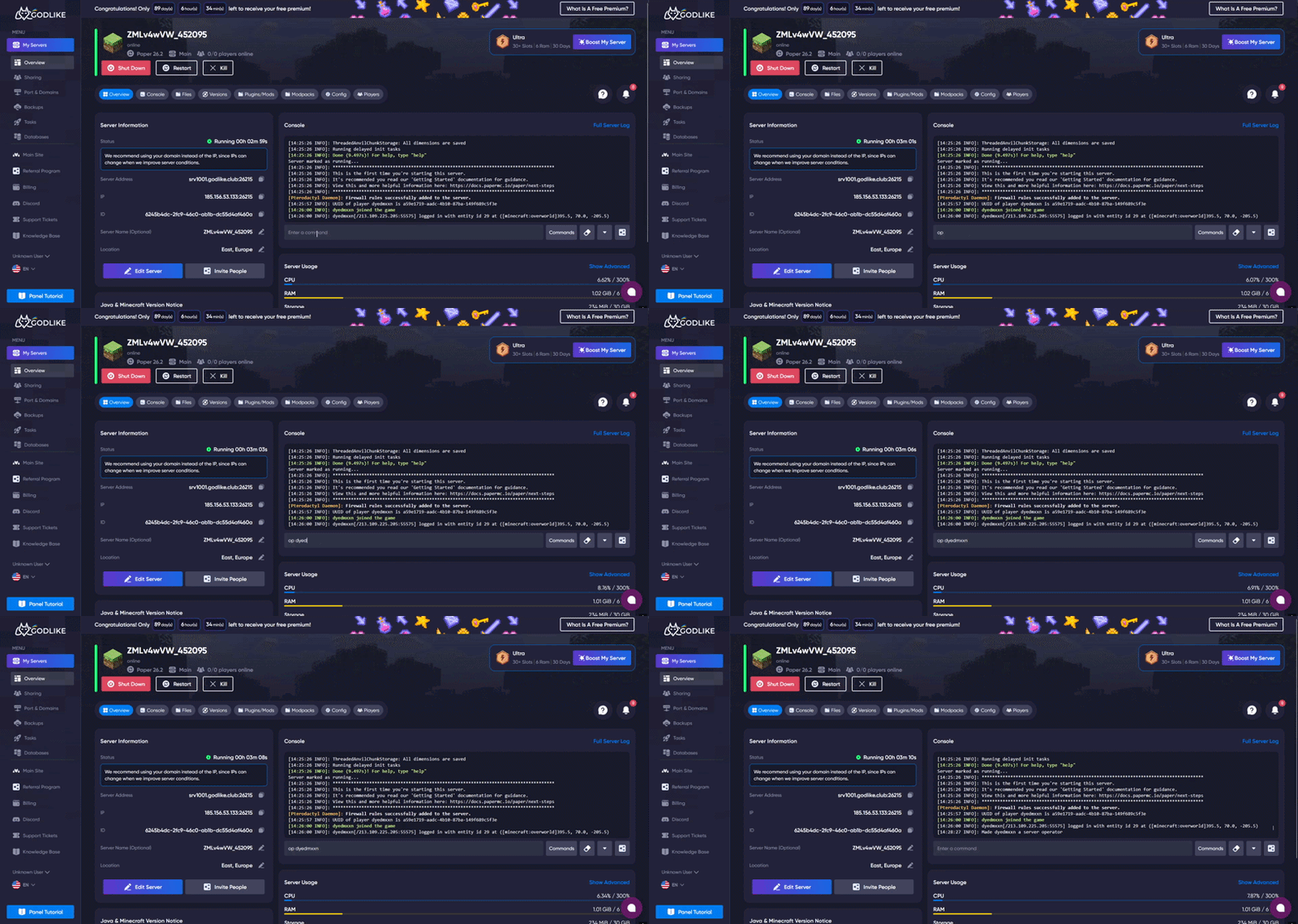
Once that is done, you can head back to the game and the player that was given the OP, can now use /tp command to teleport. More about the command it self in the next section of the article.
OP doesn’t only allow to use /tp command, but any other commands as well. Meaning that by giving the privileges to the player, you allow them to use any command that would normally be considered cheating(e.g. /give , /gamemode creative etc.). Please keep this in mind!
How to use /tp command in Minecraft
Once all the necessary permissions are given, players can now use the /tp command in the chat to teleport. Despite the this command being one of the simple ones, there are a lot more to it that than you might’ve initially thought!
The default use case for the command is as follows:
/tp <player> x, y, z
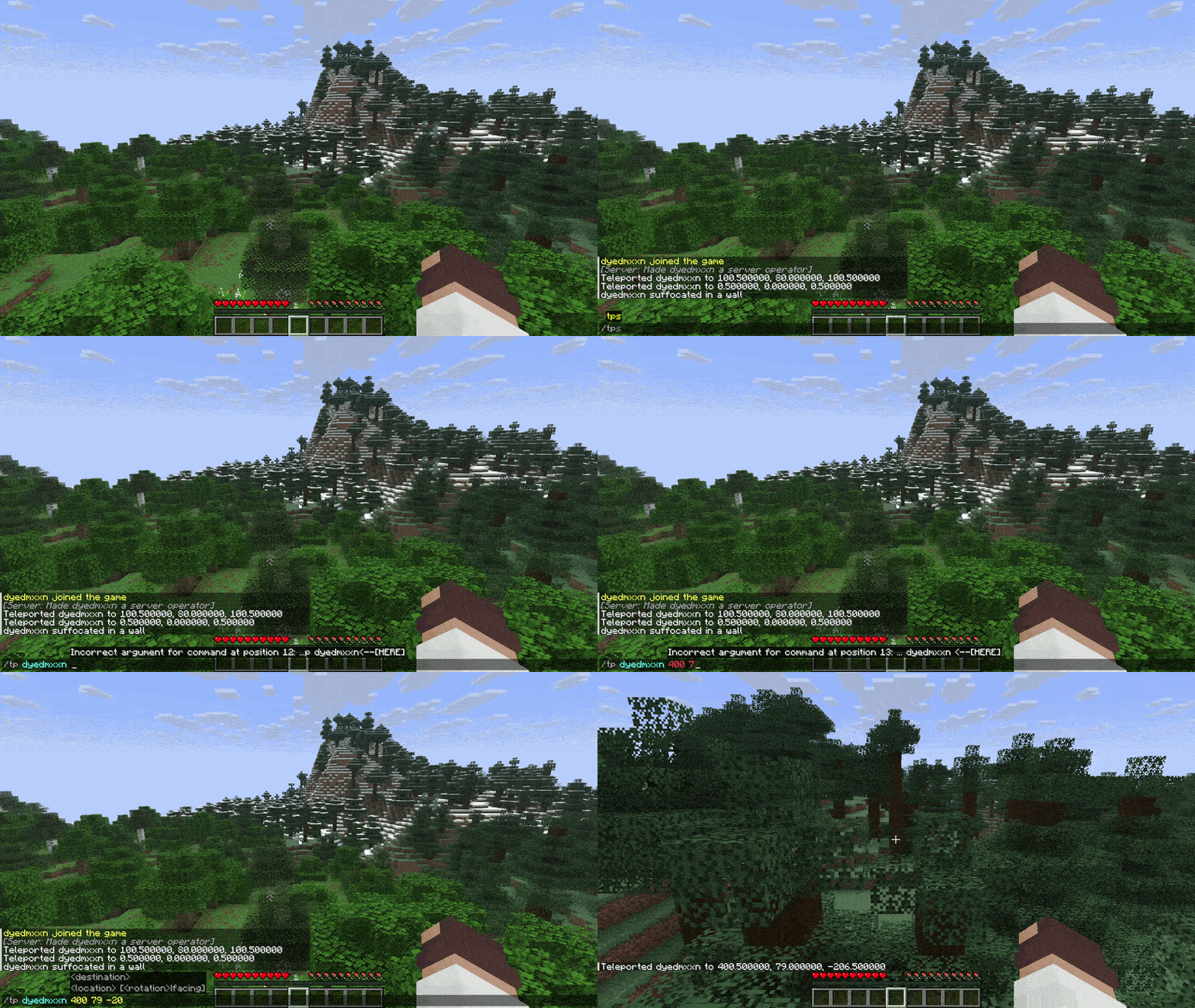
The <player> part can be swapped with Target Selectors — symbols that allow the player who writes the command to pinpoint specific targets that will be affect by the commands. Here’s a full list of target selectors:
@a: Targets all players currently in the game.@e: Targets all entities. This includes every player, mob, item ono the ground, arrow and painting in world.@p: Targets nearest player to the person who uses the command.@r: Targets random player.@s: Targets self, meaning the specific entity or player executing the command.
On top pf that, the Target selectors can be modified by adding square brackets, that allows the player who uses the command to specify the target even more precisely. Here’s the full list of arguments that can be used inside the brackets:
type=: Used to specify the exact mob or entity.distance=..: Used to specify the certain block radius at which the command will be used. For instance @a[distance=10] — targets all players withing the 10 block radius.limit= : Used to specify the maximum number of targets.name= : Used to specify the entity by its custom name.
Finally, instead of specifying the exact x, y and z coordinates in each command, players can use Relative Coordinates. This means, that the coordinates that will be used in the command will be calculated based on the position of the player or entity who uses the command. Additionally, there are similar Local Coordinates, that calculate the coordinates that will be used in the command based on the player’s or entity’s line of sight when using the command. Here’s an example to better understand the concept:
/tp @s ~ ~5 ~ — The player or the entity that used the command will be teleported 5 blocks up on y-axis. This is how the Relative Coordinates work./tp @s ^ ^ ^10 — The player or the entity that used the command will be teleported 10 blocks forward in the direction they are currently looking. This is how the Local Coordinates work.
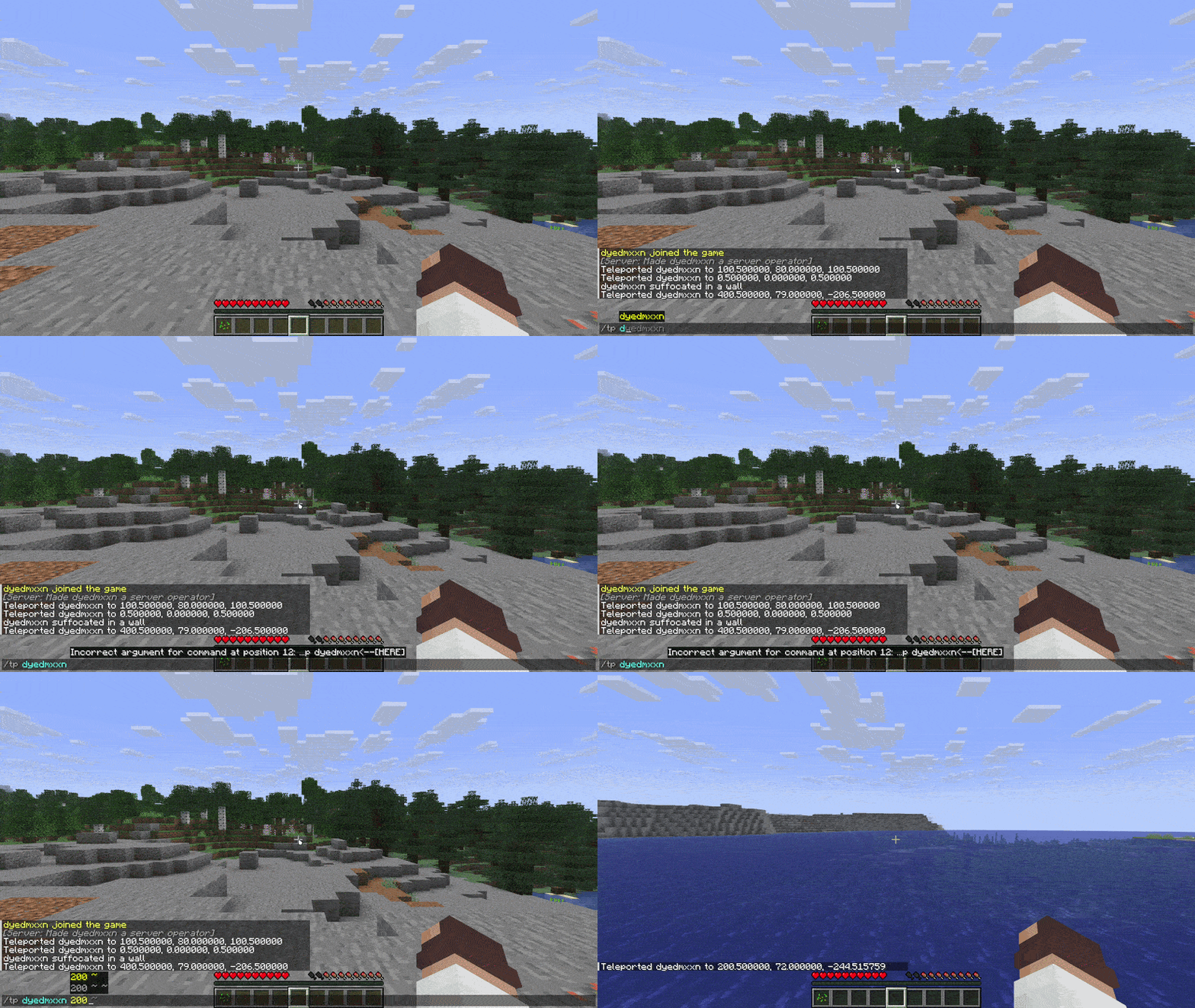
So the the simple /tp <player> x, y, z can grow into something way more complex like /tp @e[type=pig, name="Bacon", distance=..20, limit=3] ^ ^5 ^10 . Can you decipher what this command does? — That’s right, this command teleports all entities that pigs, with a specific name “Bacon”, in 20 block radius(from the player who uses the command) 5 blocks up and 10 blocks forward via local coordinates based on the line of sight(based of the player that used the command), and all of that is limited to 3, meaning if there are 4 entities that match all the arguments, only 3 will be affected by the command.
Pretty complicated right? Well no worries, for the general use, you will rarely use such complex command. To help you make things even less complicated, we’ve compiled the most useful use cases for the /tp command(with syntax and explanations of course!)
Most common and useful use cases of /tp command
First off, the most used and basic use case, that we already briefly mentioned before — teleporting to the specific coordinates(replace the x, y, and z with in game coordinates. Those can be found via pressing F3 for Java Edition, or enabling such option in the settings for Bedrock Edition):
- Teleport yourself to the specified location:
/tp x, y, z
- Teleport specific player to the specified location:
/tp <player> x, y, z
Just be cautious that if you don’t know for sure that the coordinates are safe, you might end up in a dangerous location, high in the sky or inside the blocks. Be careful with precise coordinates!
Next off — teleporting one player to another, here’s the syntax and a few variation of the same command:
- Teleport yourself to the player:
/tp <playerToWhichToTeleport>
- Teleport specific player to another specific player:
/tp <playerA> <playerB>
- Teleport all player to you:
/tp @a @s
And lastly, while it’s less common, this use case still comes up often enough to mention it — advanced positioning via Relative and Local Coordinates:
- Relative Coordinates: Like we mentioned before this means, that the coordinates that will be used in the command will be calculated based on the position of the player or entity who uses the command. So the command would look like this:
/tp <player> ~x, ~y, ~z .
This time though, the x, y, and z are replaced not with the coordinates, but values, so the /tp ~ ~10 ~ won’t mean teleport to y coordinates with value 10, but teleport the player or entity 10 blocks up relative to their position in the moment of command execution. Note that to teleport yourself, you don’t need to specify the target.
- Local Coordinates: Like we mentioned before, this means that the coordinates that will be used in the command based on the player’s or entity’s line of sight when using the command. So the command you look like this:
/tp <player> ^x ^y ^z .
Just like with relative coordinates, x, y, and z arguments are not actual coordinates, but values. So the /tp ^ ^ ^10 won’t teleport the player to the z coordinate with value 10, but teleport the player or the entity 10 blocks forward in the direction they are looking when executing the command. Just like with the Relative Coordinates, to teleport yourself, you don’t need to specify the target.
Hope these most frequently used /tp command use cases helped to clear the air and made this surprisingly complex command easier to utilize on in your gameplay! However, there are another thing that can help you customize and expand the usage of /tp on your server — mods and plugins. More on that, in the next section of the article.
Take Your Minecraft Skills to the Next Level
Mastering /tp is just the beginning. If you or your child want to build custom teleport mechanics, automated systems, or even full Minecraft mods using real code, CodaKid offers beginner-friendly Java and Python courses built around Minecraft. It's a natural next step for players who love experimenting with commands.
Mods and Plugins to customize and expand the /tp command capabilities
If you wish to customize and expand the /tp command beyond it’s vanilla capabilities, you can use mods or plugins that will do exactly that. Let’s go over some of our recommendation that might be interesting to you.
Starting with plugins:
- EssentialsX: The standard plugin used for server management in many servers. This plugin adds a new
/tpa command, that allows players to request a teleport to another player who can either accept(using /tpaccept ) or deny(using /tpdeny ) the request. This helps making the teleportation on the server less chaotic and more controllable. Players can also use /home command to set and teleport to their base. Additionally, using the /warp command, server administration can set up teleports for fast travel hubs on the server, which makes the teleportation even more controllable.
- BetterRTP: This plugin adds a Random Teleport command —
/rtp . Like you might’ve already guessed, the commands let’s player to teleport to the random locations on the server. What makes it better than just /tp with random coordinates? The command specifically chooses only safe locations, to prevent sudden and random deaths. An excellent plugin for bigger survival servers that helps player find yet uncharted territories.
For the those plugins to properly work, you need your server to run on either Paper or Spigot. The server’s core can be changed in the settings via Game Panel.
As for the mods, we have a few good recommendations for you as well:
- Waystones: Highly immersive mod that allows players to craft and place physical ston monuments. Then, the players can travel between those monuments, however each teleport costs XP, preventing the uncontrollable constant teleportation. With this mode, the need for OP for each player disappears completely, as it adds the necessary teleportation mechanics, while keeping everything grounded and balanced.
- FTB Essentials: An alternative to the Spigot EssentialsX plugin for Forge / Fabric. Adds all the commands and features mentioned above, while keeping things easier for the server to handle.
The mods, of course, require the Forge or Fabric mod loaders to work, please keep that in mind.
Conclusion
We hope that this guide on how to enable teleportation on the server helped you customize and enhance your gameplay, thank you for sticking through to the end and good luck playing!








 en | USD
 CHAT WITH GODLIKE TEAM