


 en | USD
 CHAT WITH GODLIKE TEAM



How to Install a Modpack on Your Godlike.host Server
Installing a modpack is easy! The panel will do everything for you — choose the right core, configure mods, and prepare your server to launch.
Works for: Forge, Fabric, CurseForge, and Modrinth modpacks.
TIP
If you want to install your own modpack you can check our custom modpaсk install guide
Quick Installation (Recommended)
-
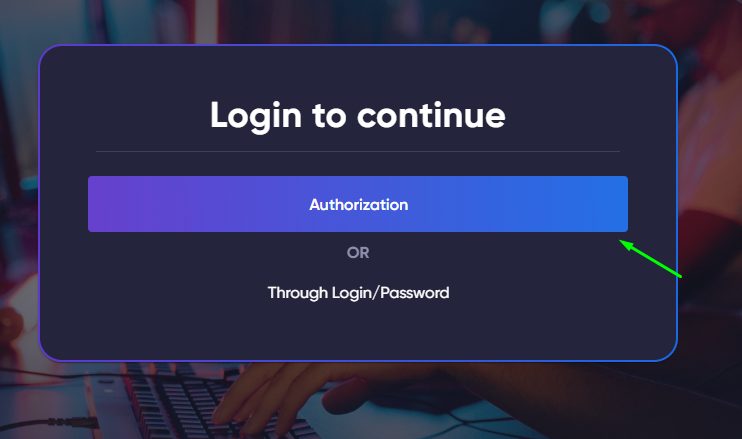
Open your control panel:
👉 https://ultra.panel.godlike.host

-
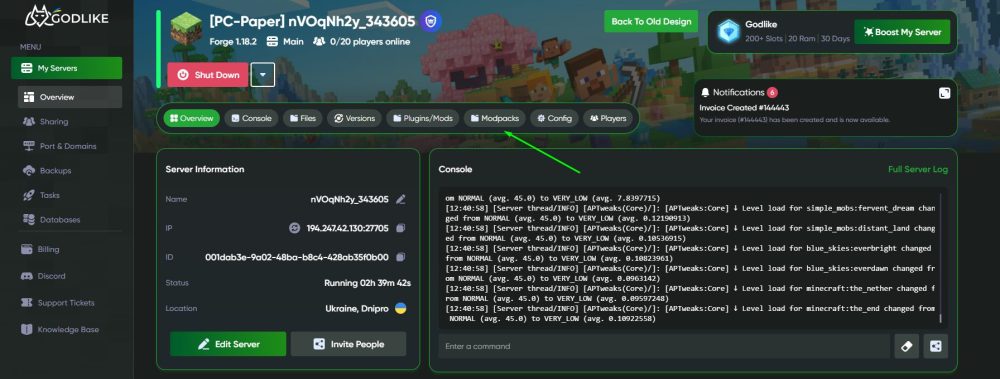
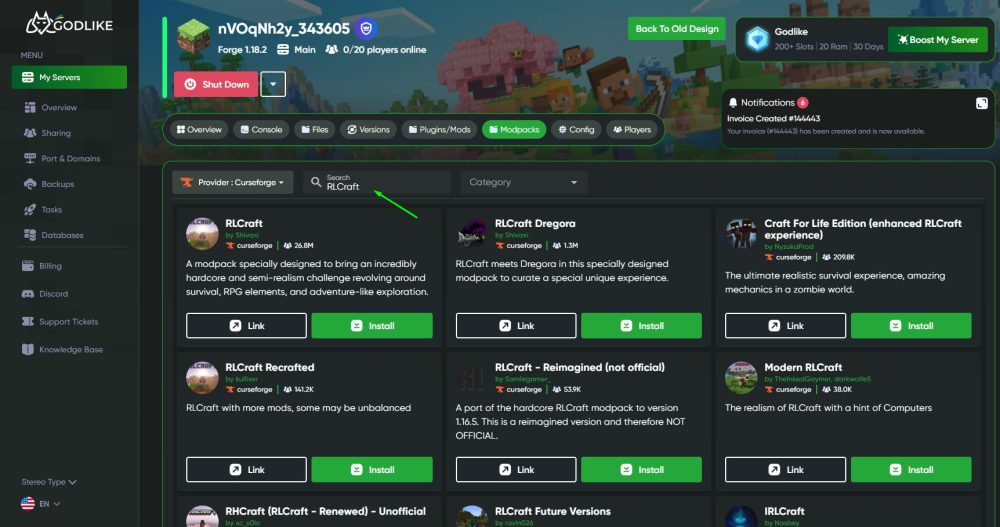
Select your server → go to the Modpacks tab.

-
Find the desired modpack:
-
Use the search (for example, RLCraft, Better MC, SkyFactory 4).
-
You can also choose the platform: CurseForge, Modrinth, and others.

-
-
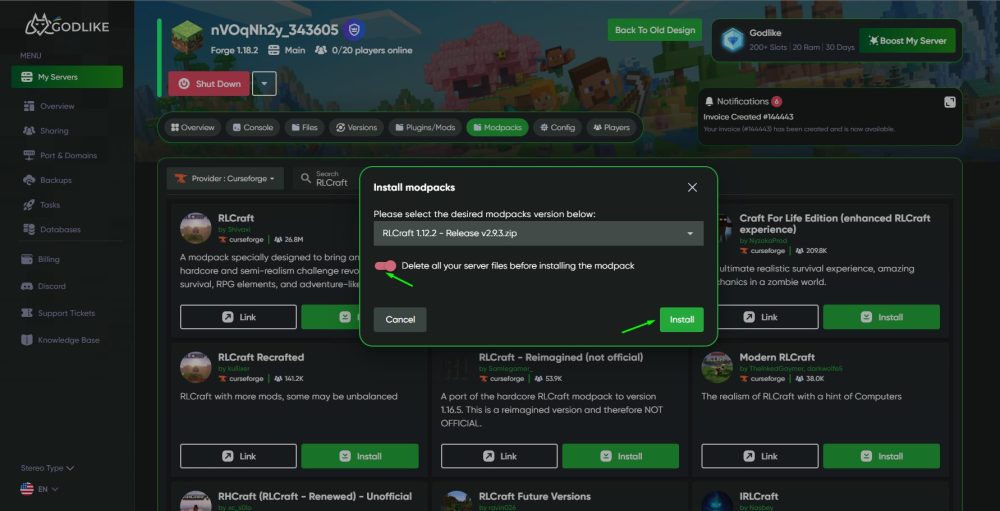
Click “Install”.
The panel will automatically:-
download the correct core (Forge/Fabric),
-
install all mods, configs, and dependencies,
- prepare your server for launch.If the modpack has a Minecraft version in its description, select the same version you have on your Minecraft client — or the one you want to play.
TIP
If you want to start fresh, enable the checkbox “Delete all your server files”
This will overwrite old files and install the modpack correctly.
👉 We recommend enabling it for the first installation or full reinstallation.

-
-
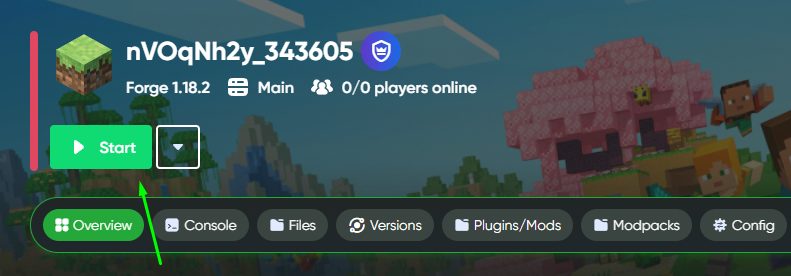
Wait for the installation to finish, then click Start to launch your server.

-
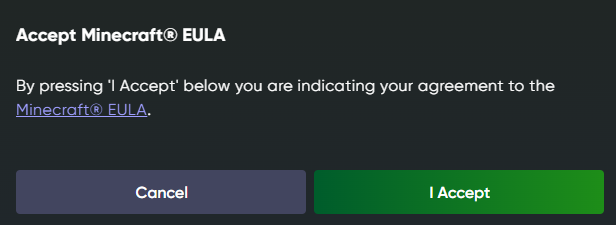
If a message about the EULA (license agreement) appears — just accept it. This is a standard Minecraft requirement.

TIP
Don’t worry about console errors or warnings when launching a modpack.
For modpacks, seeing some errors in the console during startup is normal — what matters is that the server starts successfully.If you see the message “This modpack requires more resources”, increase your RAM (we recommend at least 4–8 GB).
Also, don’t change the core manually after installation — this may break the modpack.
Possible Errors and Solutions
| Error | Why It Happens | What to Do |
|---|---|---|
| Out of memory | Not enough RAM | Upgrade your plan or increase RAM to 6+ GB |
| Mod version mismatch | Mods and server core are from different versions | Reinstall Forge/Fabric of the correct version |
| Server crashed on startup | Incompatible mods or core | Remove conflicting mods or reinstall the modpack |
| Missing server.jar | Core not installed | Reinstall Forge/Fabric via the “Versions” tab |
| EULA not accepted | License agreement not accepted | In the console, run: echo eula=true > eula.txt |
How to Update a Modpack
-
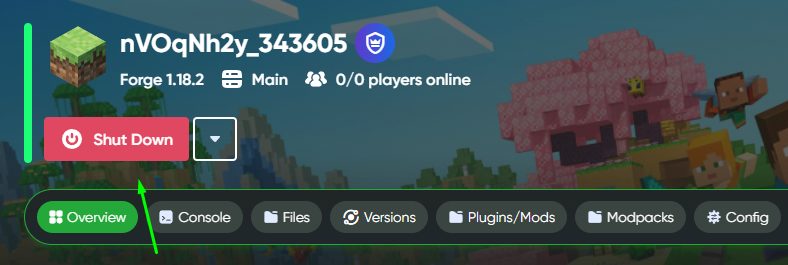
Stop the server.

-
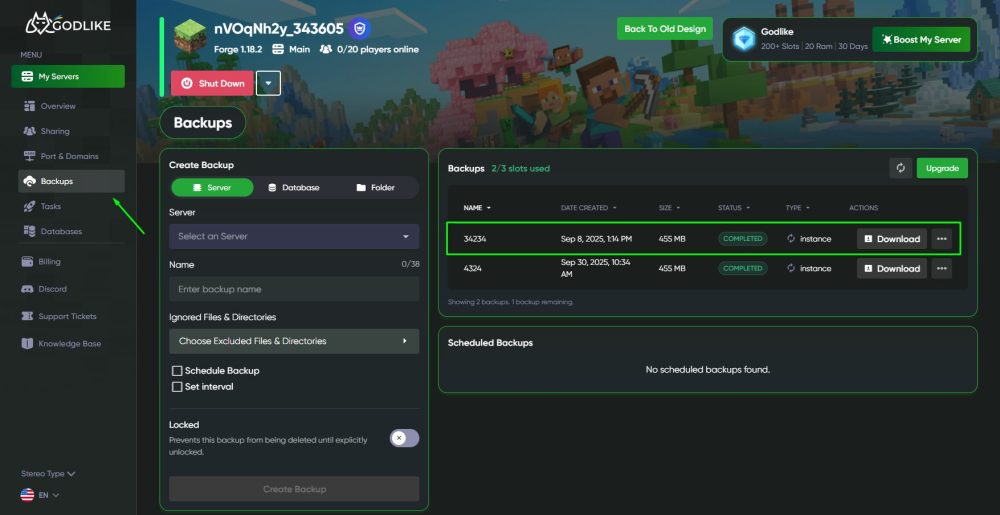
Create a backup (Backups) — just in case.

-
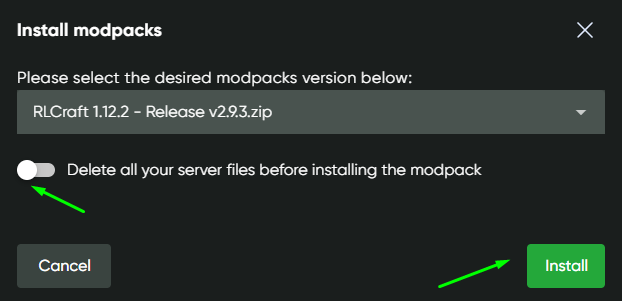
Go to the Modpacks tab, select the same modpack, and click Install.

TIP
If you want to keep your files, don’t enable the “Delete all files” checkbox.
The panel will update only the necessary modpack files.
-
Start the server and check if everything works correctly.
-
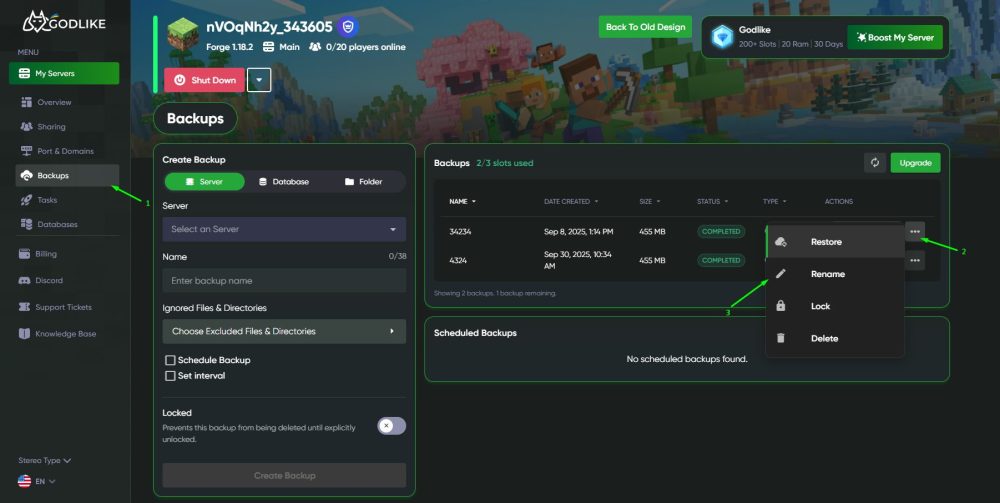
If something goes wrong after the update — simply restore your backup.

Useful Recommendations
-
Always create a backup before installing or updating.
-
For most modpacks, we recommend 8 GB RAM and Java 17+.
-
Don’t install mods from different Minecraft versions.
-
If you add custom mods — make sure they’re compatible with your core.