


 en | USD

 CHAT WITH GODLIKE TEAM

How to Solve an Issue with Server Display?
Update Rust Server
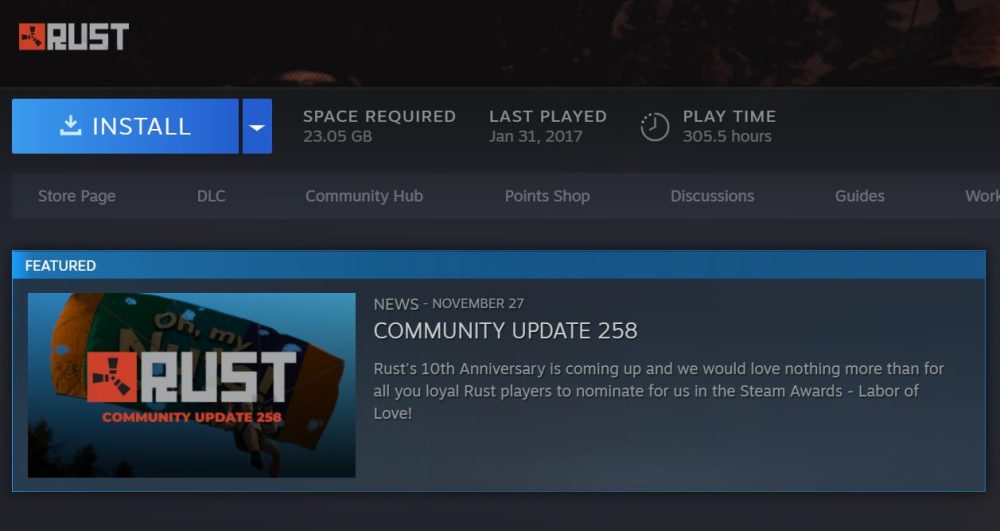
The Rust dedicated server may not appear if your Rust client does not have the latest update. You can check for updates for your server on the Steam page (if the game developers have released an update, you will see a notification) and by using our GODLIKE game panel.
TIP
Learn more about updating your Rust server by following our article
Update Modifications and Plugins
Make sure that installed modifications or plugins are up-to-date. If you find old files, replace them with the new version or delete them.
Rewrite Your Server Name
If you entered an incorrect server name, it may not appear in the table. Check the name of your server to ensure there are no special characters, fonts, etc. Make sure you only use letters and spaces in the name.
Clear Steam Cache
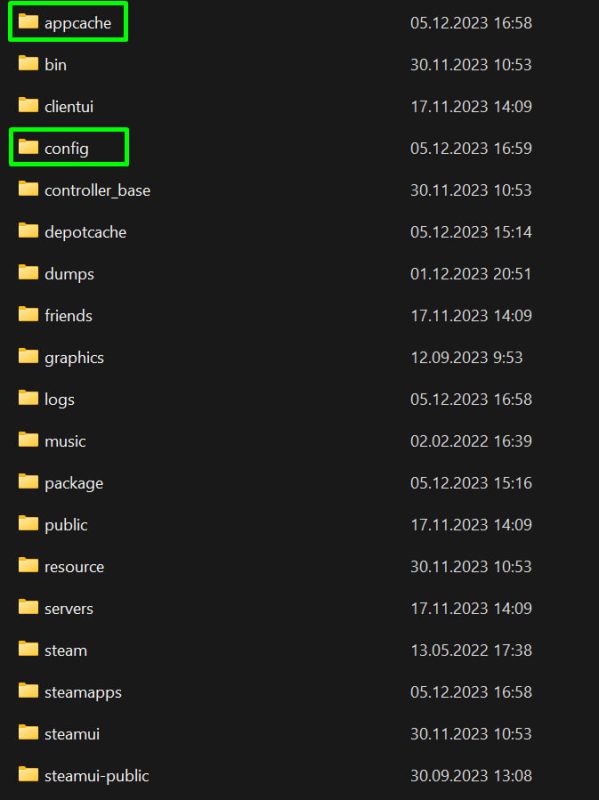
To clear the cache, go to the directory where Steam is located, then find and delete the "appcache" and "config" folders.
How to Add a Server to the List Manually?
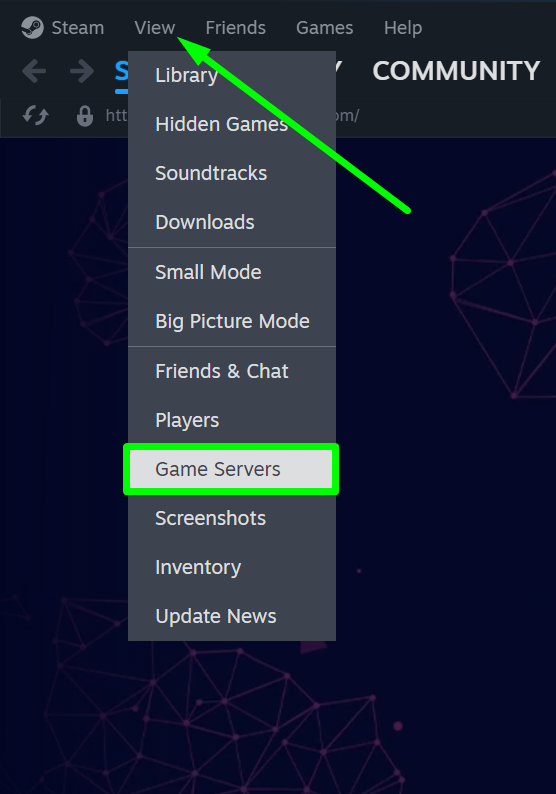
1) Open Steam and hover over the View button, then click on Game Servers.
2) Open the Favorites section in the server window.

3) Click + and enter the address of your server, then click OK.
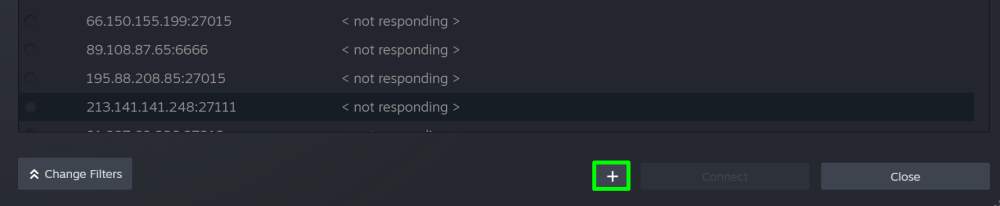
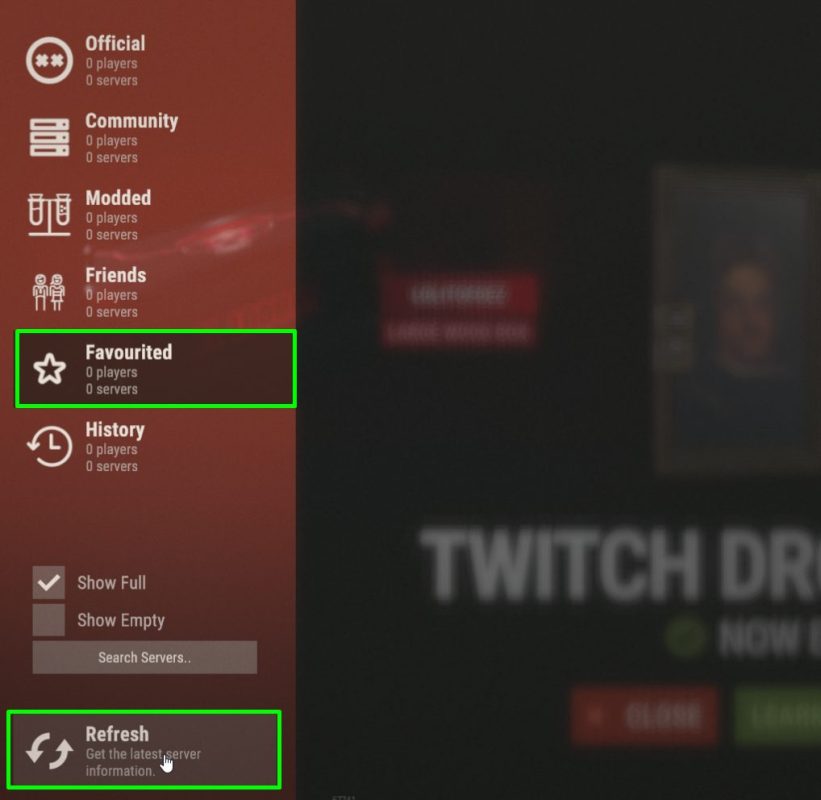
4) Open the game and refresh the list of your selected servers. Your server should appear there.
TIP
Interested in server configuration but don't have one yet? Follow this article to learn how to create your own Rust server
Now you know how to resolve the issue with displaying your Rust server. We are always here to help and happy to assist you! Play with GODLIKE.