Commands are instructions to the game, to make it do what the player wants it to do. Commands are typed into the game chat, they always start with a forward slash "/" symbol to signal to the game, that this is not just a message. Note, that for the commands to work, you must have cheats enabled in the world / server settings. General structure for any command in Minecraft is:
The answer is simple, to simplify your gameplay. Commands are tools meant to help players manage tedious tasks. They are usually avoided by those who want a true survival experience, however for anyone else - commands are a great way to get things done quickly and precisely as you wish. So, here are top 10 most important commands any player must know.
Side note:
Before diving into our top of most important commands in Minecraft, there are a couple of things you must know:
If you run into any issues, or just confused about the commands in general, you can use ingame built-in /help command, that will give the manual for all kinds of things.
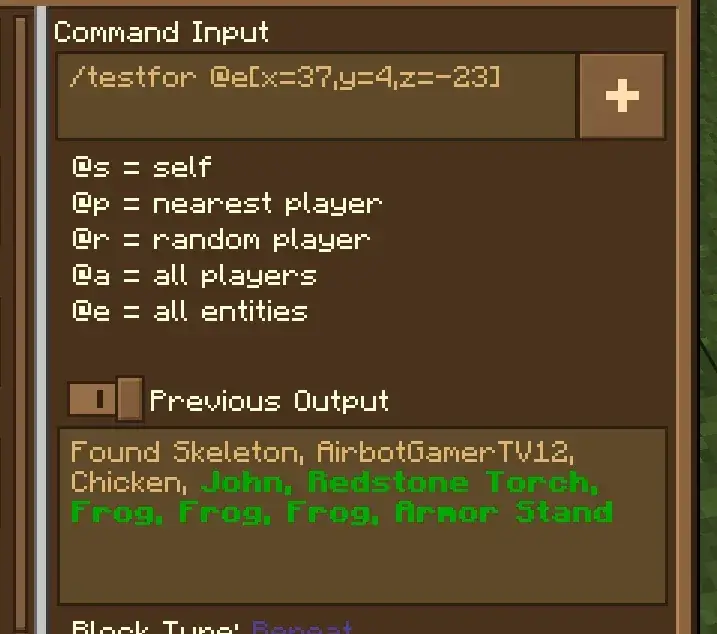
Most of the commands use so called "Target Selectors", which are basically variables used to tell the game exactly what or whom the command must target. Most common targetselectors are:
@p - nearest player: target player closest to the place where command is executed.
@r - random player: target one random player among everyone available.
@a - all players: targets all players available.
@e - all entities: targets not only all players, but also any other "living" or dynamic subject like mobs, dropped items, or even armor stands.
@s - self: target the entity executing the command(usually yourself). Target selectors can be combined with optional arguments, for exampl
/kill @e[type=zombie]
This commands will target all entities(because of @e target selector), but will also check for additional argument(the entity must have type "zombie"). So, basically, this command will kill all zombies.
With that in mind, let's dive into the top 10 most important commands in the game.
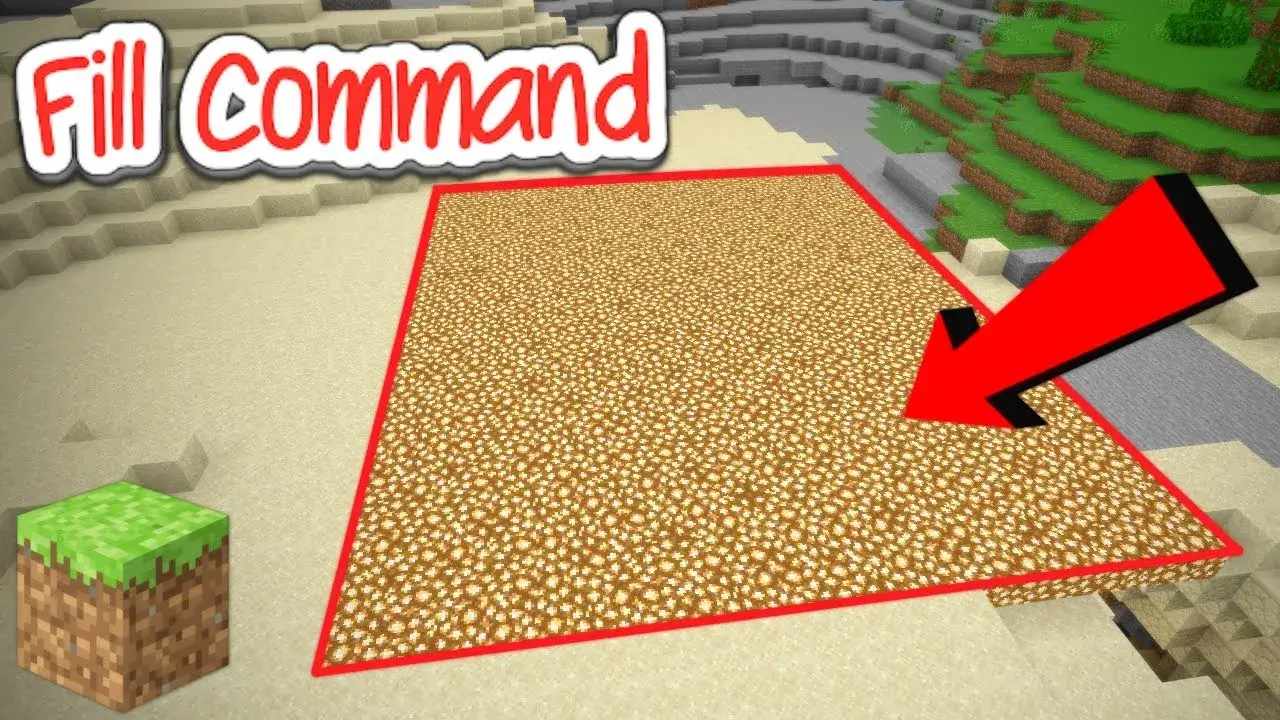
TOP 10 - /fill
A very important command for anyone, who enjoys Minecraft for its building capabilities. This command will help you clear large areas or create massive walls within seconds. The command follows simple "From point A to point B" logic:
To properly use the command, you need to use coordinates of 2 opposite corners of the "box" you are trying to fill. Imagine a 3D rectangular box, to fill it up with /fill commands, you will need coordinates of bottom left-corner and top-right corner. To simplify usage, you can use relative coordinates. "~" symbol means, the coordinate at which player stands right now. So instead of having to manually enter precise coordinate, you can for example do something like this instead:
/fill ~ ~ ~ ~10 ~5 ~10 stone
This will tell the game to create a box(filled with stone) that is 10 blocks long(~10), 5 blocks high(~5), and 10 blocks wide(~10) from the point where i am standing(~ ~ ~). Note that the command also has different modes:
replace: only fills specific blocks.
hollow: fills the outer layer of the box and turns the inside into air.
outline: fills the outer layer of the box, but doesn't change anything on the inside.
keep: only fills blocks that are classified as "air" or empty, so this mode let's you use the fill command without overriding what is already built.
As for limitations, there are only a few:
You can only fill 32 768 blocks at once. So with area too big, the command will simply fail.
There is not undo button / command, so be careful with what you are doing. This command is a must know, but only for a specific types of players - builders, that is why it only gets 10th place in the top.
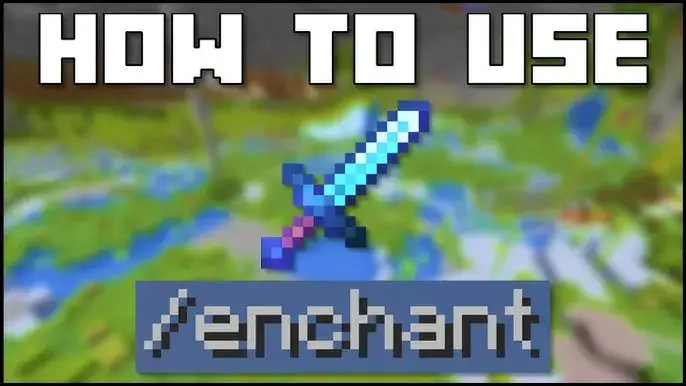
TOP 9 - /enchant
This command is a must, if you need to quickly enchant an item, saving yourself the hustle of settings up an enchantment table. It also let's you bypass the XP and lapis requirement for an enchantment. To use the command, take the item you want to enchant into your main hand, and type the following:
/enchant <targets> <enchantment> [level]
Limitations and things to keep in mind:
If no level of enchantment is provided, the command defaults to level 1.
The command only works on the item held in player's main hand during the execution.
The command doesn't allow you to exceed enchantments maximum level. For that you would need to use other commands like /give .
The command doesn't allow to put incompatible enchantments(like Silk Touch and Fortune) on the same item.
The command doesn't allow to enchant items with enchantment not suitable for them. For example, you cannot enchant a sword to have Protection IV
Great command to help you manage your gear without any extra hustle.
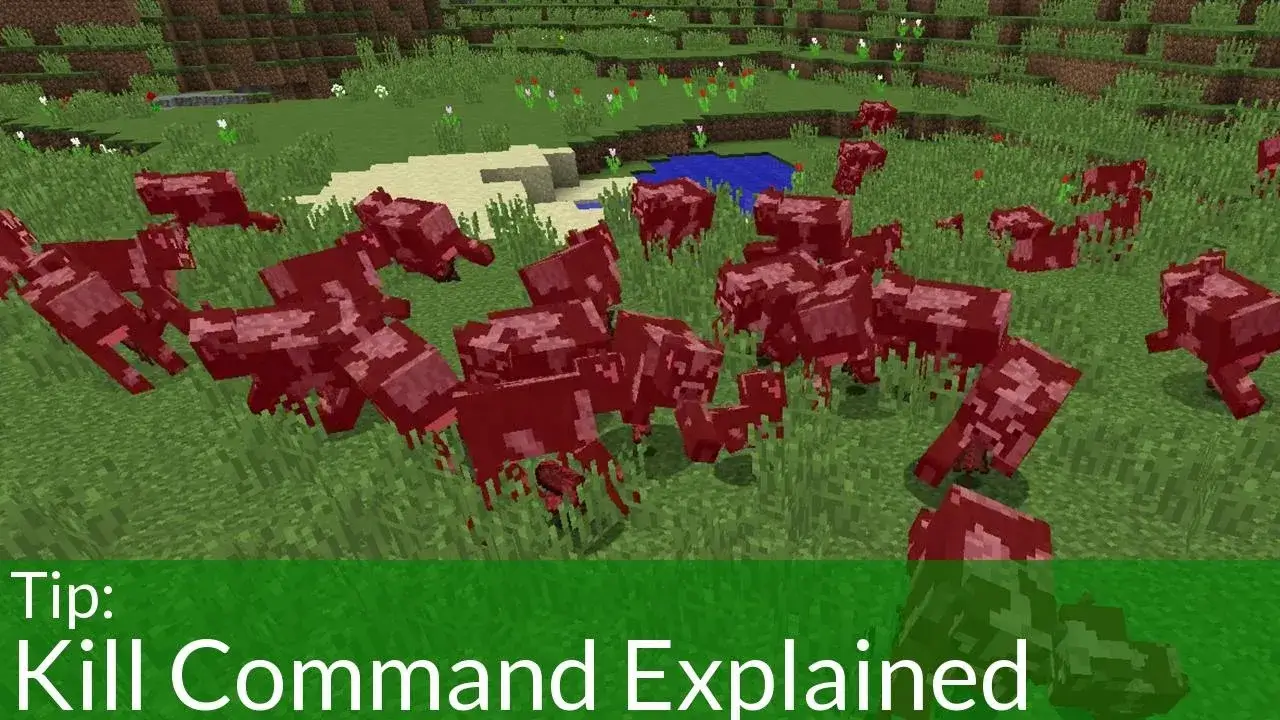
TOP 8 - /kill
This command is quite self explanatory - it kills the specified target. Can be a powerful tool for moderation or a little bit of friendly trolling.
/kill <target>
The command works on all the targets like specified before. So /kill @e will kill all entities: players, mobs(peaceful or hostile), your pets, even dropped items and armor stands will be affected. Also, typing just /kill without target will kill player who wrote it by default. Good thing to keep in mind while using the command - always set a target and specify optional arguments. For example command /kill @e[type=item] deletes all dropped items and therefore reduces the lag.
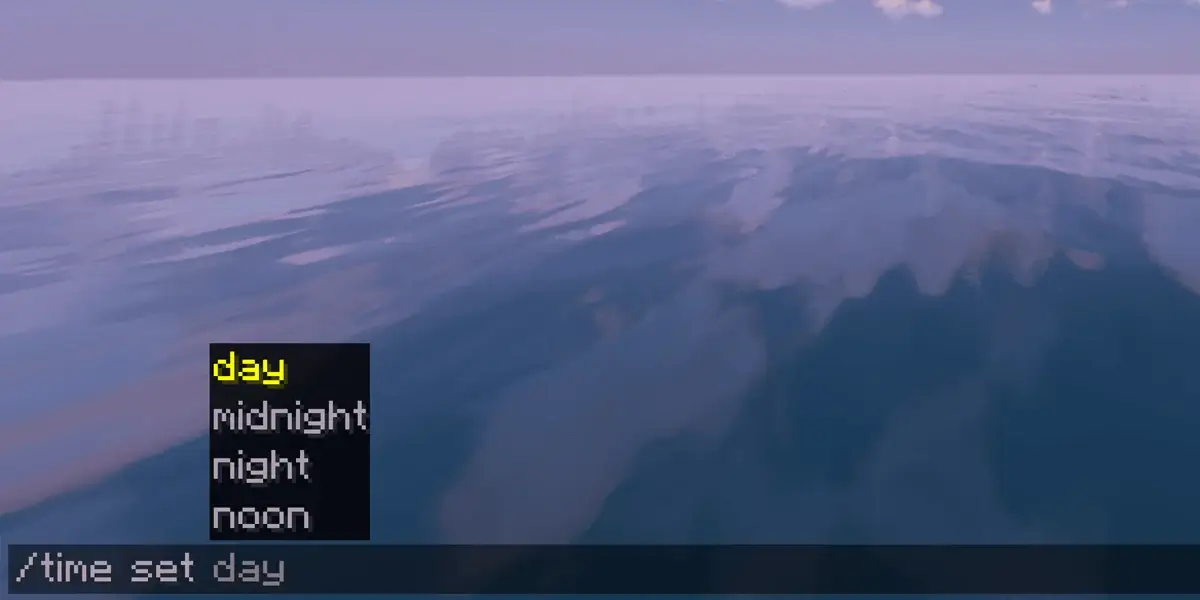
TOP 7 - /time set & /weather
These 2 commands are usually used alongside each other to set a perfect mood and atmosphere for the world / server, by manually choosing time of the in-game day and weather. They can take various optional arguments, so here are the essential ones:
/time set day(night) - sets the time to daytime or nighttime.
/time set 0 - sets the time to the beginning of the day(6 AM).
/weather clear - sets a sunny(clear) weather.
Side note:
After using /time set command the in-game day counter(which can be found by pressing F3) will be automatically reset to day 0. So if you are using day counter as a measurement for how long you've been playing, or for some other purposes - be cautious with this command.
TOP 6 - /spawnpoint & /setworldspawn
Both of these commands are used to manage a place, where player will respawn after death. However, there is a major difference between these 2 commands:
/spawnpoint - sets a respawn location for a specific player. The same idea as with beds(the place where you place and use it will be your specific spawn point), but by using the command you can set spawn point anywhere, at any time, without bed.
/setworldspawn - sets a respawn location for any new player in the world / server, or for any player who doesn't have / lost their specified spawn point.
TOP 5 - /locate
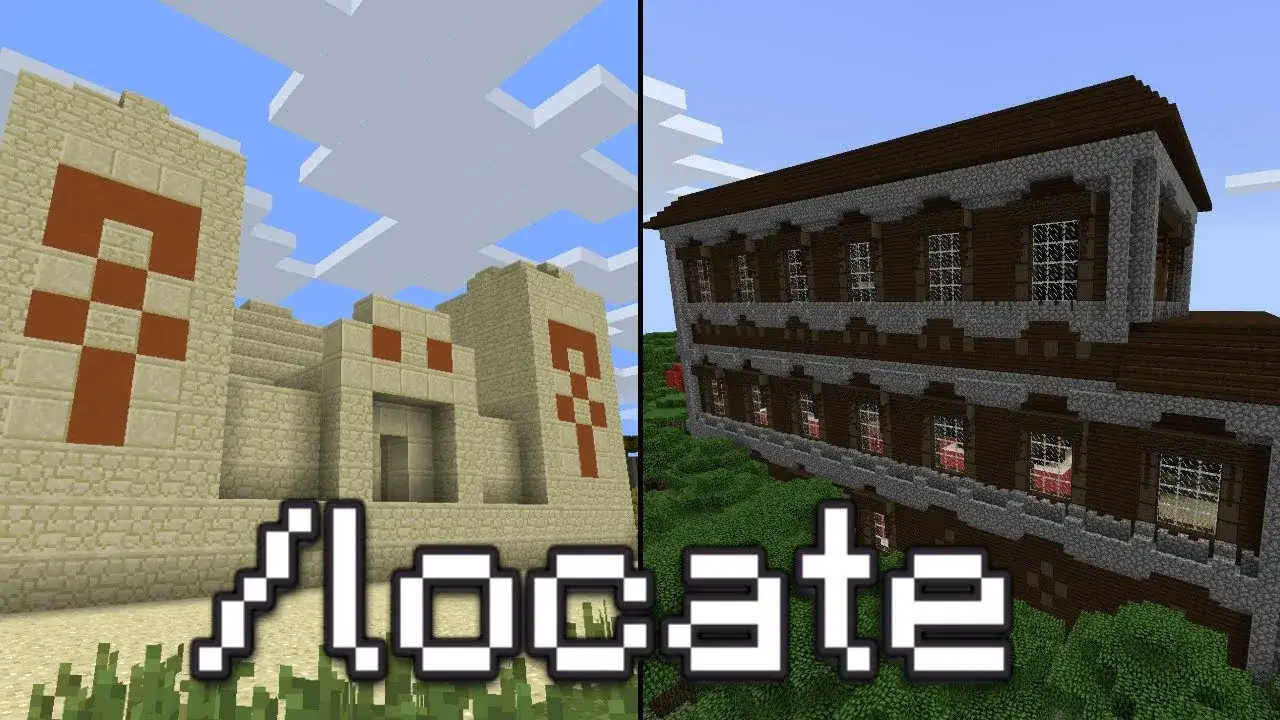
This command is used to find nearest specified structure / biome in your Minecraft world / server. As the result of command's execution, you will be given the exact X, Y and Z coordinates of a specified structure.
/locate <structure/biome>
TIP
after executing /locate you can click the coordinates you got in chat to automatically teleport to the area.
TOP 4 - /gamerule
This command provides so many feature and tweaks you can do to your world / server, that it could easily get an article of its own. However, the core idea behind /gamerule is to, well, set game rules: add or remove certain settings and tweaks that dictate your gaming experience. Here are the most used ones:
/gamerule keepInventory true : sets a game rule that will prevent a player from loosingwhatever they have in the inventory after dying. This make the game way less stressful and is a preferable way to play for many players
/gamerule doDaylightCycle false : sets a game rule that stops day-night cycles or in other words - freezes time, so you will have a constant day / night(depending on when you executed the command).
/gamerule mobGriefing false : sets a game rule that prevents mobs from griefing. This means that Endermans will no longer steal blocks, Creepers will no longer destroy blocks when exploding etc.
TOP 3 - /give
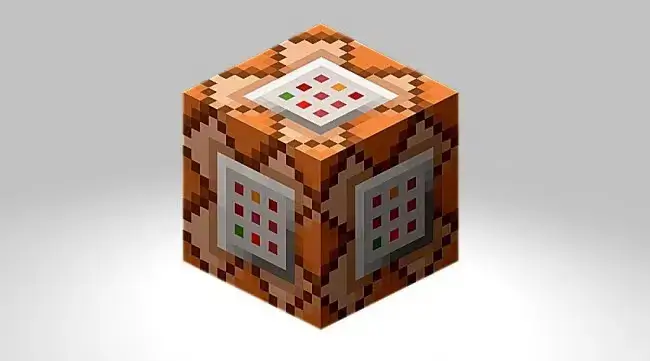
This is one of the most powerful commands in the game, that let's you or a specified target to acquire any item in the game. With this command you can access anything withing seconds, which saves you lots of time and hustle such as looking up crafting recipes, searching, looting, mining for items etc. However, the true power of this command is that you can acquire items that unavailable without cheats: Command blocks, Barrier blocks, Debug stick, or items withcrazy enchantments that exceed their maximum levels.
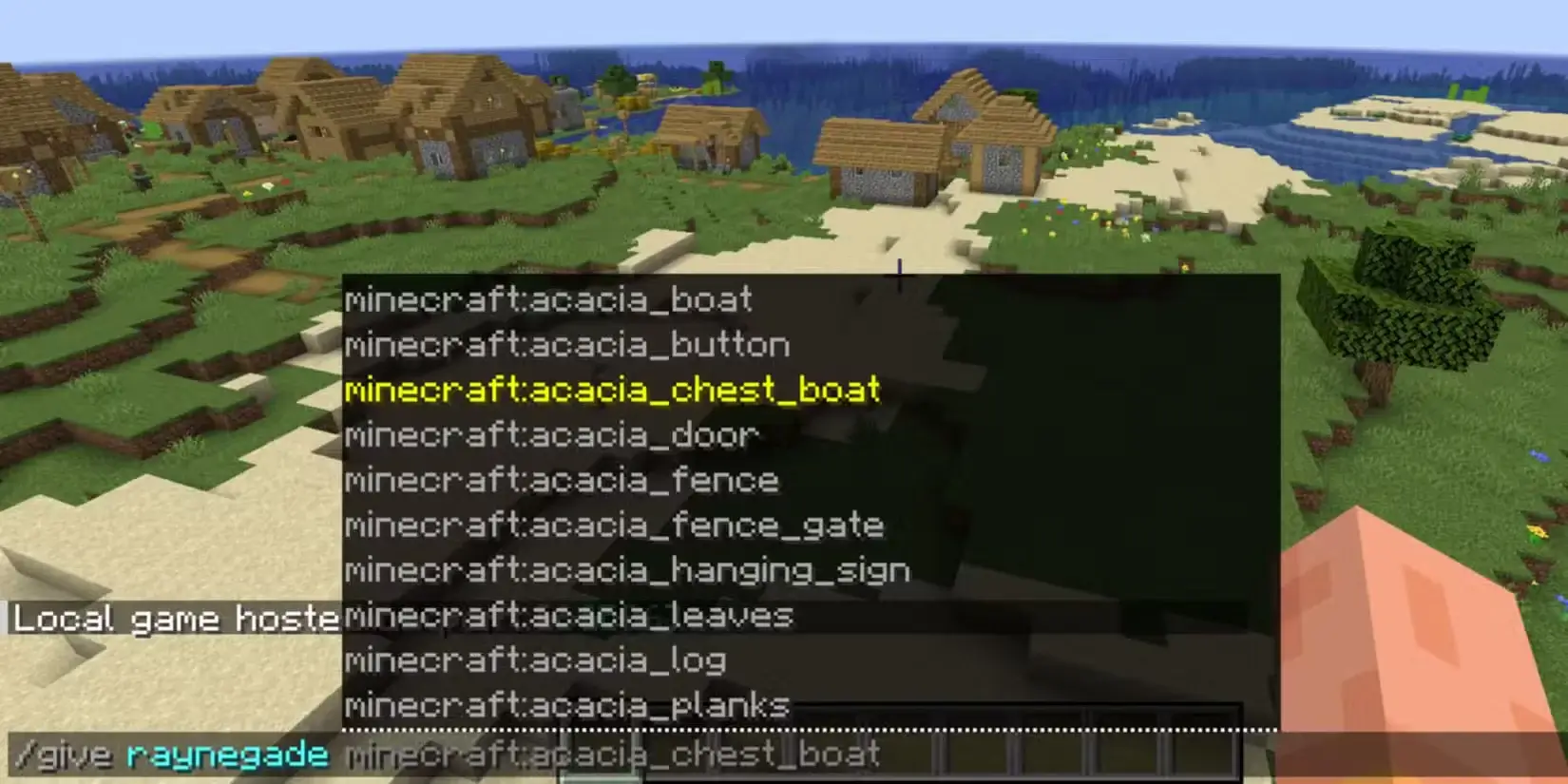
/give <target> <item_id> [amount]
Note that when typing out the name if the item you would like to acquire start with "minecraft:name_of_the_item". You can also use Tab to autocomplete what you already started typing. The example of the command would look like this:
/give @s minecraft:diamond 64
TOP 2 - /tp
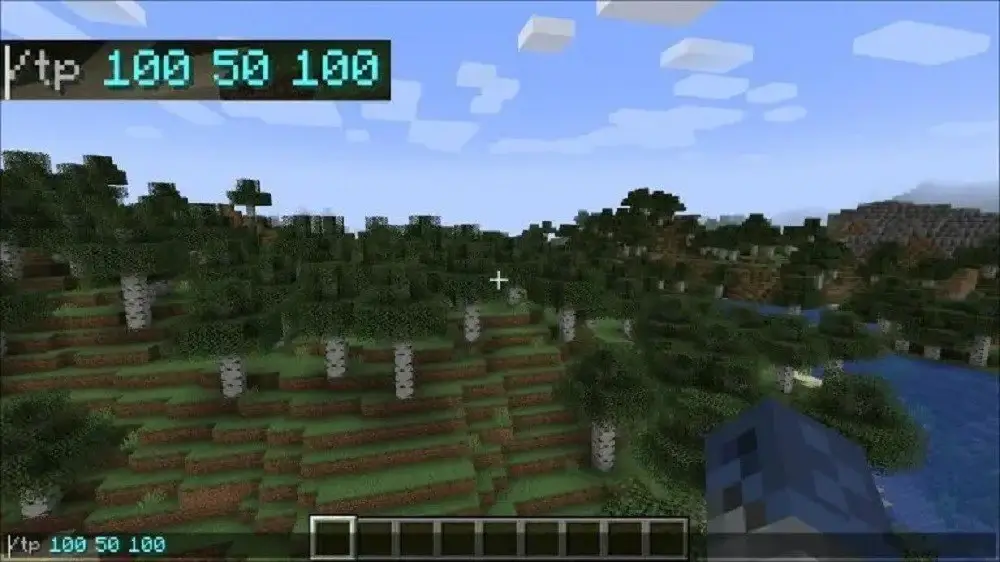
One of the most essential commands each player must know. "tp" is short for teleport, knowing that, it's pretty easy to guess what the command does - i teleports the specified target to the specified location or another player. Here's the syntax:
/tp <player> X, Y, Z - teleport to specified location
/tp <player> <target_player> - teleport one player to another
The same way as with the /fill command, you can use relative coordinates with /tp command:
/tp @s ~ ~ ~
For example /tp @s ~ ~10 ~ teleports a player who executed it 10 blocks up on Y axis.
TOP 1 - /gamemode
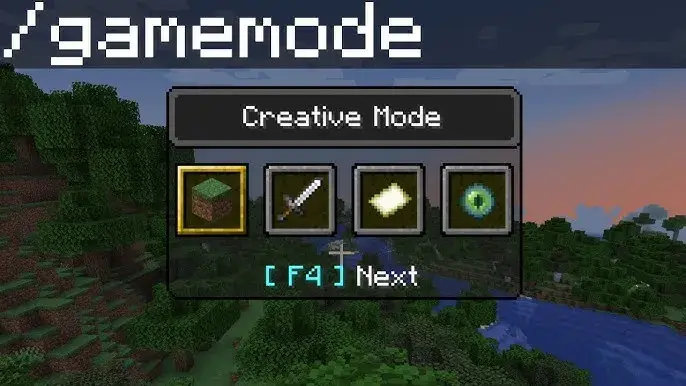
This command is so essential to most of the players, that it even got an official shortcut. Its purpose is to switch game modes(Survival, Creative, Spectator) for a player who executes it. The syntax of the command is as follows:
/gamemode <name_of_the_game_mode>
For example: /gamemode survival or /gamemode creative As it was mentioned before, the command is so important and often used, that the game even has the dedicated shortcut for it. To use it hold F3 and press F4 to loop through game modes.
Conclusion
That concludes out top 10 most important commands in Minecraft, if found yourself curious about more, we suggest you digging deeper into this topic online, as it is very interesting. Thank you for reading and /gamerule goodLuck true !
FAQ
What is a command in Minecraft?
Command is a certain instruction to the game to make it do what player wants it to.
Why would you use any commands at all?
The answer is simple, to simplify your gameplay. Commands are tools meant to help player manage tedious tasks. They are a great way to get things done quickly and precisely as you wish.
What is a general command structure?
/command "required_argument" [optional_argument]
What are target selectors?
Target selectors are variables used to tell the game exactly what or whom the command must target. Most common target selectors are: 1) @p - nearest player; 2) @r - random player; 3) @a - all players; 5) @e - all entities; 6) @s - self
What are relative coordinates?
Relative coordinates or "~" symbol are the coordinate at which player stands right now. So instead of having to manually enter precise coordinate, you can for example do something like this instead: /tp @s ~ ~100 ~; Which will tell the game: take my coordinates, and teleport me to the same X, Y + 100 and same Z. It's a convenient way to work with coordinates instead of doing math in your head.
Can I combine optional arguments with target selectors?
Yes, you can use optional arguments to even further specify the target for the command. For example: 1) /kill @e - kills all entities; 2) /kill @e[type=zombie] - kills all entities that have a type "zombie".
Fawn
Minecraft Writer
Hi, I'm Fawn. I started out just messing around in Minecraft with friends, then one thing led to another, and suddenly I was streaming, building worlds, and losing sleep over redstone logic.
I like games that make you feel something—whether it’s a good RPG story like Nier or Kingdom Hearts, or the collective suffering of solo-queuing in Valorant.
Mostly, I just create, experiment, and have fun with it :D
Important Note: Godlike.host is our own service. This ranking is editorial (not paid placement) and follows the scoring criteria shown below. Always verify current plan limits, pricing, and regions on each provider’s website before purchasing….
TL;DR If you want one seed that feels like a complete starter world, pick Cherry Valley Trio (Seed: 608548899648438462) for villages, deep structures, and a strong exploration route.If you want a dramatic build location with…
Ultimate Minecraft Diamonds Mining Guide Why are diamonds so wanted by many? Minecraft Diamonds – shiny blue gems in the world of Minecraft that also happen to be the ore required to have the best…



 en | USD
 CHAT WITH GODLIKE TEAM