


 en | USD


 CHAT WITH GODLIKE TEAM

Map sizes
Vintage Story server have quite large maps, providing players with a vast space for their gaming experience: building, exploring, and more. This applies to almost all sandbox and survival genre games. If the game map is too large or too small for you, in this article we will explain how to change its size.
TIP
How to change the map size
1) First, go to the game panel in the Console section and turn off the server.
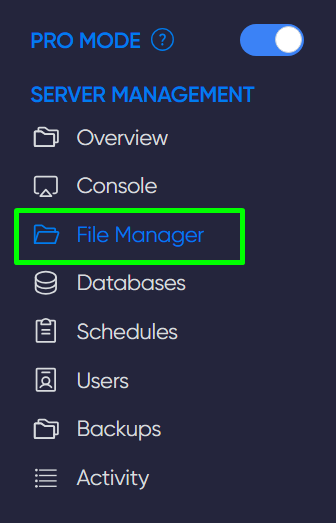
2) Next, navigate to the File Manager section and open the serverconfig.json file, located in the data folder.
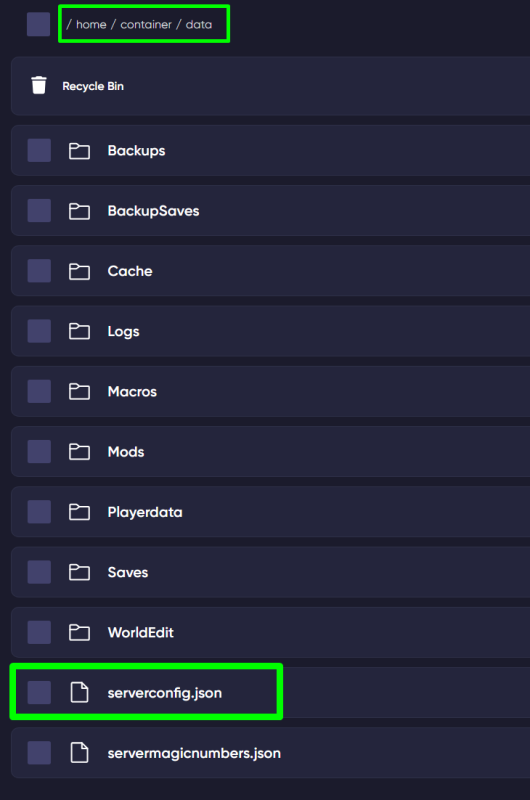
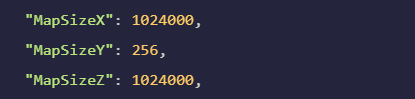
3) In this file, find the line MapSize and its three dimensions: X, Y, Z (width, height, and depth). Edit the numerical values, then save the file.
TIP
Now you know how to adjust the map size to your liking. We wish you a fun gaming experience! Play with GODLIKE.