Why You Need Java for Minecraft Mods
Welcome to another article in our “Minecraft Mods” series, where we explain everything a player needs to know about mods and how to install them. In our latest “Minecraft Mods: Forge Installation” article, we’ve mentioned that to properly open the Forge installer, you need to right click the file > Open with > Java. We also mentioned that sometimes you might not have such an option, simply because you don’t have Java installed. In this article we will cover how to fix this issue.

Make your own FREE minecraft server
MINECRAFT FREE SERVER
Do You Need Java to Run Minecraft Mods?
Java is a programming language in which Minecraft is written – hence the name “Minecraft: Java Edition”. Java uses a technology called “JDK”, which stands for Java Development Kit. JDK is used to compile and run Java software. So, for Minecraft mods to be properly compiled and run within your game, you need to have the right version of the JDK installed.
Once Java is installed, you can host a modded Minecraft server without extra setup issues.
How to Install Java on Windows for Minecraft
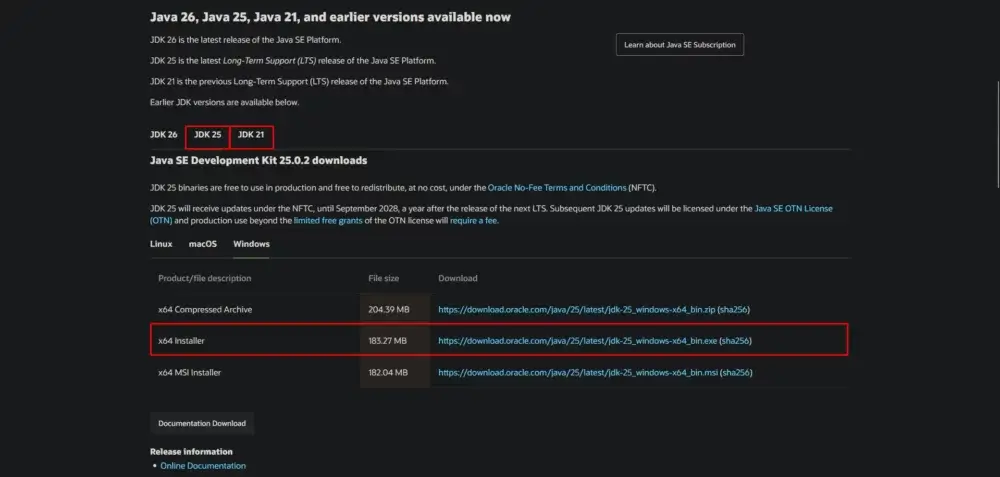
Head to the official Java website, click JDK 25 and click the link next to “x64 Installer”. Note that JDK 25 is used for the newest version of Minecraft 26.1. If you are playing on older versions you should download the corresponding version of JDK:
| Minecraft version |
JDK version |
| 26.1+ |
JDK 25 |
| 1.20.6 - 1.21 |
JDK 21 |
| 1.18 - 1.20.4 |
JDK 17 |
| 1.16.5 and older |
JDK 8 |
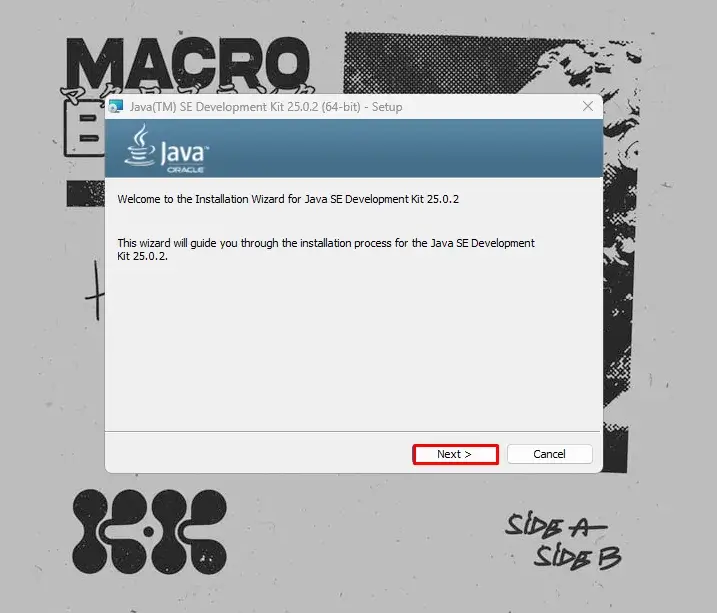
Then open the installer and click “Next” until the download begins.
Once the download is complete, you should see a “Successfully installed” message.
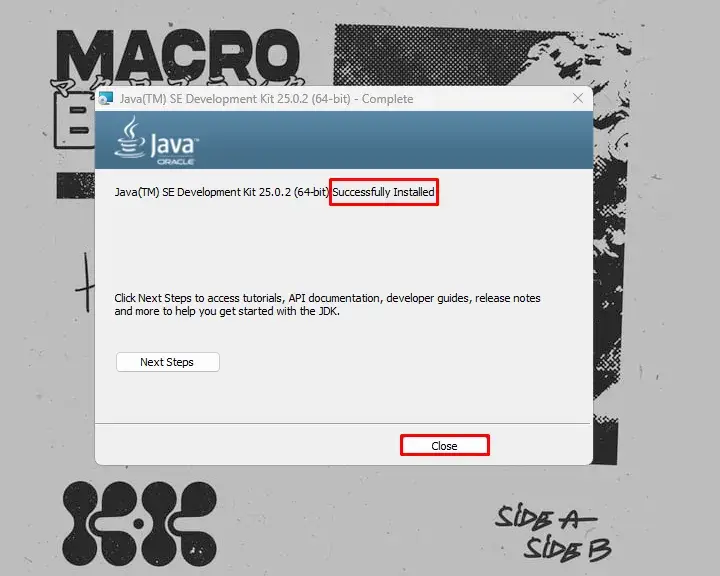
Congratulations, now you have Java installed and everything is supposed to work properly. Just keep in mind that you might need to reboot your computer first.
How to Fix .JAR Files That Won’t Open
Sometimes, even after installing Java, an already installed .jar file might not be able to see the installed instance of Java. What should you do in this situation?
No worries, there is an easy fix, and you don’t need to download .jar files again. Go to this website and download the Jarfix app. To put it in simple terms, this small app is issued to fix issues like the one we face, when you have Java installed, but .jar files don’t run for some reason.
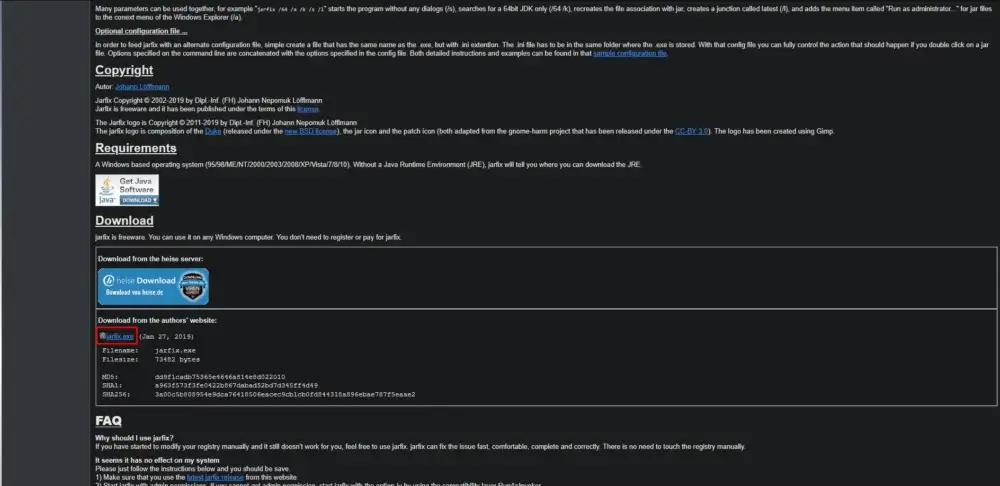
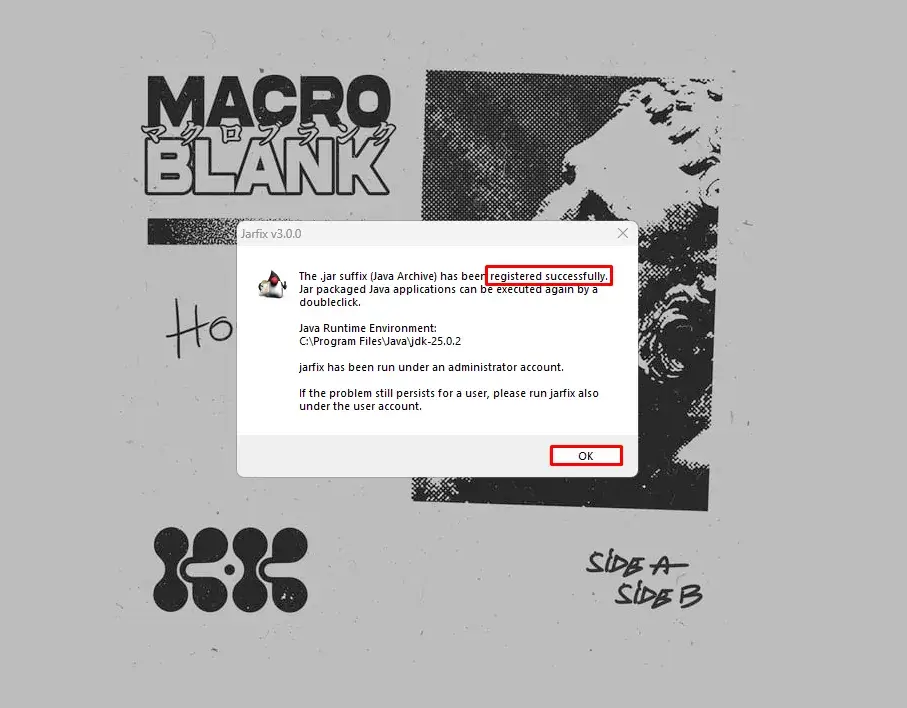
Once Jarfix is downloaded, open it and wait for it to fix the issue. If everything goes well, you should be greeted with a “Registered Successfully” message. Click “OK” and the issue should be resolved by now.
Conclusion
This was our small, but nonetheless, important guide on how to install Java for Minecraft, which concludes our “Minecraft Mods” series. Thank you for reading and we hope we were able to help!







 en | USD
 CHAT WITH GODLIKE TEAM