Although vanilla Minecraft doesn’t support voice chat, players can add this feature by installing a mod, such as Simple Voice Chat. This modification not only allows you to communicate with other players via your mic, but also makes voice chat positional. This means you can hear other players based on their distance from you in the game world.

Make your own FREE minecraft server
MINECRAFT FREE SERVER
At the same time, this mod offers additional voice chat features, including whispering, group chats, push-to-talk, voice activation, and individual volume controls. There is also a special multiplayer server setup that can significantly improve communication on your Minecraft server without relying on Discord. Read our Minecraft proximity voice chat guide to find out how this modification works and how you can properly adjust it.
What Is Proximity Voice Chat in Minecraft?
Minecraft proximity chat is a feature that allows players to talk to other users on a server using their microphones. Moreover, unlike an ordinary voice chat in Discord, here your communication directly depends on how close you are to a player. For example, if someone is too far from you, you simply won’t be able to hear them.
Proximity chat for Minecraft is extremely popular with players due to the advantages it provides. Regardless of which mod or plugin you use, these tools typically offer:
- Distance-Based Audio: As you approach or walk away from other players, the strength of their voices changes.
- 3D Positional Sound: You can hear voices from different directions inside the Minecraft world, allowing you to identify players’ positions.
- In-game Feature: Minecraft voice chat mods don’t require you to use any third-party app such as Discord or TeamSpeak.
What Is Simple Voice Chat?
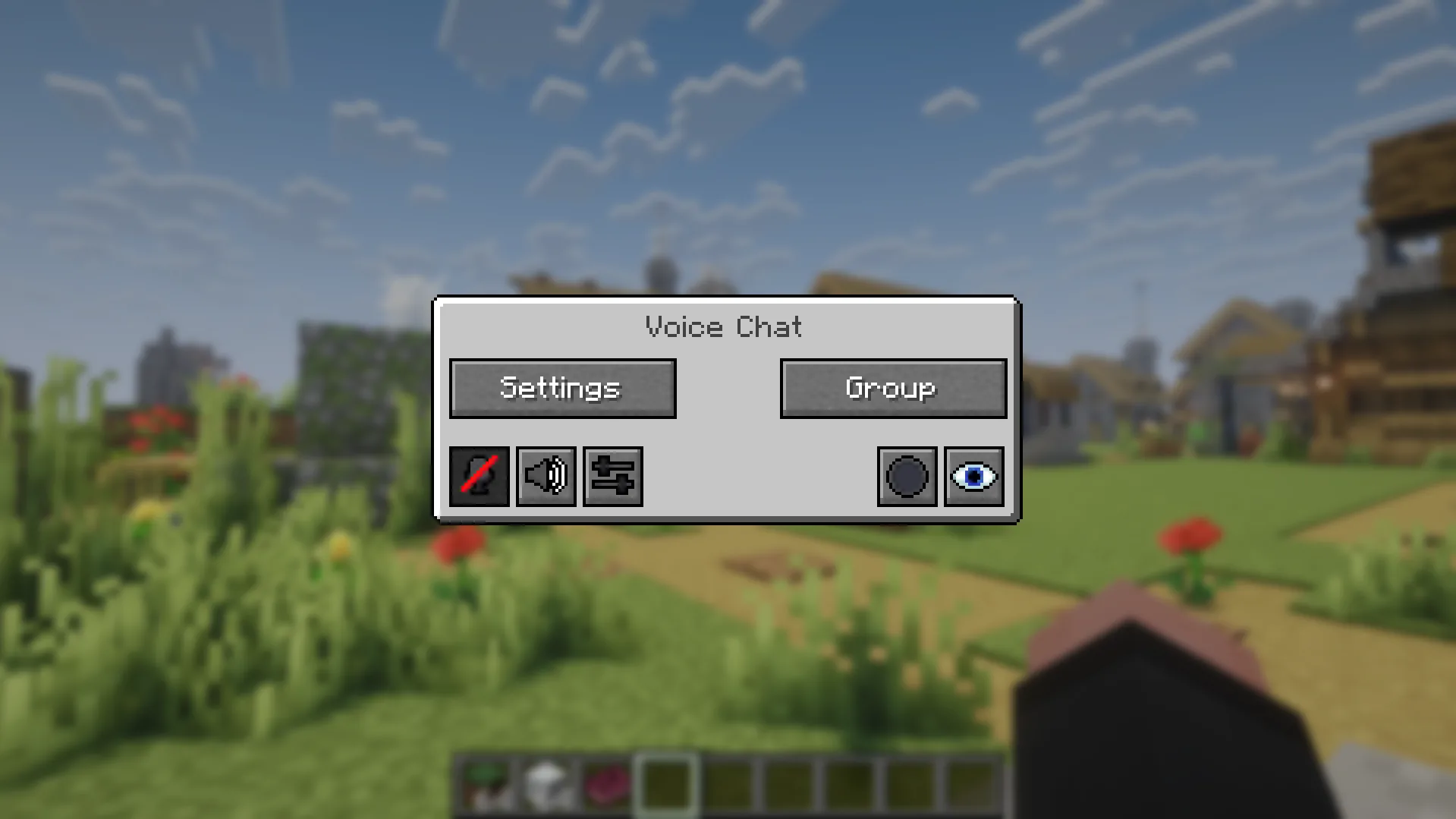
Minecraft Simple Voice Chat is a popular open-source mod and plugin for Java Edition. It adds in-game proximity voice chat and offers a variety of attractive benefits:
- Proximity chat with 3D audio
- Group calls
- Noise suppression
- The ability to switch between push-to-talk and voice activation
- Cross-compatibility between all popular mod and plugin loaders, including Fabric, NeoForge, Forge, Quilt, Bukkit, Spigot, and Paper
- AES encryption
- Automatic voice activity detection and microphone gain adjustment
What Players Need for Proximity Voice Chat in Minecraft
Of course, you need a basic Minecraft proximity voice chat setup to communicate with your friends and other players on an online server. Your basic kit for using voice features must include:
- Working microphone and audio output device: You can’t communicate with others without a mic and headphones or speakers. Also, don’t forget to properly configure these devices in your Minecraft settings.
- Client mod: Even if you play on a server with a proximity chat plugin, you will still need to install a client mod on your computer and ensure it matches the exact Minecraft version of the server.
If you use Simple Voice Chat, this mod by default requires you to press the “V” key to open the voice chat menu. There, you can adjust volume, test your mic, create groups, and switch between push-to-talk and voice activation.
How to Install Simple Voice Chat
Let’s review how to install Simple Voice Chat in Minecraft for both client and server. In both cases, you’ll need to ensure that the downloaded mod version is compatible with your Minecraft version and mod loader. When you’ve checked everything, you can follow the next instructions.
Installing Simple Voice Chat on your PC
You can download the necessary Simple Voice Chat version from popular and reliable websites, such as CurseForge. Once you get the file, place it in the following Minecraft data directory:
%appdata%\.minecraft\mods (for Windows)
Afterward, launch the game and press V in-game to open the voice chat setup menu. Adjust your devices to ensure a pleasant experience when you enter a server.
Installing Simple Voice Chat on a server
Installing a Minecraft voice chat mod on a server may seem difficult, but with our step-by-step instructions, you’ll easily deal with this task:
- Once you’ve downloaded the appropriate version of Simple Voice Chat, stop your server and upload the .jar file to the appropriate mods or plugins folder, depending on your server software.
- Start your server again and wait until it generates the configuration files so you can adjust voice networking and the port.
- Restart your server and test whether your mod or plugin works properly.
Voice chat port and server setup
Simple Voice Chat uses a dedicated UDP port separate from the main Minecraft server port. Unlike TCP, UDP does not establish a connection through a handshake or guarantee packet delivery, making it suitable for real-time voice communication.
Follow our step-by-step Simple Voice Chat guide to properly adjust the chat port on your server:
- Allocate an additional UDP port or note the port assigned by your host in your server host’s game panel.
- Edit the config file (find it in the mods or plugins folder).
- Find the line port= (by default, its value is 24454) and replace it with your newly allocated server port.
- Save the file.
- Restart your Minecraft server and check whether everything works fine.
How Voice Distance Works in Minecraft Simple Voice Chat
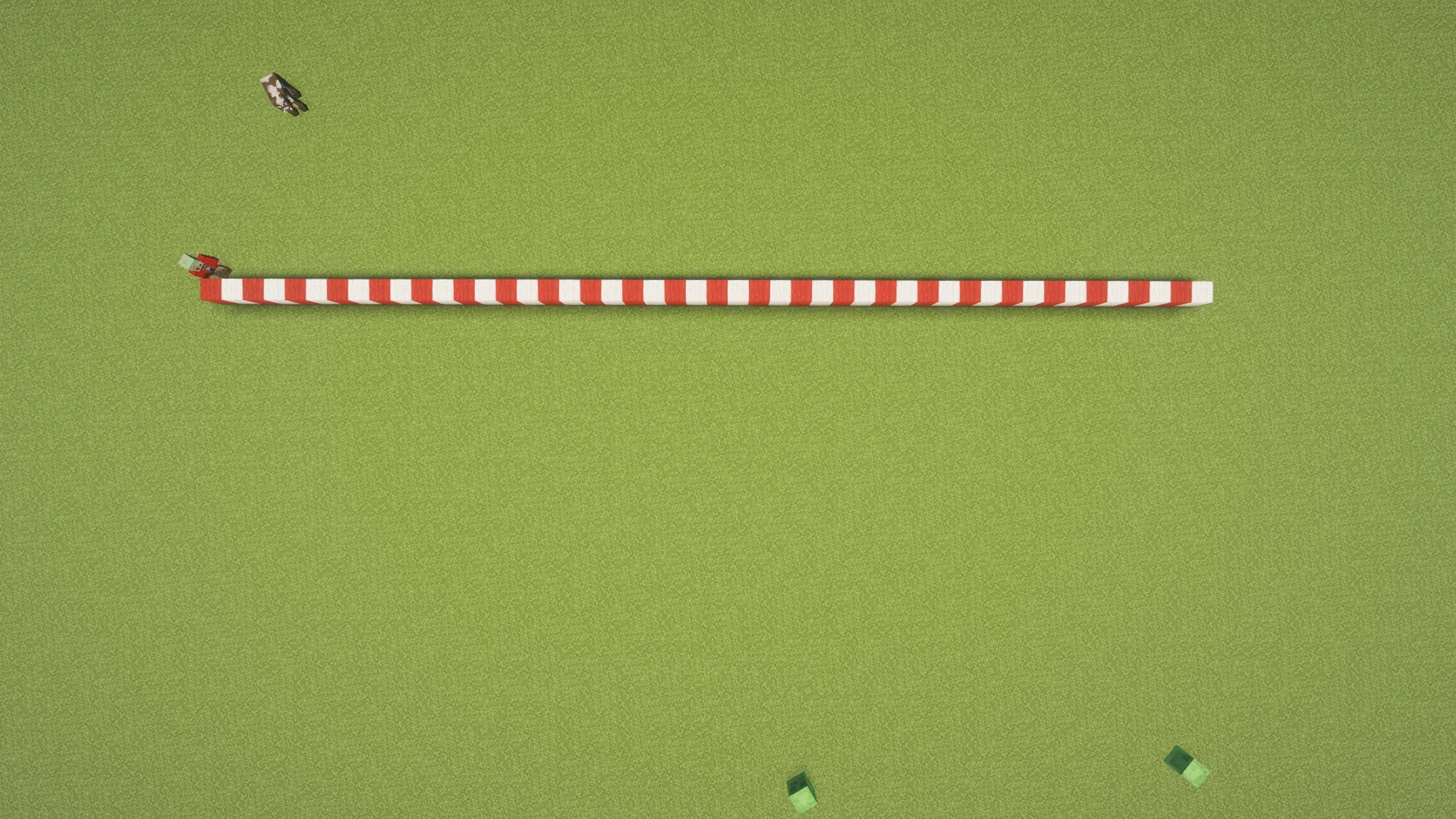
Simple Voice Chat is a Minecraft voice chat server plugin that broadcasts players’ microphone audio up to a set number of in-game blocks. As you move farther from the voice source, the volume gradually decreases.
By default, players can hear each other up to about 48 blocks away. However, server admins can adjust this value, depending on different factors. For example, the default range works well for conversations on a small SMP server. However, if you plan an event in a large community area, it may be reasonable to increase voice distance to ensure everyone will hear you and other speakers.
Whispering

Minecraft voice chat plugin also supports a whisper mode with a smaller voice range of around 24 in-game blocks. This is a great option to speak more quietly to nearby players, communicate with your teammates, or ensure you won’t disturb others in crowded areas.
Push-to-talk vs voice activation
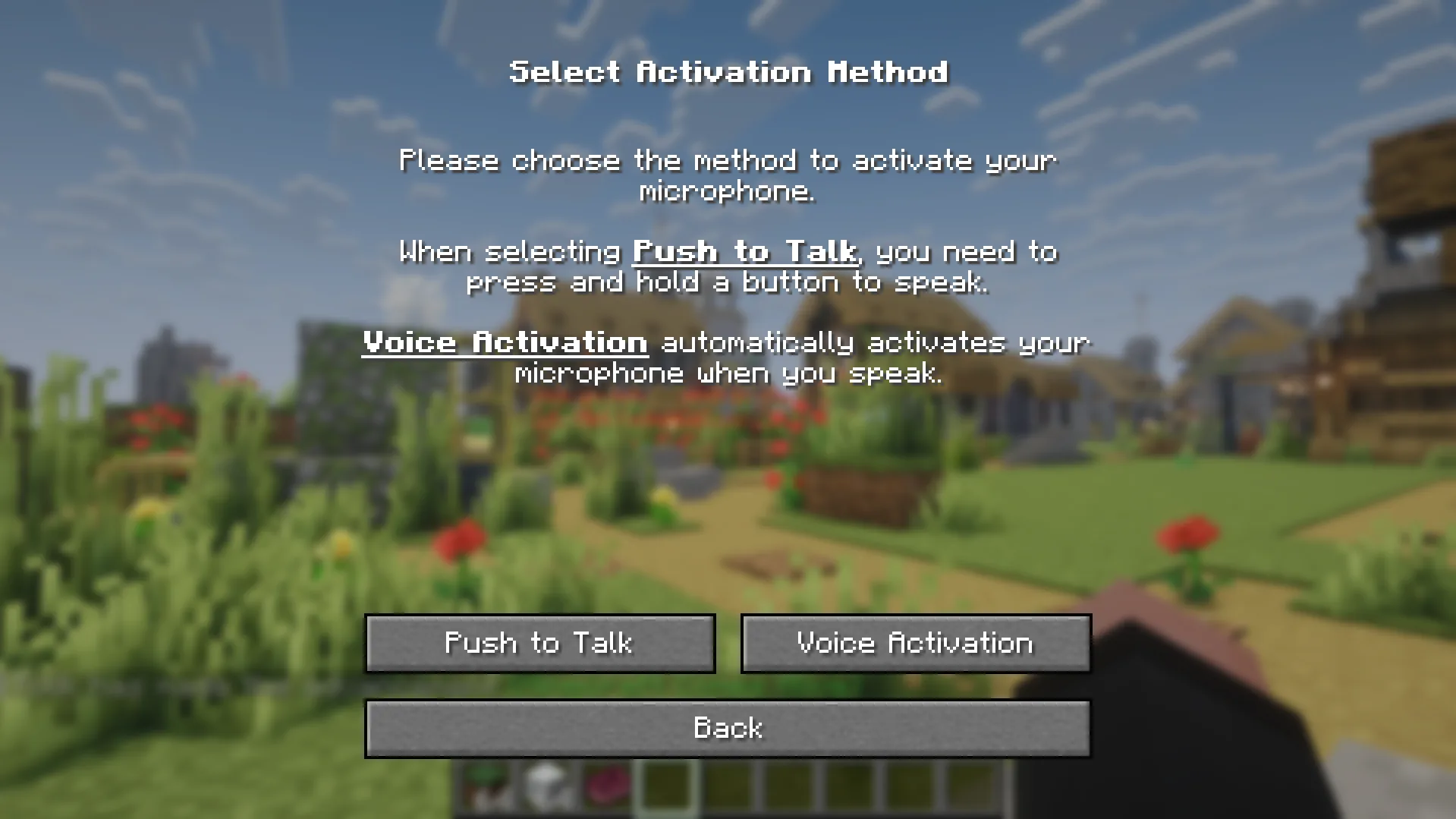
You can also switch between Simple Voice Chat push-to-talk and voice activation features. Both voice transmission methods have their advantages, so you can choose the one that meets your specific preferences and communication style:
| Mode |
Best for |
| Push-to-talk |
Gives you control over when your microphone transmits audio. A great option for streamers. |
| Voice activation |
Enables natural, hands-free conversations, similar to talking with friends on Discord. However, you need to configure the voice activation threshold properly to prevent background noise from activating your microphone. |
Group chats
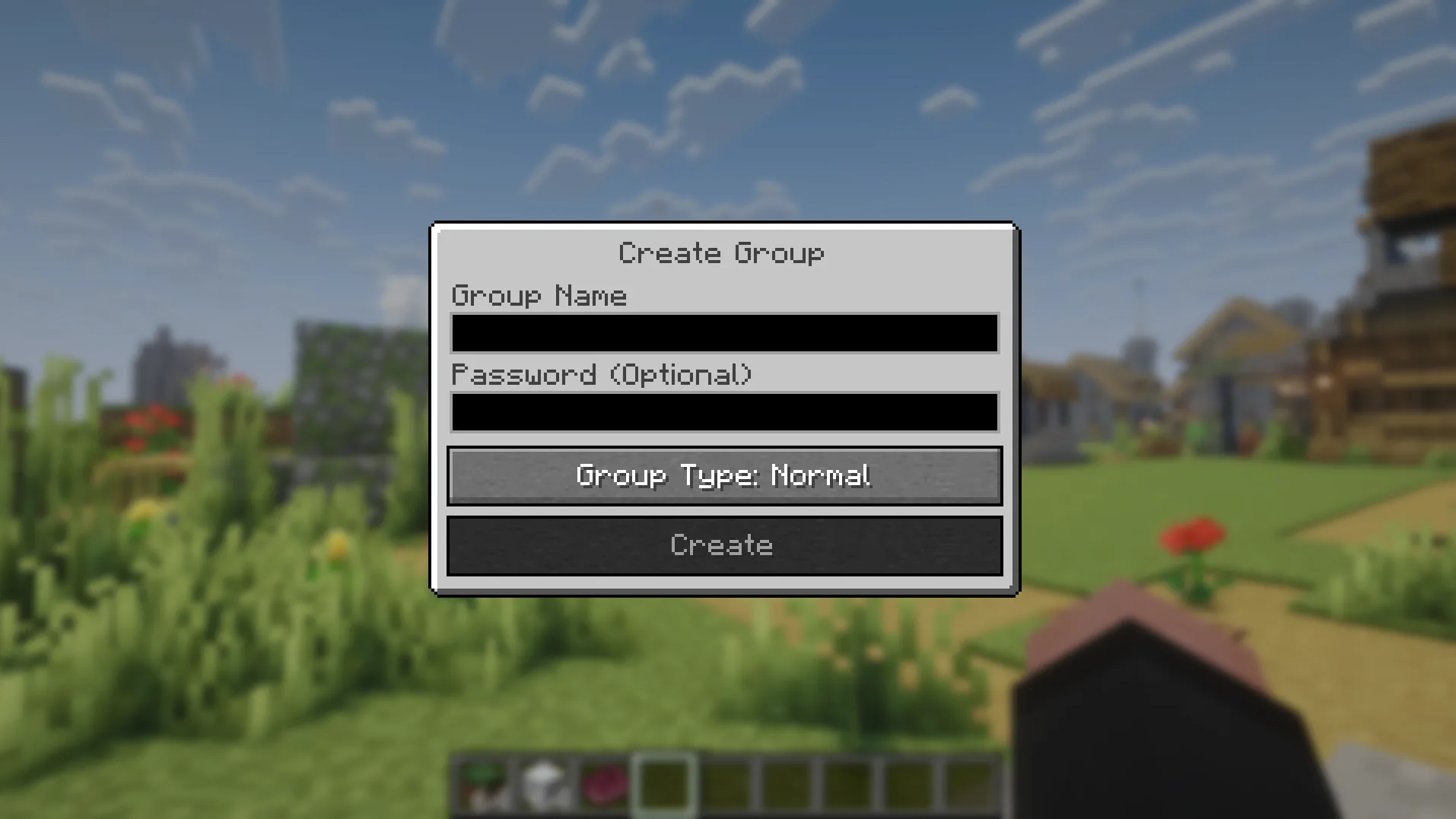
You can enjoy Minecraft proximity chat with friends if you create a group. In this case, only members of your group will be able to hear what you’re saying. This is a useful feature for small teams, private conversations, or coordinated multiplayer gameplay during different server events.
Individual Player Controls
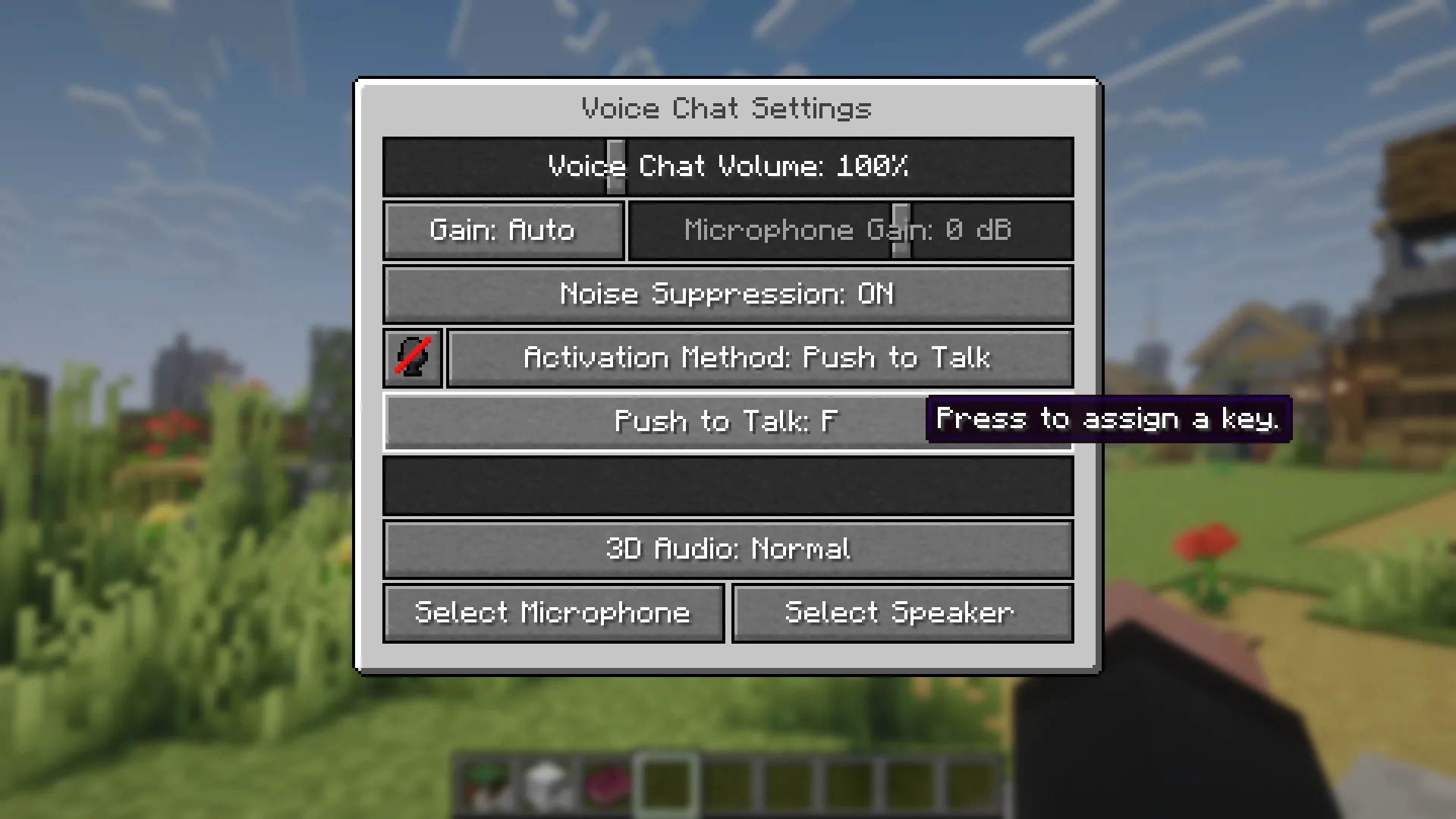
Simple Voice Chat has its own GUI that allows you to adjust your microphone, manage groups, and mute other players’ audio. The mod also features keybinds, which you should definitely know:
| Name |
Default Key |
Description |
| Voice Chat GUI |
V |
Opens Simple Voice Chat GUI |
| Group Chats |
G |
Opens the group chat GUI (only in 1.21.5 and earlier versions) |
| Mute Microphone |
M |
Mutes your mic if you use the voice activation feature |
| Disable Voice Chat |
N |
Disables voice chat, ensuring other people don’t hear you and you don’t hear them. |
| Whisper |
No default key |
Lets you assign a key that activates whisper mode while held down |
| Push To Talk |
No default key |
Sets a key to activate your mic while talking |
Best Uses for Proximity Voice Chat
A properly configured Minecraft proximity voice chat mod will surely make interactions between players on your server more engaging. There are many in-game scenarios where you can use this modification, including:
- Survival SMP: Just imagine how fun it is to build different structures, explore caves, and fight enemies while chatting with your friends directly in Minecraft.
- Roleplay servers: Do you plan to create an RPG server and want to make it feel live? With a proximity voice chat plugin, it’ll be easier to plunge players into the atmosphere of your fantasy world.
- Horror servers: Install some horror mods, prepare maps, and turn on proximity voice chat to recreate an experience similar to R.E.P.O. right in Minecraft.
- Community servers: Do you want to build a server with a complex hierarchy and factions? Due to proximity voice chat, it’ll be easier to adjust communication within different teams.
Proximity Voice Chat vs Discord
Despite all the mentioned benefits of proximity voice chat, you may still want to use Discord. Well, choosing one option doesn’t mean you should never use another one, since both are useful for communicating with friends. However, you should understand the key differences between proximity chat and Discord:
| Feature |
Proximity Voice Chat |
Discord |
| Audio |
Directional and distance-based |
Constant volume |
| Cross-map Hearing |
Only when you are close enough to hear a player talking |
Everywhere |
| Installation |
Requires client mod and server plugin |
Just join a voice channel via the Discord app |
| Best For |
SMP, roleplay, and community servers |
Chatting with friends and streaming |
Server Settings Worth Knowing
Do you want to adjust Minecraft Simple Voice Chat distance, create groups, or provide certain permissions to specific players? Here we’ve broken down the configurations of the settings that you can find in the voicechat-server.properties file:
- port (by default it’s 24454): sets the UDP port that your voice server communicates through.
- max_voice_distance (by default it’s 48): defines the maximum distance at which normal speech can be heard.
- whisper_distance (by default it’s 24): sets the maximum radius for players using the "Whisper" feature.
- enable_groups (“true” (by default) or “false”): allows players on your server to create voice chat groups.
Simple Voice Chat Common Problems and Fixes
Configuring Simple Voice Chat can be difficult, especially if you’re new to server management. To ensure you’ll deal with this task without unnecessary frustration, we’ve listed the most common problems and their possible reasons:
| Problem |
Reasons |
| Players cannot hear each other |
• Players don’t have a client mod installed
• Players have installed the incorrect mod version
• Players haven’t adjusted their output devices.
• Voice chat is disabled.
• Voice connection problems have occurred. |
| Others can’t hear a specific player |
• A player hasn’t adjusted or turned on their microphone.
• A player has a poorly adjusted voice activation threshold.
• A player doesn’t press their push-to-talk key.
• A player’s microphone is muted. |
| Voice chat is disconnected |
• Inappropriate voice port or plugin configurations.
• Server network requires additional checks.
• A compatibility issue between the player’s mod version and the server plugin version. |
| A player speaks too loudly or quietly |
• A player’s individual volume settings are adjusted inappropriately. |
| Proximity voice chat works inappropriately |
• Possible misconfigurations involving voice distance, group membership, whisper mode, or server settings. |
Voice Chat Permissions and Moderation
Simple Voice Chat also allows you to provide players on your server with different permissions. The most popular of them include:
- voicechat.speak (“true” by default): determines whether a player can transmit audio.
- voicechat.listen (“true” by default): determines whether a player can hear audio.
- voicechat.groups (“true” by default): determines whether a player can create or join groups.
- voicechat.admin (only for OPs): provides access to plugin’s administrative utilities.
If your server requires it, you can use these permissions to restrict group creation, mute disruptive players, and enforce community rules.
Privacy and Recording Note
Finally, be aware that players may be able to record other players’ voices using external recording software. If recording is permitted on your server, clearly explain the relevant rules in your community guidelines and inform players about your recording policy.
Also, remind players to use their microphones responsibly to ensure no one will harass other players. Otherwise, it may be appropriate to ban a player who ignores your rules to save your server’s reputation and even avoid possible legal issues.







 en | USD

 CHAT WITH GODLIKE TEAM