Players often hear about seeds in Minecraft: “Best survival seeds of 2026”, “Best seeds to play with friends”. However, did you ever wonder how the world generation actually works in Minecraft? If you did, then in short — Minecraft seed is a unique code that determines the exact layout of your world.
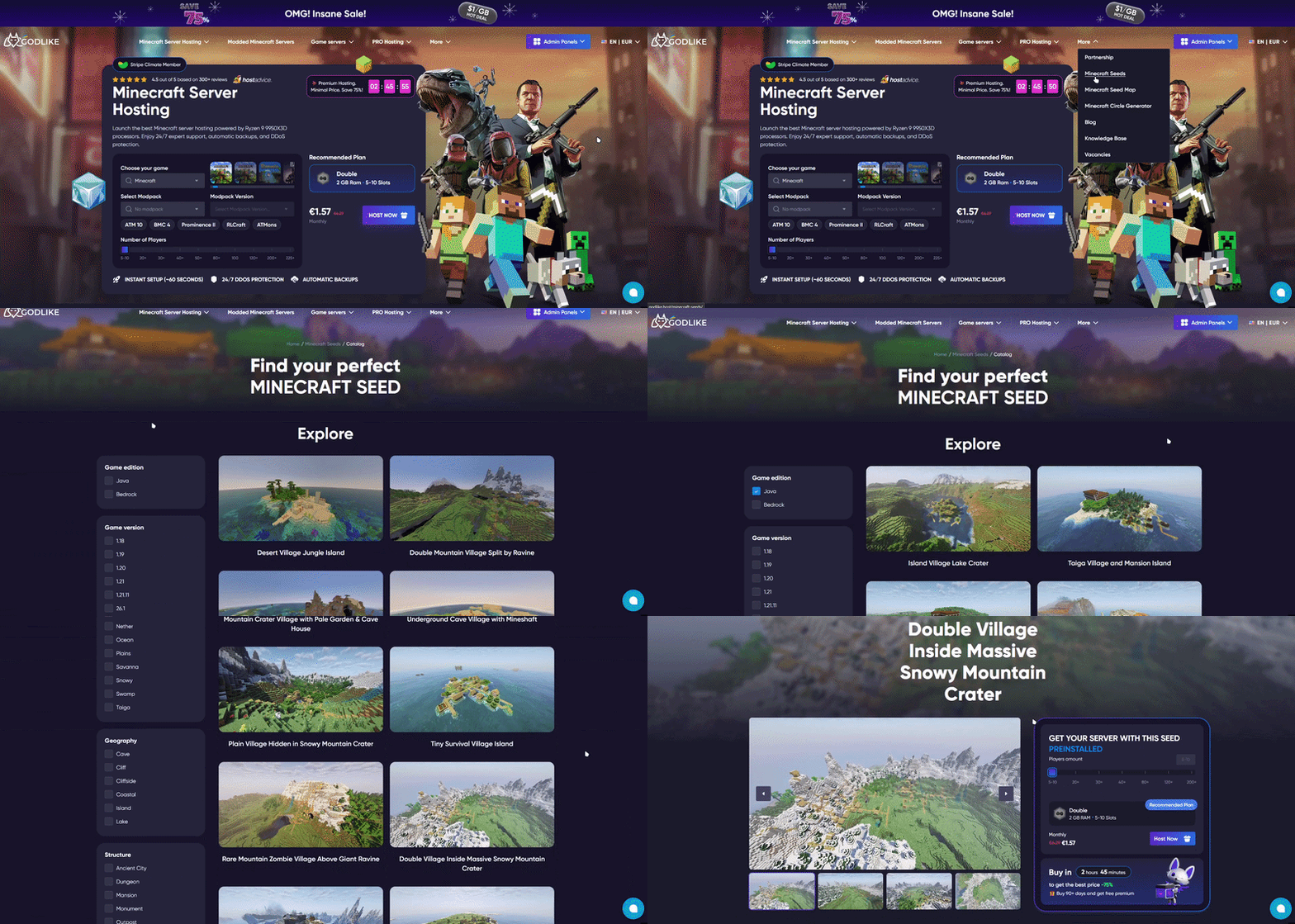
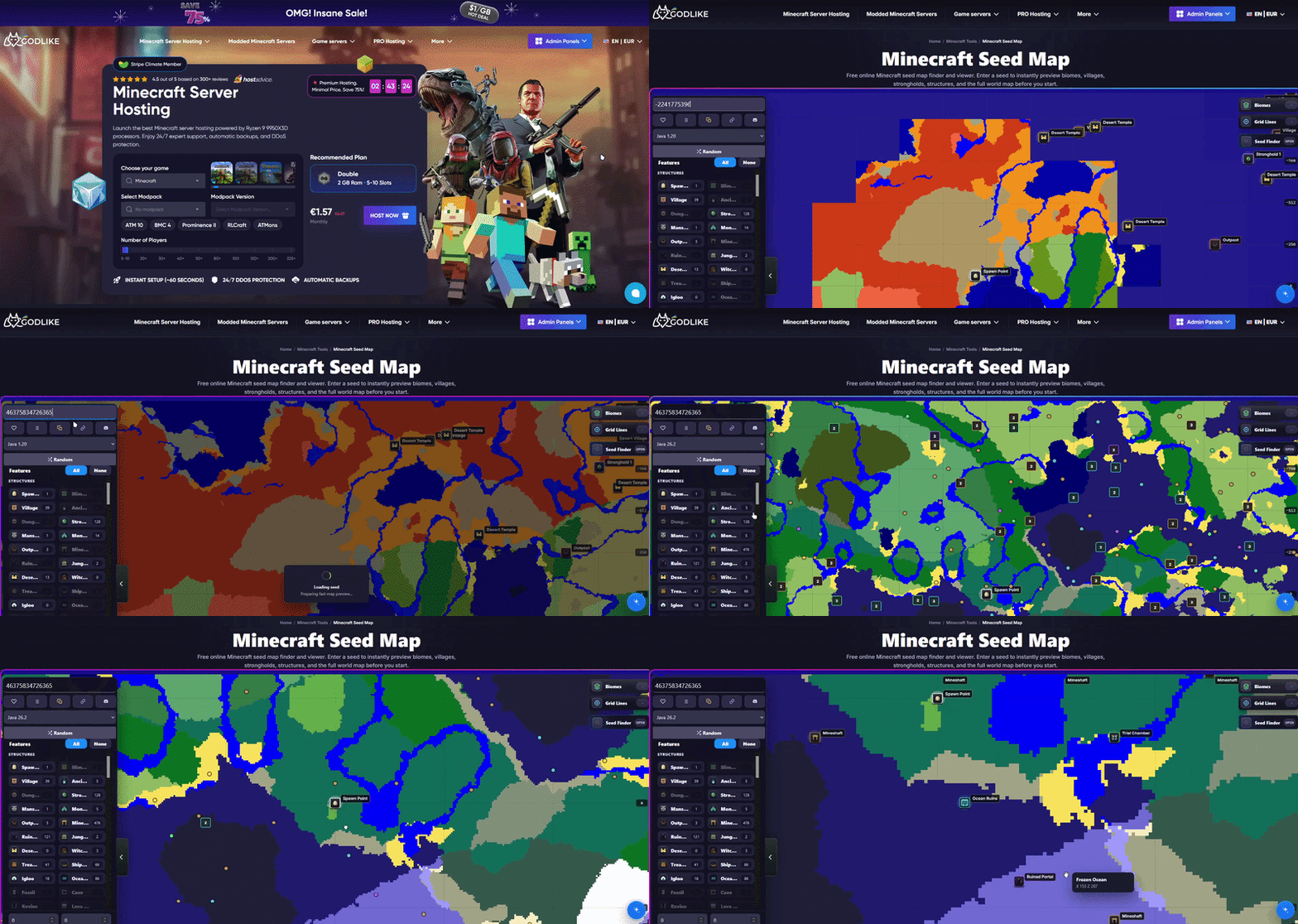
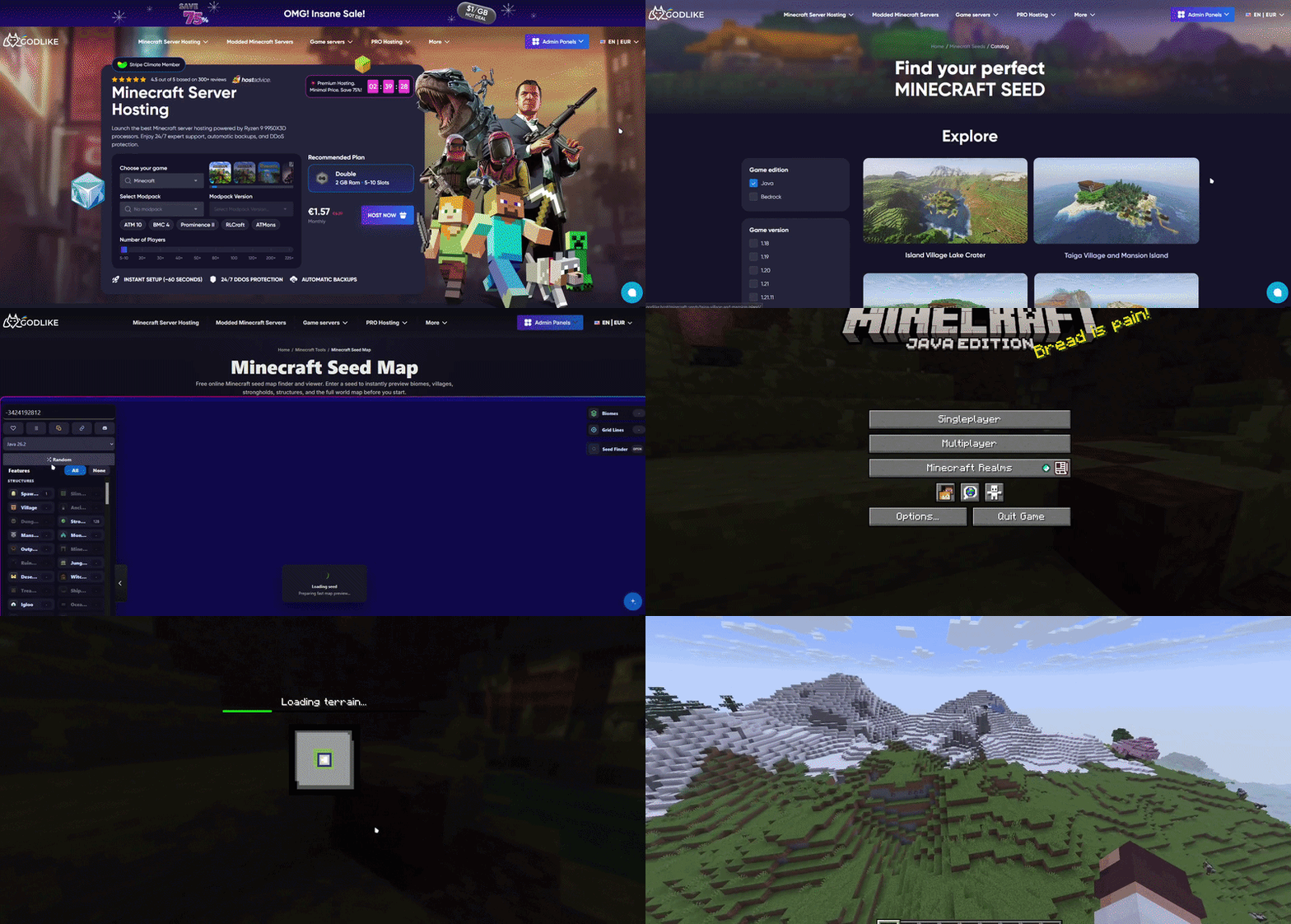
To get a perfect world for your game, you can follow an actual workflow: use a tool to choose the seed you’d like, for example Godlike’s Minecraft Seed Catalog, then put it into another tool Godlike’s Minecraft Seed Map to check for biomes, structures, spawn and other factors to decide if the seed is suitable for you. Finally, use that seed number to generate a singleplayer world, or create your Minecraft Server.
This is only the gist of it though, so stick with us to the end to get to know more about Minecraft seeds / world generation and about the tools we mentioned just now to be able to create your perfect blocky universe.
What is Minecraft Seed?
Just like we mentioned before, it’s a sort of code, unique to each world. That might sound a bit cryptic, so there’s a good analogy for it — DNA. Just like DNA is a “string” of chemicals that determines person’s characteristics, seed in Minecraft is a unique string of numbers and characters that fully determines the layout of the world, structures, their placing etc.
Whenever you create the world without entering the seed manually, the seed is generated automatically. It’s a unbreaking rule — every world has its unique seed. This way even by playing in different worlds, if you enter the same seeds in the creation menu, you will have 2 identical worlds.
NOTE
Note: Seed only determines the natural generation of the world: layout, biomes, structure etc. It doesn’t save player-built structures, inventory items or chest contents after you start playing. P.S. The chests can be a bit confusing, so to clear the confusion: the contents of the chests naturally generated in the world as you just spawn in it is determined by the seed and will be identical to each world you create with that seed. Chests that are made by the player, or chests that have been tempered with(loot taken from chest, different loot put into chest) are not determined by the seed and will not appear in another world with the same seed.
Seed Catalog VS Seed Map
When searching for the perfect seed for you world, you will likely follow the “Choose — Check — Use” workflow, and all of it can be done with Godlike’s Seed Catalog and Seed Map tools. They are all in one place and easily accessible, but importantly, they server different purpose and help you with different steps of the workflow mentioned above:
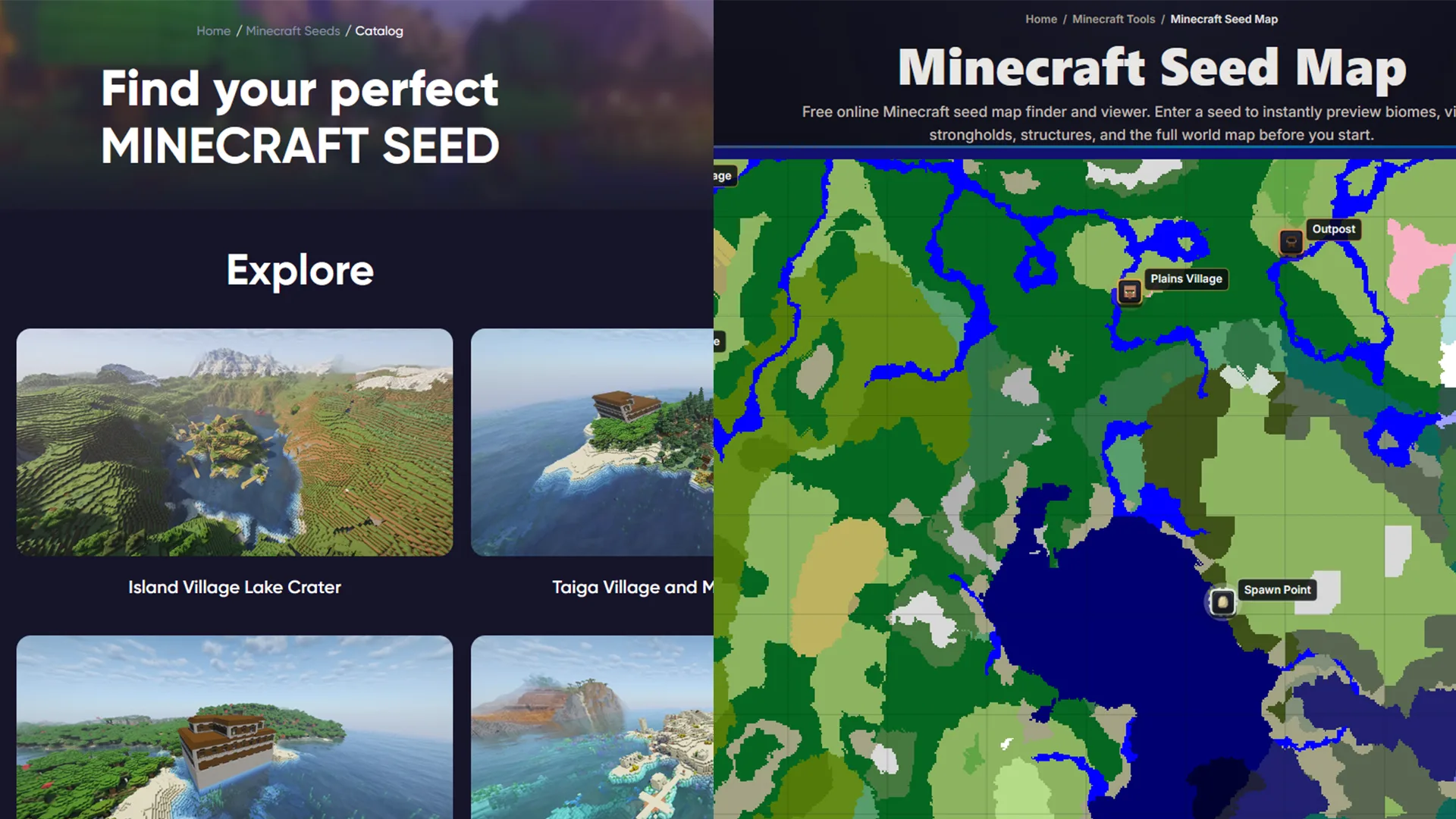
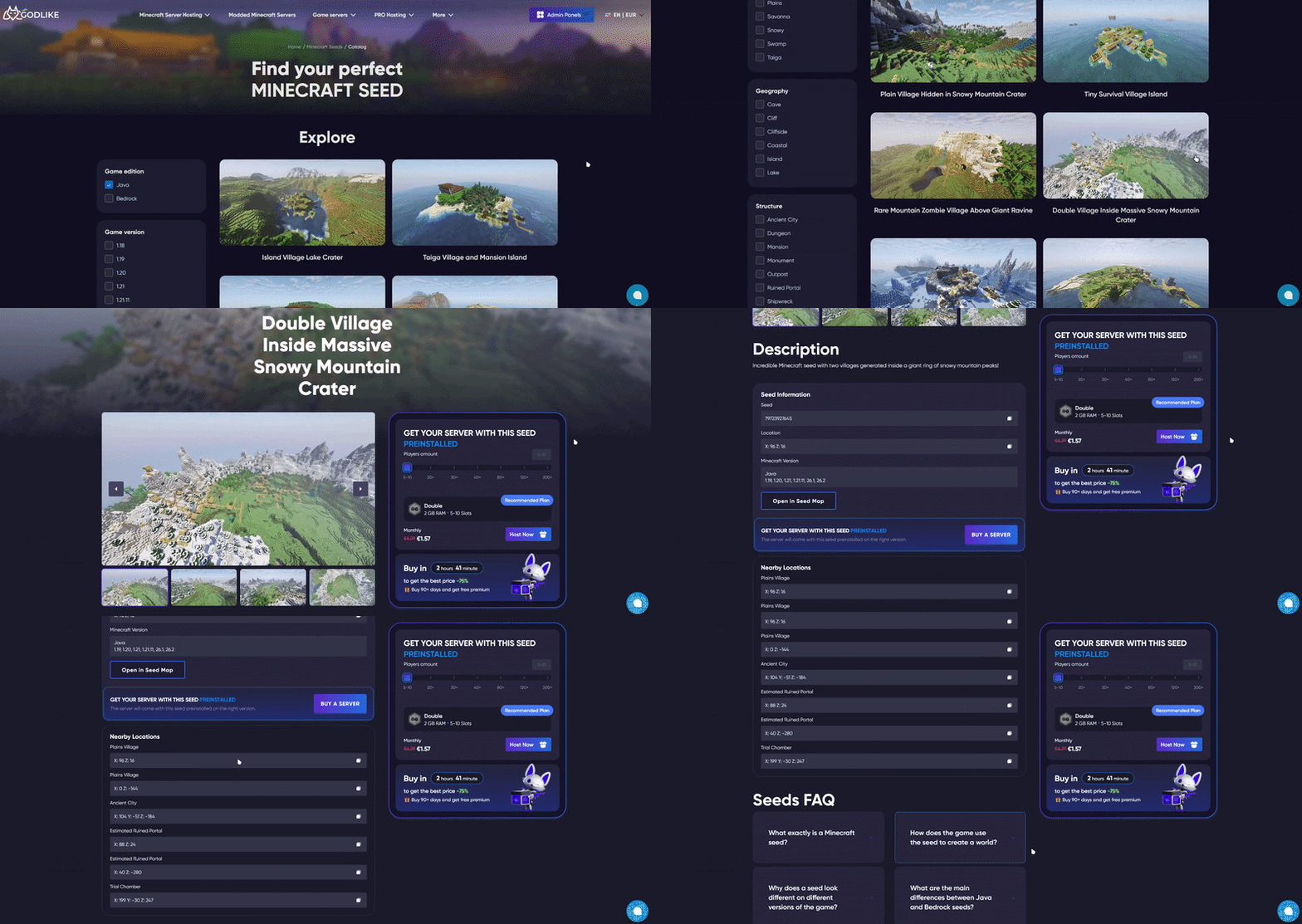
Seed Catalog: Think of this as a library of curated worlds. A catalog is where you go when you have specific criteria you want to see in your world, and choose the one that suits you best. In case you don’t have any preferences, choosing any is an optional step, you can just scroll through dozens of different, amazing seeds and choose the one caught your attention the most.
Seed Map: Think of this as a GPS for a specific world. Once you already chosen your seed from the catalog, or you already have a world with random seed, by putting it into the Seed Map and specifying a few details like game version and edition — you can easily look at the map of the entire world and find structures and biomes you are interested in. It’s an amazing tool that can help save lots of time and frustration searching for a specific thing or place.
When to Use the Seed Catalog
Use Minecraft Seed Catalog whenever your goal is to find a good world / seed to that world. As browsing the catalog is much easier and more convenient than creating worlds with random seeds and hoping to struck gold. The criteria you input will help you pin down the exact seed, or you can go through specific scenarios like:
SMP-friendly seeds with balanced spawn
A safe village spawn for a new playthrough
An isolated island for a survival challenge
And much more!
When to Use the Seed Map
Use Minecraft Seed Map when you goal is to get to know more about the seed or pin down locations of specific things like structures, biomes etc. Once you found an interesting seed from the catalog, just plug it into the Seed Map, choose you game version and edition(Java or Bedrock) and you ready to explore the map!
The Seed Map is by far the most useful, as it allows you to do many important tasks, even if you just go with the random seed:
See the complete world layout before committing to the game
Locate specific structures and biomes, just like we mentioned above
Check exact coordinates and find you way out of tough position
Plan routes for travels, to base location etc.
How to Read a Godlike Seed Page
While browsing the Seed Catalog, you might’ve noticed that each seed has its individual page with a lot of information attached. The amount of the information can be quite overwhelming, so here’s a simple guide on how to read the page and not get lost in all the numbers:
Seed Number: This is the exact code you need to copy in order to create a world / server with that seed.
Minecraft Version and Edition: Right underneath the seed number, you will see the Edition and Version sections, here you can see whether the seed is meant for you specific edition and version of the game(if you haven’t filtered them before hand).
Main Locations and Nearby Locations: This section highlights the most interesting features of the seed, such as biomes, structures etc.
Coordinates: Exact X, Y, Z coordinate numbers you need to navigate to the featured locations from the previous section.
Open in Seed Map: A quick shortcut that send you directly to the Seed Map already set up for this seed, so you can explore the seed further yourself.
Server Preinstalled CTA: A shortcut to launch a server with this exact world already set up for you.
How to Use a Seed in a New World
To create a singleplayer world with the seed you found in the catalog, just follow this really simple steps:
Assuming you are already on the page of the dedicated seed you want to use, find the seed number section and copy the seed.
Launch Minecraft(Make sure the game’s edition and version match the available ones on the seed’s dedicated page).
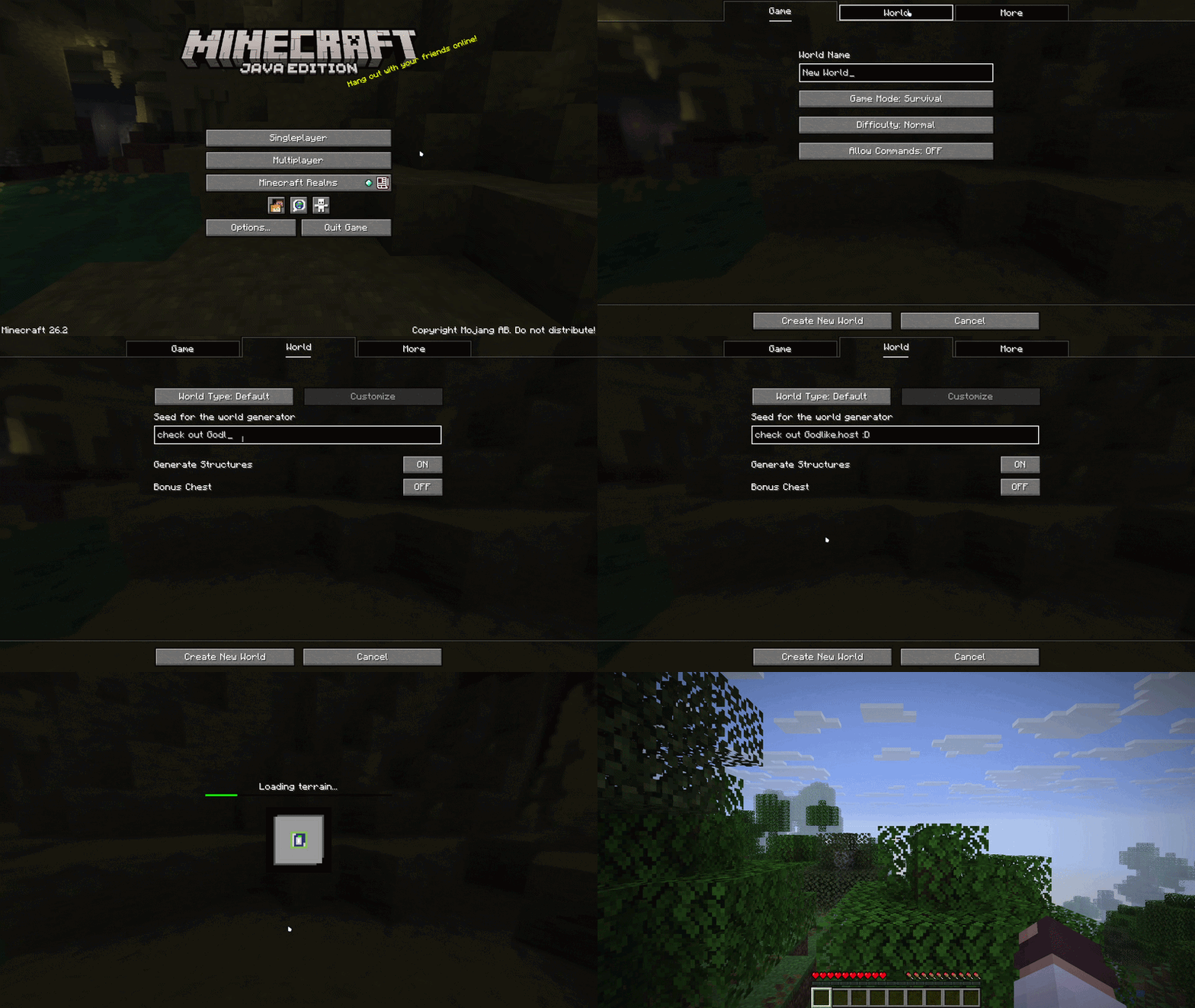
Click “Singleplayer” → “Create New World”.
After setting the basic parameters to the world, like its name and game mode, navigate to the “More World Options” tab at the top of the menu.
Paste the seed number you copied into the blank “Seed for the world generator” text field.
Click “Create”, load in and enjoy the game!
How to Use a Seed on a Minecraft Server
To create a server for multiplayer game with the seed you found in the Seed Catalog, simply specify the seed in the server’s settings before launching the server. Important — specify the seed specifically before launching the server, as the seed absolutely must be set before the world generates at the server’s first launch.
If, however, you already have a server set up, and wanted to just change the seed in the server’s settings, we have bad news — this won’t change the chunks in the world that were already explored. To apply a new seed to an existing server, you must back your data, wipe the current world files, update the server properties with the new seed and restart the server to generate the new terrain. This is a bit more hustle, however this still shouldn’t take much time, and if anything be sure to ask our support for help any time!
What’s the easiest way to set up a server with a specific seed you found? — use the “Get your server with this seed preinstalled” option right next to the general information about the seed, on its dedicated page in the Seed Catalog. This skips the technical part of the set up entirely.
How to Find Your World Seed
Being able to find out your seed is a very useful skill, as quite often you might find yourself in a situation where you need to either share it, or ask some one to check something on the Seed Map for example. Regardless of the purpose, here’s how to to do it:
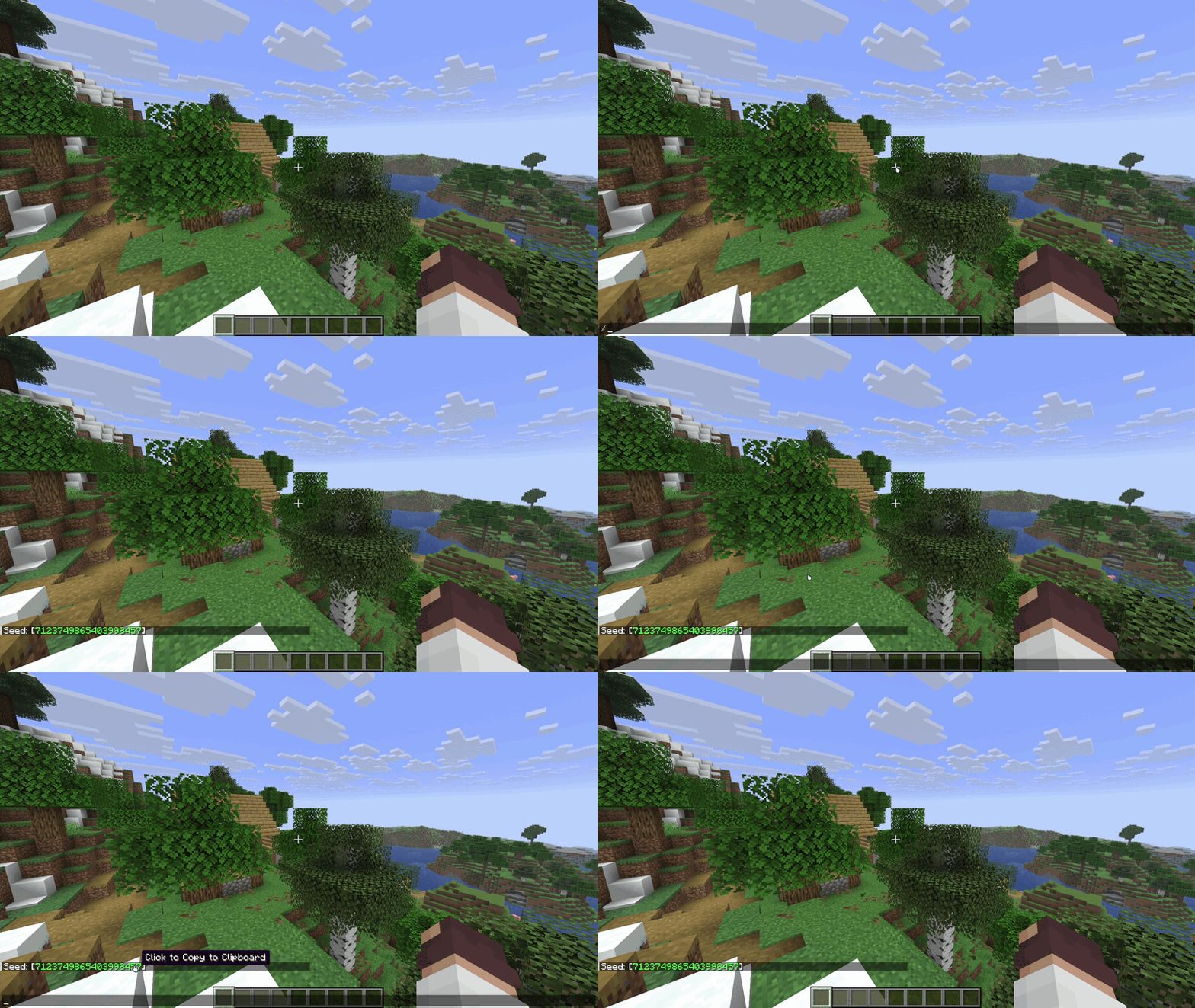
In singleplayer game / on a server if you have OP privileges: simply open the chat and type /seed command, then copy the seed but right clicking on it in the chat.
Through server files: in case you are not in the game, but you own the server, you can check your control panel’s server.properties file or the world data folder to locate the seed code.
What Not to Do With Other Servers
If you are playing on a public multiplayer server and want to know their seed, the best thing to do is simply ask the owner or an admin, as even though /seed command is not considered cheat by the game, you cannot use it on multiplayer server yourself unless you have OP privileges.
We are strongly against the idea of using any “seed cracking” tools or mods that reverse-engineer a servers world generation. It is almost always against server rules and attempting to use those tool will likely get you banned. If the admin of the server keeps the seed a secret, so the players will have more motivation and reasons to explore the world themselves, please, respect that choice. You can always try to ask later into the game, when good chunk of the world was explored or find similar, amazing seed in the catalog yourself.
Why Does Your Seed Look Different?
Sometime you can find an amazing seed, plug it into your new world, but, somehow the seed is different from what you found. Why is that? Well, there are actually quite a few reasons why this might’ve happened:
Wrong Minecraft version: World generation updates(like 1.18 the “Caves & Cliffs” update), drastically change how the terrain is being formed in the game. A seed that looks one way in 1.16, will likely be completely different in 1.18 or 1.21.
Java VS Bedrock: While modern updates have brought Java and Bedrock Editions as close to each other as possible, there are still a bunch of differences between the two, including the way they generate the world, which ultimately affects the seeds as well. The same seed, on the same version of the game, can look different based on your edition of the game
Wrong Coordinates: Do not rush to search for another seed! There’s a chance you are in the right world, it’s just that the cool terrain and structures you saw are a bit further from the spawn and you need to reach them first. Check the coordinates of the spawn and of the things you are interested in on the seed’s dedicated page to be completely sure whether to look for another seed or this fits you perfectly well.
Mods or Datapacks: if you have mods or datapacks that alter the terrain generation, they will override the vanilla seed layout.
Old Chunks: If you change a server seed after the world is created, the previously explored chunks will stay exactly the same. Only the newly explored areas will use the new seed layout and generation. To fix this issue, check out “How to Use a Seed on a Minecraft Server” section of the article 🙂
Seed, Coordinates, and Nearby Locations
Remember that a seed number is only a part of the whole picture. When you find a great seed in the catalog, always check for the coordinates of spawn and the nearby structures / biomes, so you won’t accidentally think that the seed was wrong or you got the wrong game version. It’s a simple additional step, but checking the coordinates at the seed’s dedicated page and then checking out the Seed Map for even more information on the seed, will help you avoid confusion and plan you survival route.
The Practical Workflow: Choose, Check, Use
So, here’s a simple step by step workflow for choosing the best seed for your new world:
Choose: Decide on what you want to have in your world, what kind of spawn, structures nearby etc. Go to the Seed Catalog, set filters and choose the seed.
Check: Once you found the seed that appeals to you, check its dedicated page for more detailed information, then copy the seed number and check the seed in the Seed Map for even more useful information and map out your adventure.
Use: If everything is satisfactory, congratulations! Now it’s the best part of the flow: play and use the seed. Create a singleplayer game or start a new server for a multiplayer game and lastly — enjoy!
Build Your World With Friends
Minecraft seeds are a great thing, it’s not only about the views, terrain and structures nearby, sometimes just looking at the images of the seed you can feel the amount of emotions and fun you will have sharing this gaming experience with the others. So don’t waste this opportunity, create your own Minecraft server right away in just a few clicks with Godlike!
FAQ
What is a Minecraft seed?
A Minecraft seed is a unique string of numbers or text characters that acts like the world's DNA. The game's engine uses it to generate the natural terrain layout, biome borders, cave systems and structure placements.
How do I use a Minecraft seed?
Before using the seed, make sure to check that the game version matches with the version this seed is meant for. If everything matches, then launch Minecraft, click “Singleplayer” → “Create New World”, navigate to the “More World Options” tab, paste your seed into the "Seed for the world generator" field and click “Create New World”.
What is the difference between a seed catalog and a seed map?
A Seed Catalog is a curated library where you browse and choose worlds based on specific features (e.g., cherry grove villages, survival islands). A Seed Map is an interactive viewer where you input an existing seed to inspect the entire biome layout, find structure coordinates, and plan travel routes.
How do I find my Minecraft world seed?
In singleplayer (or on a server where you have OP privileges), open the in-game chat and type /seed to display and copy your world seed. If you host a server, you can also view it directly inside your server.properties configuration file.
Can I use a seed on a Minecraft server?
Yes. However, you must configure the seed in your server settings before launching and generating the world for the first time. If you find a world in the Godlike Seed Catalog, you can also use the "Get your server with this seed preinstalled" button to start playing instantly, skipping the technical set up part completely.
Why does my Minecraft seed look different?
The most common reasons are: — Playing on a different Minecraft version (major updates alter world generation). — Playing on the wrong Edition of the game (world generation may differ for Java and Bedrock Editions of the game). — Wrong coordinates (the featured structures and biomes might be further from the spawn). — Using terrain-altering mods or datapacks which override natural world generation.
Do Java and Bedrock seeds work the same?
Modern updates introduced terrain parity, meaning the broad landscapes and biomes are nearly identical. However, individual structure placements (like villages, ancient cities, and strongholds) can still spawn in different locations between Java and Bedrock. So while they are close, there may be differences between the two that would make the same seed more appealing on one Edition of the game compared to the other one.
Can I change a server seed after the world is created?
Changing the seed on an existing world only affects newly explored, unrendered chunks. Chunks you have already loaded or built on will remain unchanged, creating visible chunk borders. To apply a new seed cleanly, you must back up your data and reset the world files. For a more detailed instruction on how to do so check out “How to Use a Seed on a Minecraft Server” section of the article.
Does a seed save my buildings?
No. A seed strictly governs the natural generation of the world. It does not save player builds, broken blocks, placed chests, or player inventories.
Can I find the seed of someone else’s server?
Only if the server admin shares it or gives you permission to use the /seed command. Third-party "seed cracking" tools violate server rules and fair play policies, and attempting to use them can lead to a ban.
Fawn
Minecraft Writer
Hi, I'm Fawn. I started out just messing around in Minecraft with friends, then one thing led to another, and suddenly I was streaming, building worlds, and losing sleep over redstone logic.
I like games that make you feel something—whether it’s a good RPG story like Nier or Kingdom Hearts, or the collective suffering of solo-queuing in Valorant.
Mostly, I just create, experiment, and have fun with it :D
Are you searching for the best Minecraft server hosting in 2026? Whether you need hosting for a vanilla server or SMP, heavy Forge/Fabric modpacks like RLCraft or ATM10, or esports-style mini‑games, this guide walks through…
TL;DR If you want one seed that feels like a complete starter world, pick Cherry Valley Trio (Seed: 608548899648438462) for villages, deep structures, and a strong exploration route.If you want a dramatic build location with…
Ultimate Minecraft Diamonds Mining Guide Why are diamonds so wanted by many? Minecraft Diamonds – shiny blue gems in the world of Minecraft that also happen to be the ore required to have the best…






 en | USD
 CHAT WITH GODLIKE TEAM