Minecraft OneBlock Guide: How It Works, How to Play With Friends, and How to Start a Server

Make your own FREE minecraft server
MINECRAFT FREE SERVER
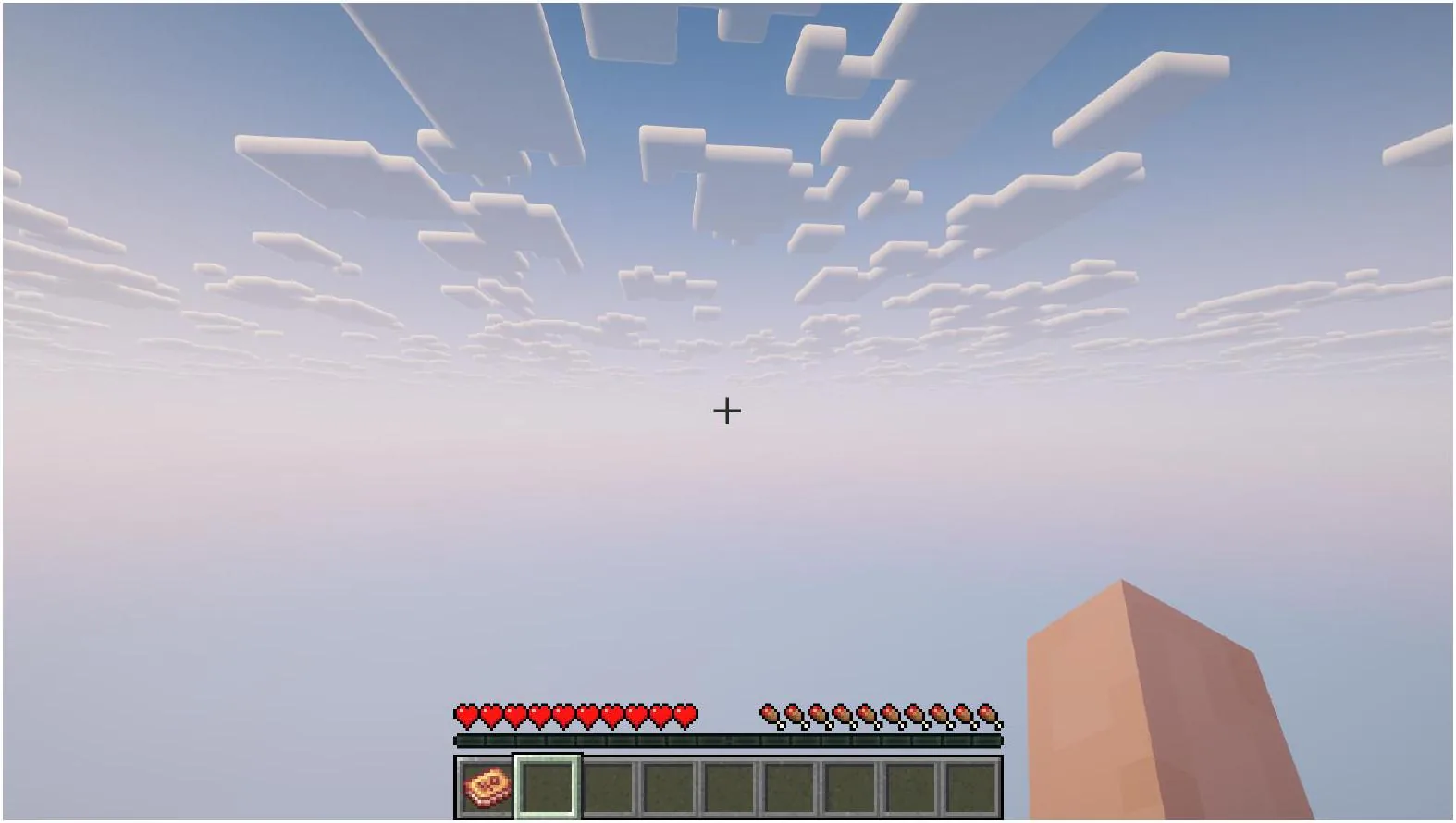
Beyond the classic survival experience, Minecraft offers a variety of custom challenges that are popular with its community, and OneBlock is one of them. It remains one of the most-played custom modes, in which players start by standing on a single floating block that regenerates as they mine it. As you break that block, you get the resources needed to expand your floating island and progress through the game.
In our Minecraft OneBlock guide, we’ll explore this unique challenge and explain how you can get the most out of this mode in both single-player and multiplayer. Keep in mind that there are many different OneBlock maps, plugins, and mods. Thus, we’ll explain the general concept of this custom mode.
What is OneBlock?
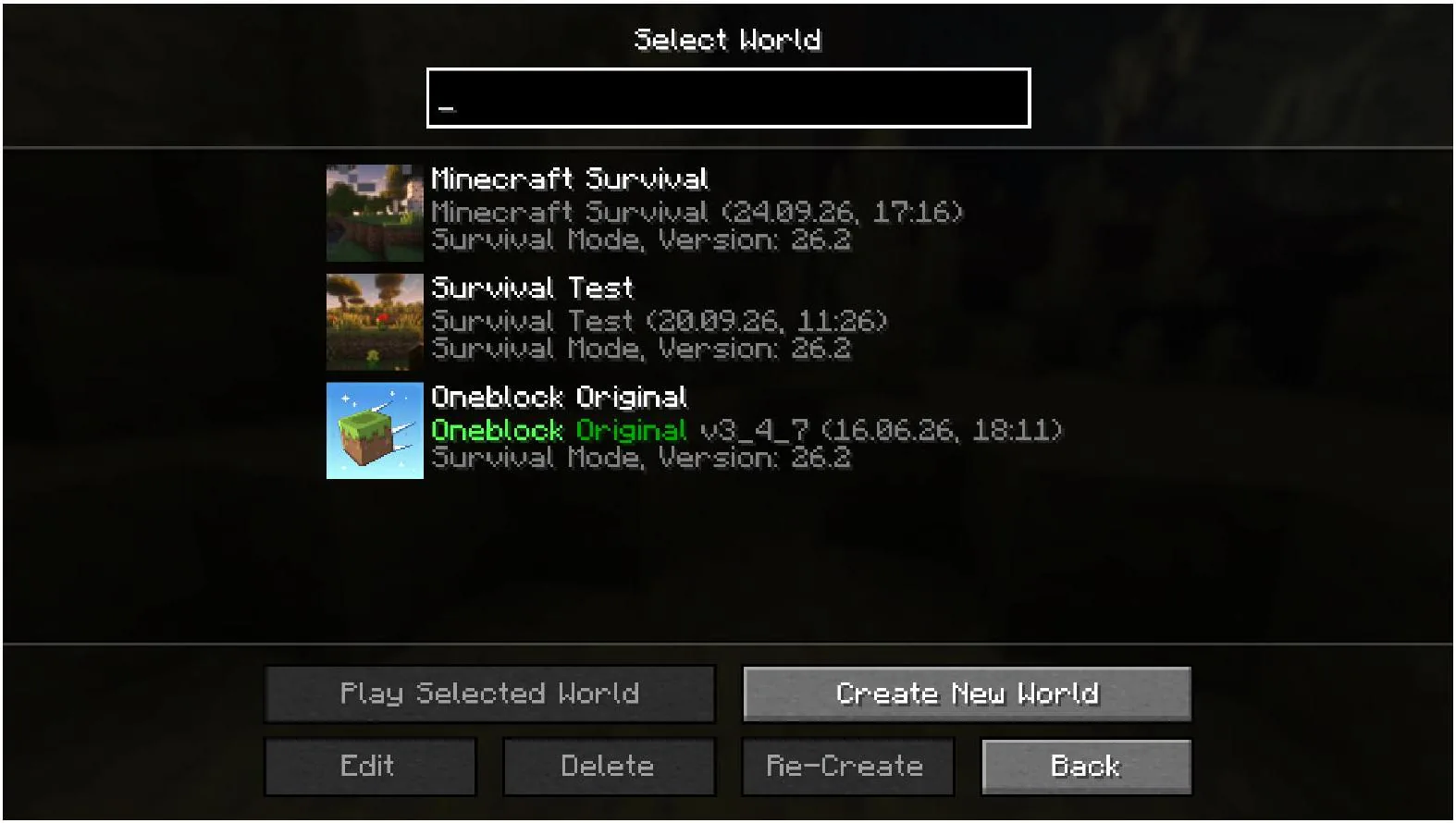
Minecraft OneBlock is a popular game mode where players spawn on a single floating block or a very tiny island above the void. By mining that special block over and over, they get new blocks and items necessary to progress through the game. As players mine the block hundreds of times, they gain access to more valuable resources, allowing them to expand a floating island, encounter different mobs, and unlock portals to dungeons or unique challenges.
The ultimate objective depends on the specific OneBlock version you’re playing. For example, in the original concept, the primary goal is to progress through 10 phases, defeat the Ender Dragon, and completely automate your base on a floating island. You can also find OneBlock implementations designed for both single-player survival and multiplayer gameplay.
How OneBlock Progression Works
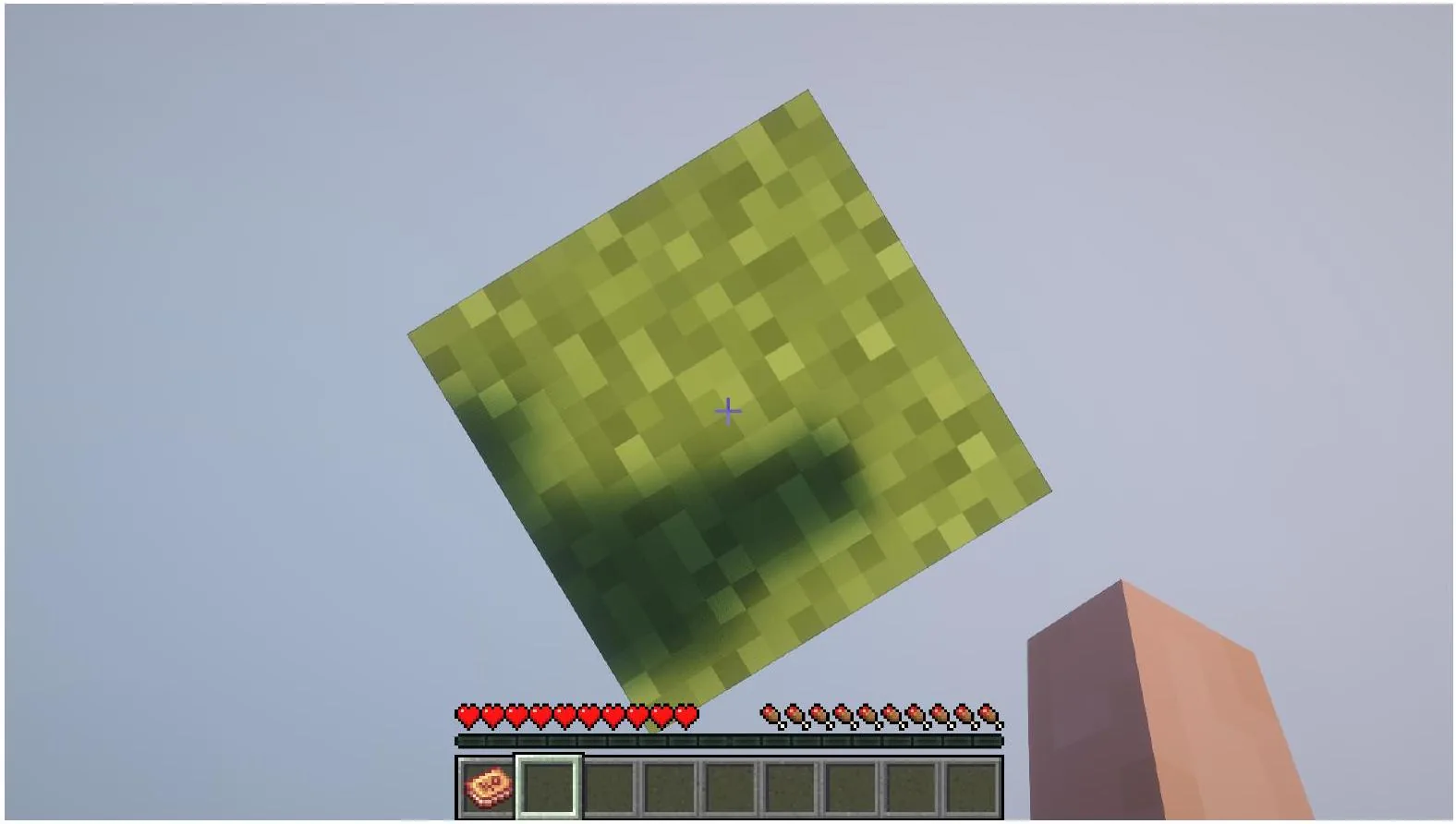
So, how does OneBlock work in Minecraft? Regardless of the version you play, the overall gameplay features the following mechanics:
- Central Block Mining: You spawn in the void, standing on a single block. Digging it provides you with different resources like dirt, wood, and stone, which you can use to expand your island. The central block constantly regenerates with a new block as you mine it.
- Progression: As you keep mining the block, you earn experience and fill a progress meter that unlocks different themed phases. The number of stages varies depending on the OneBlock map, mod, or plugin you use. Each new phase provides you with rare blocks, stronger mobs, and better loot.
- Infrastructure improvements: Getting more valuable resources allows you to expand your island and build advanced survival infrastructure, including farms, a base, and storage systems.
OneBlock vs SkyBlock in Minecraft
The OneBlock vs SkyBlock Minecraft comparison is another topic to discuss since new players often confuse these two custom modes. Although both of them feature a similar concept of surviving in the void, there are some significant differences in progression and gameplay. The table below clearly compares these two popular modes:
| Feature |
OneBlock |
SkyBlock |
| Starting Point |
Only a regenerating block |
A tiny island with a tree and a chest. |
| Main Progression |
Resource generation through constant mining of a central block |
Resource generation through proper management, farms, and generators |
| Expansion |
Block-generated resources are used to expand an island |
Players generate resources through farms, generators, trading, and other mechanics to expand an island |
| Gameplay |
Progressive |
Resource-management sandbox |
| Multiplayer |
Yes |
Yes |
How to Start Playing OneBlock in Minecraft
So, you’re excited to challenge yourself and survive in the void. Thus, it’s time to learn how to play OneBlock. First, decide whether you want to play solo or with friends.
Playing OneBlock in Singleplayer
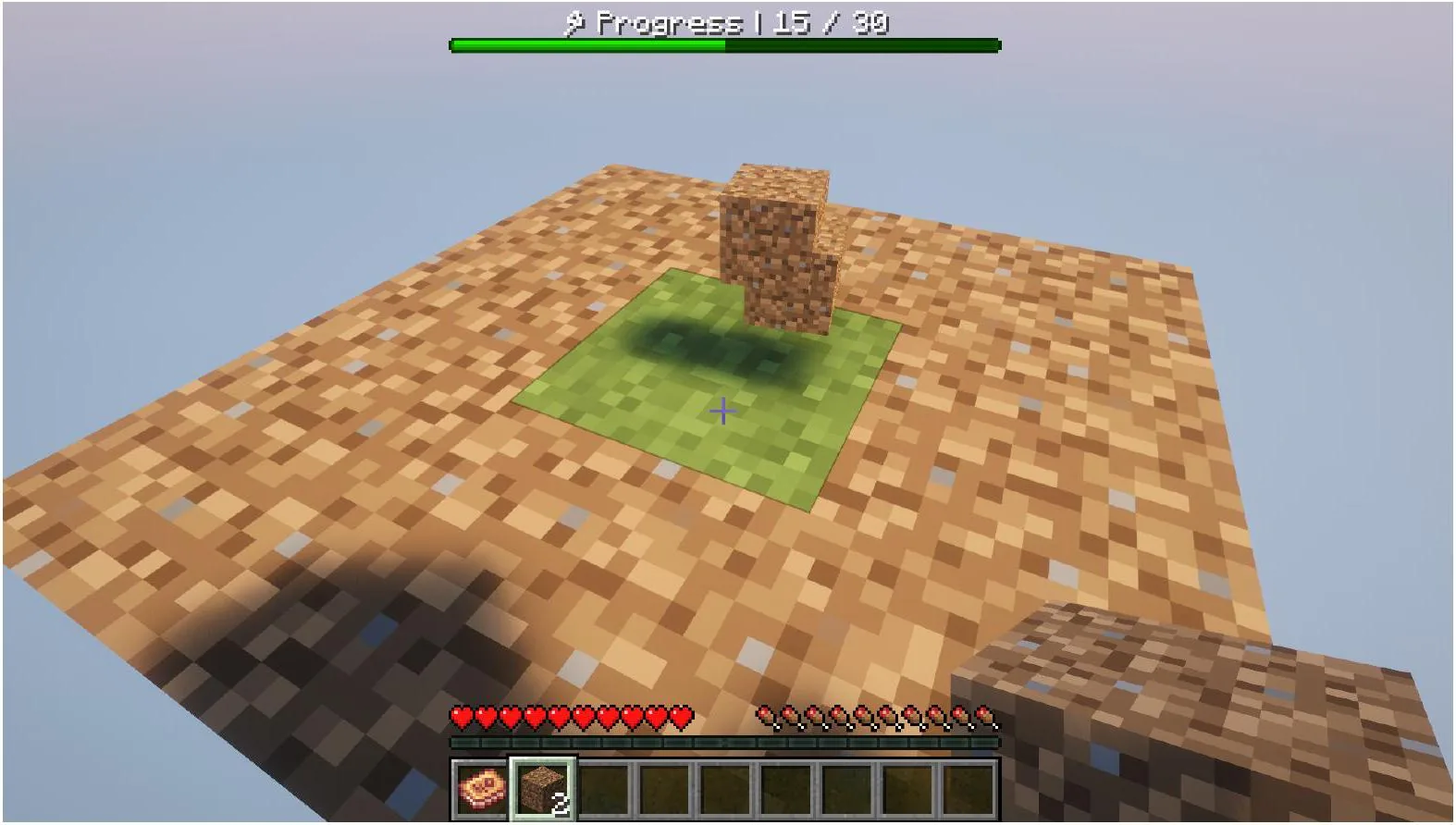
You’ll need to download a OneBlock modpack, plugin, or map compatible with your Minecraft version and, where applicable, your mod loader. It’s best to find these files on reputable websites such as CurseForge and Modrinth. Select the appropriate OneBlock version and follow the instructions provided by the website to install it. Once you’ve installed and configured everything, just enter Minecraft and start playing.
Playing OneBlock in Multiplayer
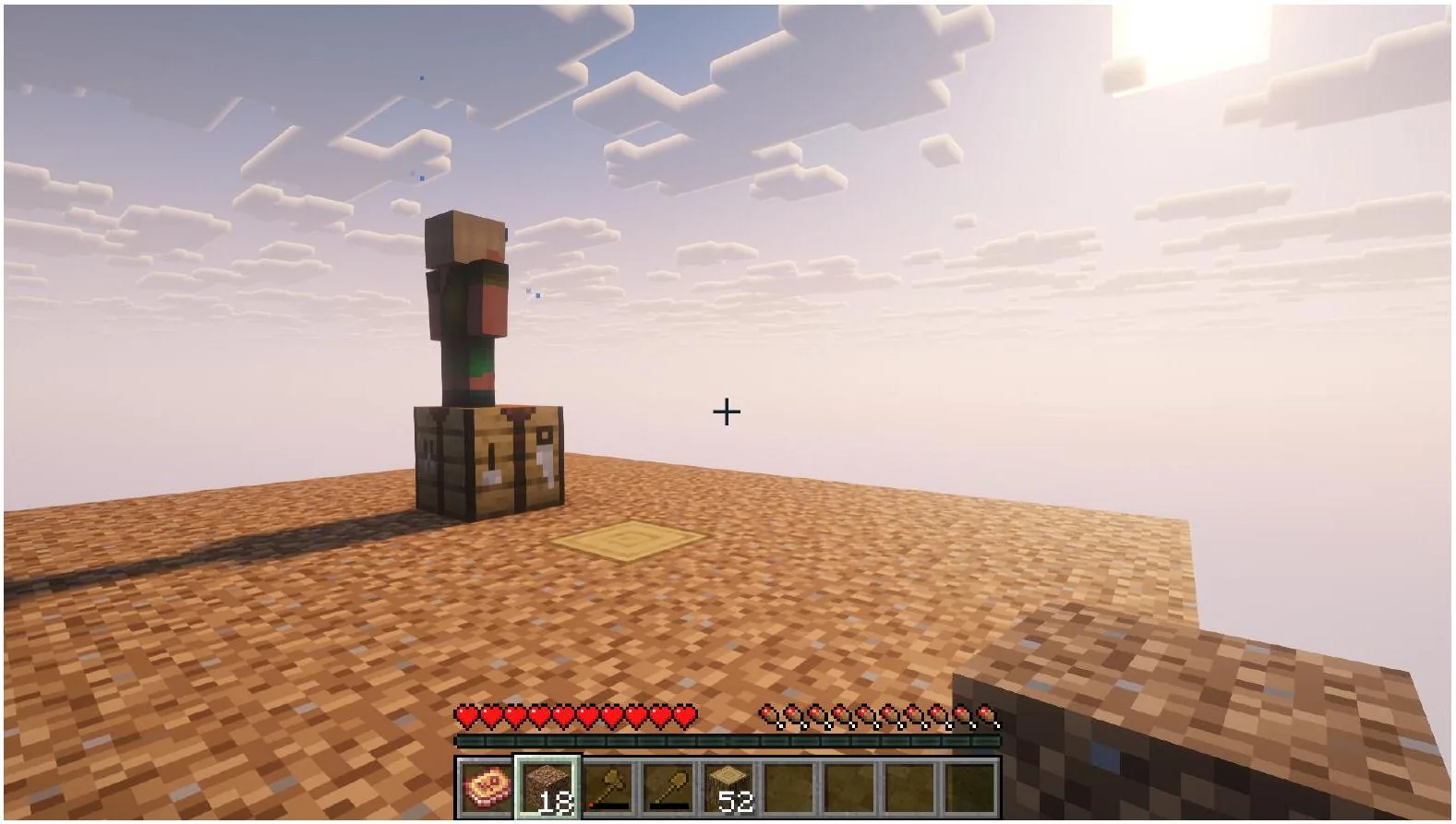
And now let’s learn how to play OneBlock in Minecraft together with your friends. Depending on the implementation, you’ll need to upload a OneBlock world to your server, install a compatible plugin, or use a modpack. Once you’re done, you need to configure your server and ensure that any required command blocks, plugins, mods, or other files are configured correctly.
OneBlock Map vs Plugin vs Modpack
There are several ways to play OneBlock Minecraft mode. Moreover, your gaming experience and the entire installation process directly depend on whether you choose a OneBlock plugin, modpack, or a map. Here is a short comparison of all three types:
| Feature |
OneBlock Map |
OneBlock Plugin |
OneBlock Modpack |
| Best For |
Single-player and local multiplayer |
Public and community servers |
Modded multiplayer servers |
| Setup Difficulty |
Easy |
Medium |
Medium |
| Performance Impact |
Low |
Low |
High (depends on modpack) |
| Requirements |
Vanilla Minecraft |
A Minecraft server with Paper, Purpur, or Spigot |
A Minecraft client or a server with a mod loader |
| Key benefit |
Easy installation and original OneBlock experience |
A possibility to create multiple floating islands with an advanced player management system |
Custom OneBlock mechanics for a better experience |
How to Play OneBlock with Friends
If you and your friends aren’t on the same local network, you’ll need an online multiplayer server or another internet-based hosting solution. However, running your own online server requires appropriate hardware or a hosting service. Players then connect using the server’s address. Also, to launch a Minecraft OneBlock server, you’ll need to:
- Install all the necessary mods or plugins for the best gaming experience.
- Assign basic game rules.
- Make backups before changing the OneBlock map or game versions.
You and your friends will also need to decide whether you’re going to have a separate island or you are ready to share only one. This choice may determine which OneBlock implementation or additional plugins you need.
Of course, you can do everything mentioned above on your device, but it’s much easier to run a dedicated online server with pre-installed plugins or mods for your OneBlock world. On Godlike, you can easily customize your experience and enjoy popular game modes for both Java and Bedrock Editions together with your friends.
How to create a OneBlock server
Setting up a OneBlock Minecraft server usually doesn’t require coding skills or a strong technical background. Nevertheless, you need to understand how online servers for Minecraft work and have some basic experience adding different custom maps, mods, and plugins to the vanilla game. Overall, the setup process looks like this:
- Decide which Minecraft version you and your friends want to play.
- Download a Minecraft server or choose a hosting platform that features a server for your specific game version.
- Choose an implementation compatible with your Minecraft OneBlock multiplayer server version.
- Install your custom map, modpack, or plugin. Some mods and plugins require additional libraries or dependencies to run properly. As a rule, required dependencies are usually listed on the mod or plugin’s download page.
- Restart your server and check for errors and that OneBlock logic is loading correctly.
- Log in to your game account and join the server to test progression.
- If everything works properly, make the first server backup.
- Now, you’re ready to play OneBlock with friends.
Best settings for a private OneBlock server
To get the best gaming experience, you should know not only how to make a OneBlock Minecraft server but also how to properly adjust it. Although settings depend on your own preferences, we strongly recommend paying attention to the following configurations:
- Difficulty: Opt for “easy” or “normal” if you are new to OneBlock mode. Choose “hard” if you want a more challenging survival experience.
- PvP: Set it to true if you want to enable PvP or false if you want to disable it.
- keepInventory: If you want to make everyone on your server keep their inventories and experience after death, set keepInventory to true. This can be a good option for new players.
- Player count: You can change the max-players value to set the maximum number of players on your server.
- Spawn protection: Set the size of the protected area around your spawn (by default, the value is set to 16, which is equal to a square of 33×33 blocks). If you set the value to 0, you’ll turn off spawn protection, which we strongly recommend avoiding.
- Permissions: Identify which commands, features, and actions specific players can use on your server. This is especially important if you plan to play with people you don’t know.
- Backup schedule: Using this feature, you can remove the need to manually run backup commands and save everything before your party logs off.
- View/simulation distance: This feature controls how far the game actively updates and runs processes in the world. The higher the distance, the greater the impact on your hardware.
- Mob spawning: This configuration allows you to control whether and how mobs appear in your world.
- World border: Finally, if your OneBlock implementation requires it, you can set a square boundary that prevents players and mobs from exploring the world past a set distance.
OneBlock multiplayer tips
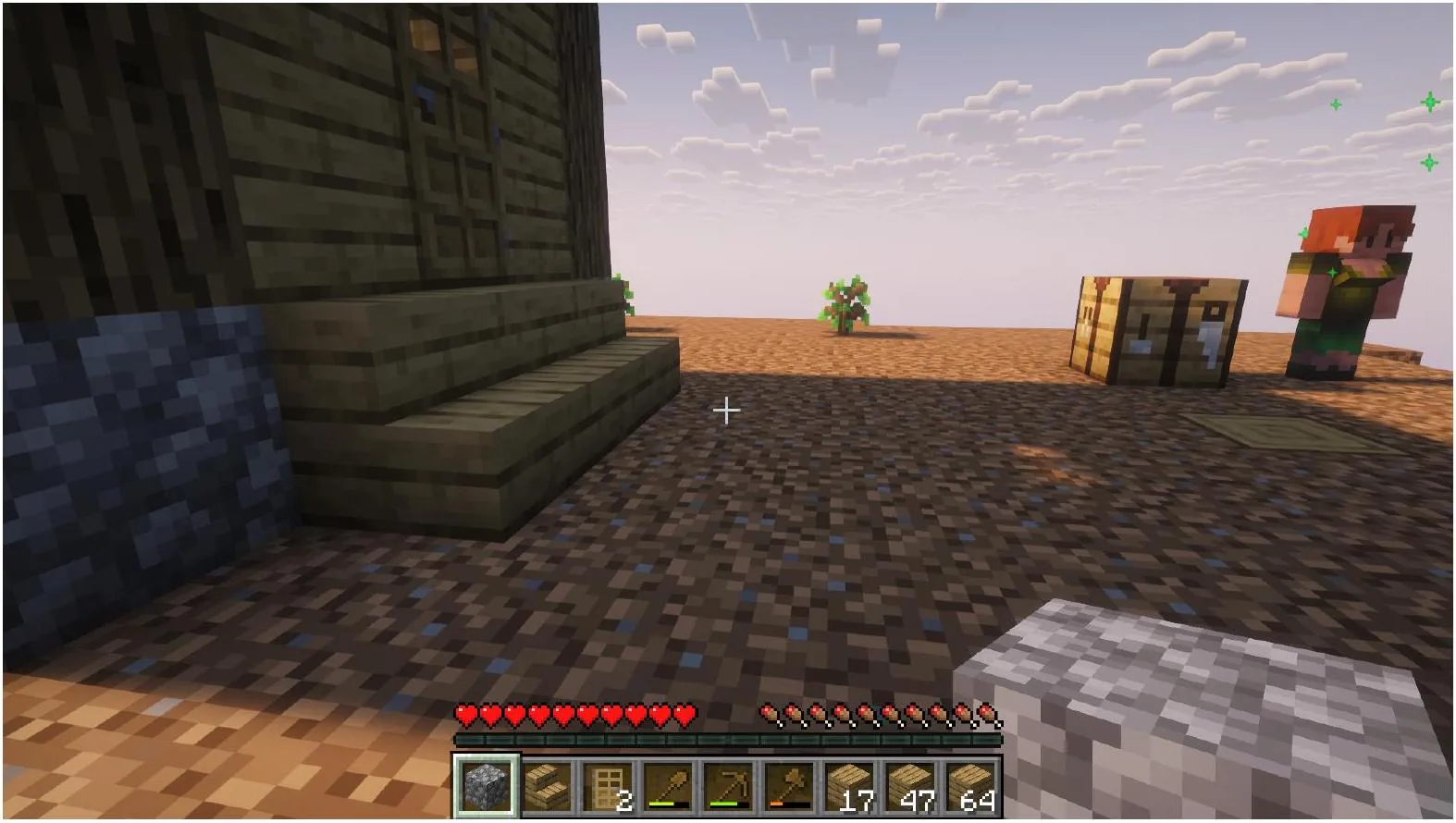
Although you know how to make a OneBlock server, you should still consider some tips to manage it properly. Here are important recommendations that will ensure an excellent gaming experience for you and your friends:
- Divide roles: Decide who will mine the main block, expand your island, and build infrastructure.
- Expand a platform early: Once you collect your first additional blocks, expand your island so no one falls into the void.
- Start with storage: When building your infrastructure, focus on constructing storage buildings first to keep and manage your resources efficiently.
- Protect valuable loot: Keep rare items such as golden apples and diamonds safe.
- Build a base: Build a secure base where you can stay safe from hostile mobs.
- Don’t experiment with OneBlock mechanics: If you want to change any gameplay feature, make sure you’ve created a server backup before making any changes.
- Keep your farms organized: There is no need for every player to build their own farms. Instead, focus on creating shared survival infrastructure that will satisfy the needs of the entire group.
- Always create backups before upgrading something: Whether you want to move to a newer Minecraft version, add some mods, or experiment with configurations, ensure that you’ve made a backup of your server files.
Common OneBlock Problems in Minecraft
Even if you install everything, you still may face some problems when you enter the game. Why is my OneBlock not regenerating, or why has the map loaded as a normal world? There may be different questions, but the most common issues are:
| Problems |
Solutions |
| The main block doesn’t regenerate |
1. Ensure there is no version mismatch between a map/modpack/plugin and your game.2. Try another OneBlock implementation.3. Check whether enable-command-block is set to true in server.properties. |
| Progression stopped |
1. Verify that you’ve met the threshold for the next phase.2. If available, use cheats to manually skip the phase.3. If your implementation has issues detecting the central block, avoid placing blocks or liquids on it and check its documentation before using automated mining tools. |
| The OneBlock implementation doesn’t launch |
1. Fix the mismatch between your map/plugin/modpack and your game version. Check your plugin or mod loaders as well.2. If you’ve downloaded a map, extract it from the ZIP archive before installing it. |
| OneBlock map loaded as a normal world |
1. Check game version compatibility. 2. Verify you’ve installed a map/plugin/modpack correctly. 3. Check for hosting server configuration errors. |
| You appear at the wrong location |
1. Ensure that your spawn point hasn’t been reset or corrupted. 2. Enable cheats and teleport yourself manually to the central block, or turn on Creative mode to reach it. |
| All mobs and items fall into the void |
1. Build a platform beneath the central block to catch falling mobs and items. |
| Progression has been reset |
1. Use your server backups to return your progression. 2. Implement cheats to skip manually to the phase you’ve already reached. |
Can You Play OneBlock on the Latest Minecraft Version?
You should always check the compatibility between your Minecraft game and the OneBlock implementation. Consider that the game is regularly updated, and so is this custom mode. Regardless of whether you play solo or with friends, always make sure that your OneBlock implementation is compatible with your Minecraft version. Even a minor Minecraft update can cause compatibility issues with some OneBlock implementations.








 en | USD
 CHAT WITH GODLIKE TEAM