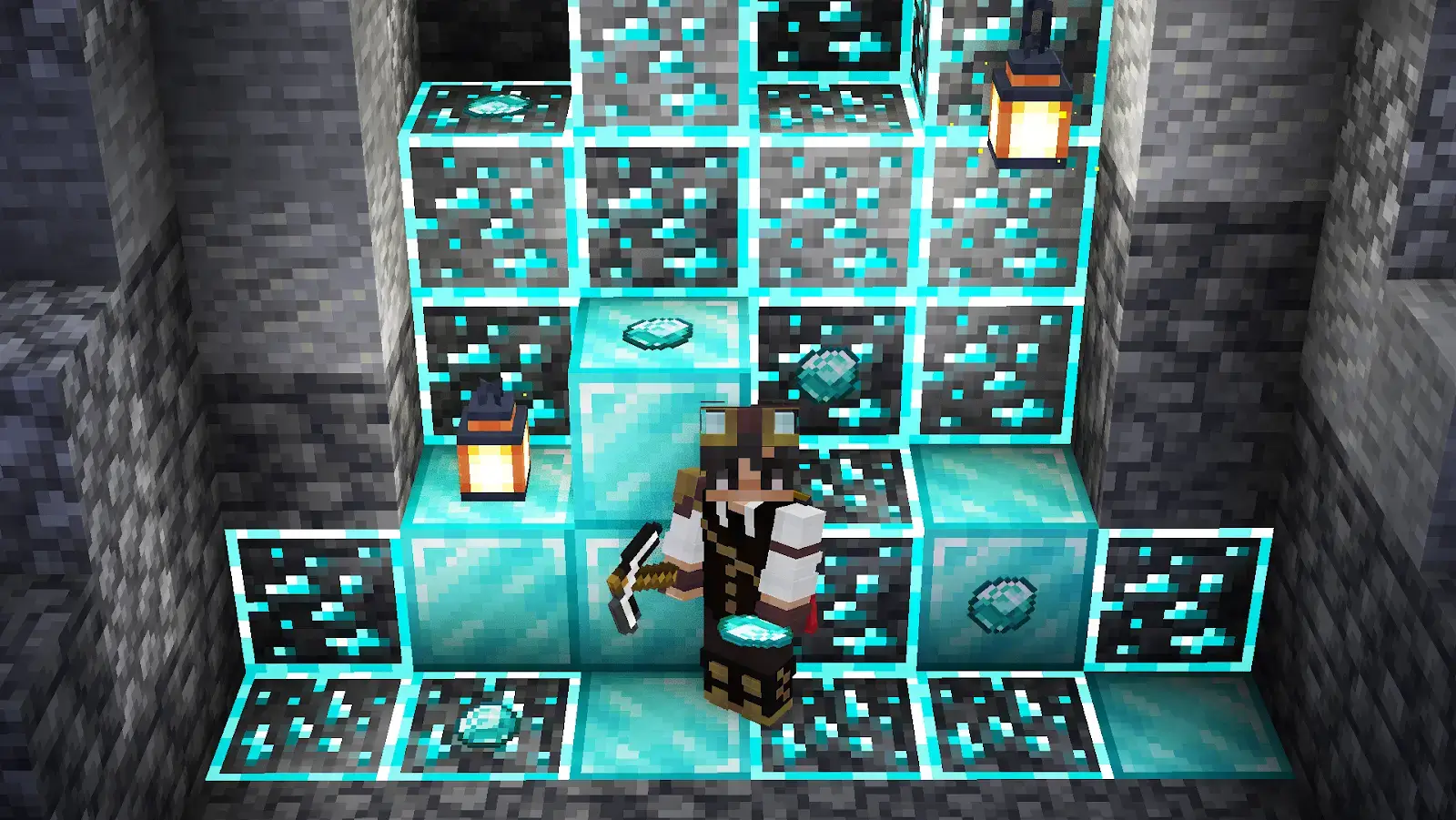
Both Minecraft texture packs and resource packs are custom file folders that allow players to change the game’s visuals and sounds. Note that texture packs change only the look of blocks, items, and mobs, while Minecraft resource packs go far beyond that.

Make your own FREE minecraft server
MINECRAFT FREE SERVER
In our guide, we’ll review both packs and cover proper installation for the Java and Bedrock editions. Further, we’ll identify the key issues you may face and offer you the most effective solutions.
Minecraft Texture Pack vs Minecraft Resource Pack
Before you dive deeper into our guide, let’s clarify the difference between Minecraft texture packs and Minecraft resource packs. Although many players often use “texture pack” as a general term, there are many dissimilarities between these files:
- Texture pack: It changes only textures in the game (e.g., the appearance of some mobs and block styles).
- Resource pack: It changes not only textures but also sounds, language files, 3D model shapes, and the user interface. At the same time, these still don’t alter the game code or core gameplay mechanics.
Considering the difference between a texture pack and a resource pack in Minecraft is important before you start the installation process. Decide what you expect from adding third-party files to your game before you start looking for the right resources to download.
Minecraft Resource Packs vs Shaders vs Mods
New players often mix up resource packs, shaders, and mods. To help you avoid confusion, our Minecraft resource pack guide offers a table with clear definitions of each term:
|
Resource Packs |
Shaders |
Mods |
| What they do |
Change textures, item designs, sounds, music, and fonts without altering core code |
Add realistic shadows, waving leaves, enhanced light rays, and dynamic water reflection |
Alter gameplay by introducing new mechanics, biomes, items, and mobs |
| Game impact |
Low to high (depends on the resolution size) |
High |
Moderate to heavy |
| Installation |
Dropped directly into the Minecraft dedicated folder |
May require a rendering mod or engine extension (e.g., OptiFine or Iris) to function properly |
May require mod loaders such as Forge, Neoforge, or Fabric |
How to Install Resource Packs in Minecraft Java
Now, let’s find out how to install resource packs in Minecraft Java Edition. Follow our step-by-step instructions to successfully install the files and improve the atmosphere of your Minecraft world:
- First, you need to download a .zip file containing a resource pack from a reputable website, such as Planet Minecraft or CurseForge.
- Ensure that the resource pack you’ve downloaded is compatible with your Minecraft Java Edition version.
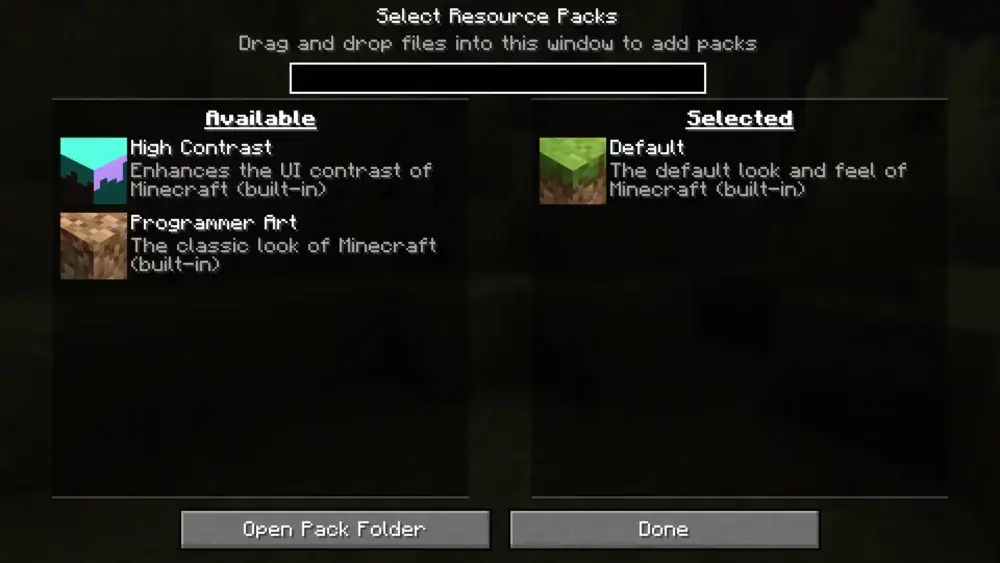
- Enter the game, go to Settings > Resource Packs, and click Open Pack Folder.
- Add the downloaded .zip file into the folder you’ve just opened.
How to Install Texture Packs in Minecraft Bedrock
Also, you may want to know how to install texture packs in Minecraft Bedrock, since the process here differs from adding resource packs in Java Edition. So, let’s review two important steps:
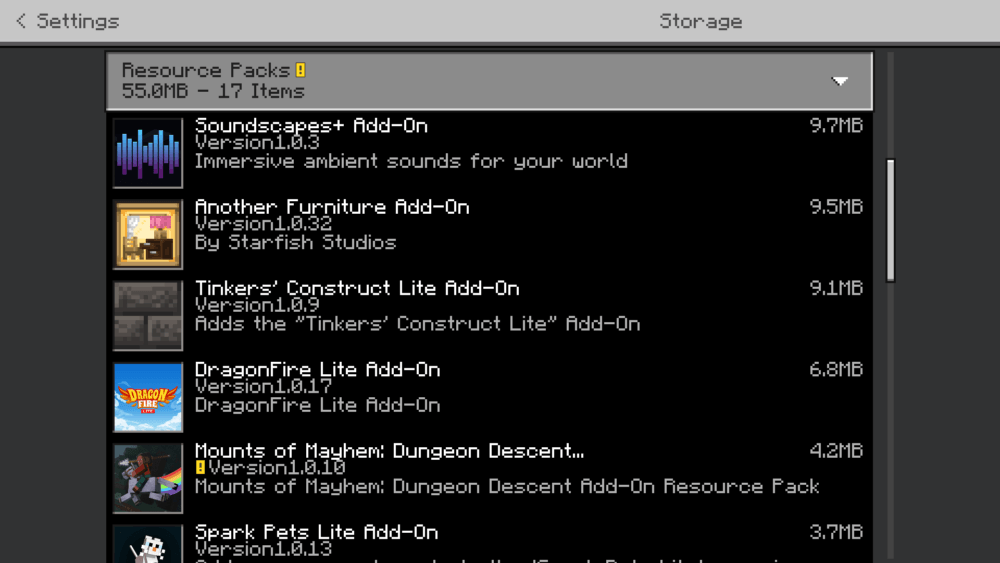
- Download the .mcpack file from a reliable website such as Curseforge.
- Click the downloaded file. Minecraft will automatically install the resource pack.
Minecraft Bedrock Mobile Notes
Whether you use an iOS or Android device, installing a resource pack on Minecraft Bedrock Mobile is similar to everything described above. Just ensure that you’ve downloaded a .mcpack file, find it in the Downloads folder, and click it to make Minecraft install it automatically. Consider that you may also need to grant the game file-opening permissions to complete the installation successfully, since file-access restrictions are one of the main reasons players can't use Minecraft Bedrock texture packs.
Also, not all files work perfectly on mobile devices due to poor optimization or even complete incompatibility. It’s better to read other players' reviews before you decide to download and install a specific resource pack.
Minecraft Bedrock Console Notes
Unlike Windows PCs, Chromebooks, and mobile devices, which also support Minecraft Bedrock Edition, consoles have way more restrictions on direct file system access. One common workaround is to upload the resource pack to a Minecraft Realm from your mobile or PC. Afterward, log into the same account on your console, open the Realm, and accept the prompt to download a third-party resource pack.
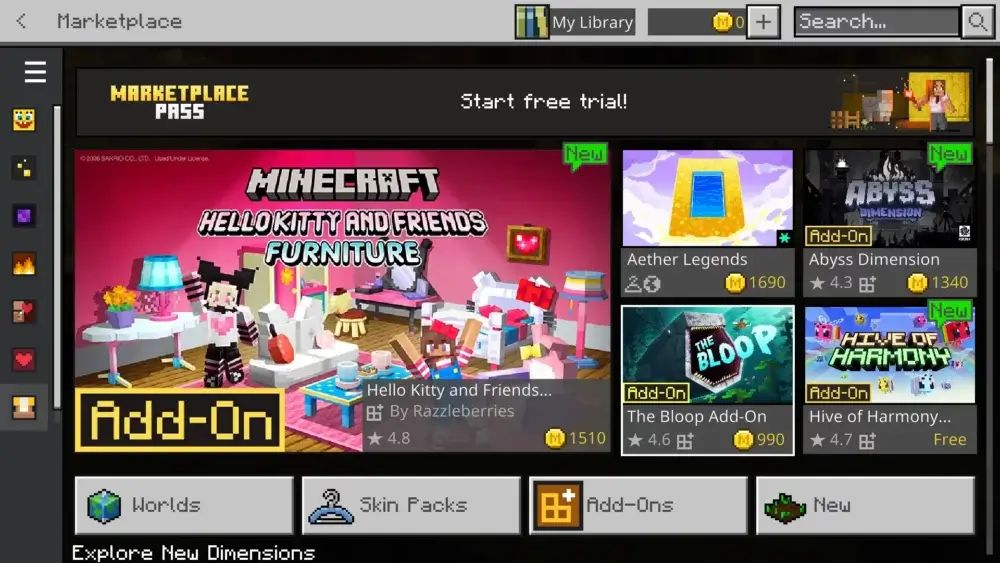
It's much easier to download texture or resource packs from Minecraft Marketplace. Consider that they vary depending on the device you use, but still it’s possible to discover many exciting options. The main drawback is that most of these custom packs require purchase using Minecoins.
How to Enable and Manage Resource Packs
It’s not enough to simply download and install resource packs in your Minecraft. To make them available in your game, you must also activate them. Ignoring this step is the main reason for your Minecraft resource pack not showing up. We’ve prepared a table that describes how to activate your resource packs in Java and Bedrock Editions:
| Java Edition |
Bedrock Edition |
| 1. Enter Minecraft, go to Settings, and choose Resource Packs.
2. Check whether the added resource pack is listed under the “Available” column on the left and move it to the “Selected” column on the right.
3. Click “Done”. |
1. Launch the Minecraft menu, go to Settings, and select Global Resources.
2. Discover the newly imported pack in My Packs and select Activate.
3. Click “Done”. |
In both editions, you can change the order of your resource and texture packs. Changing the order determines which resource packs take priority. For example, if two files change the same item, mob, or block, Minecraft will use the version with the highest priority.
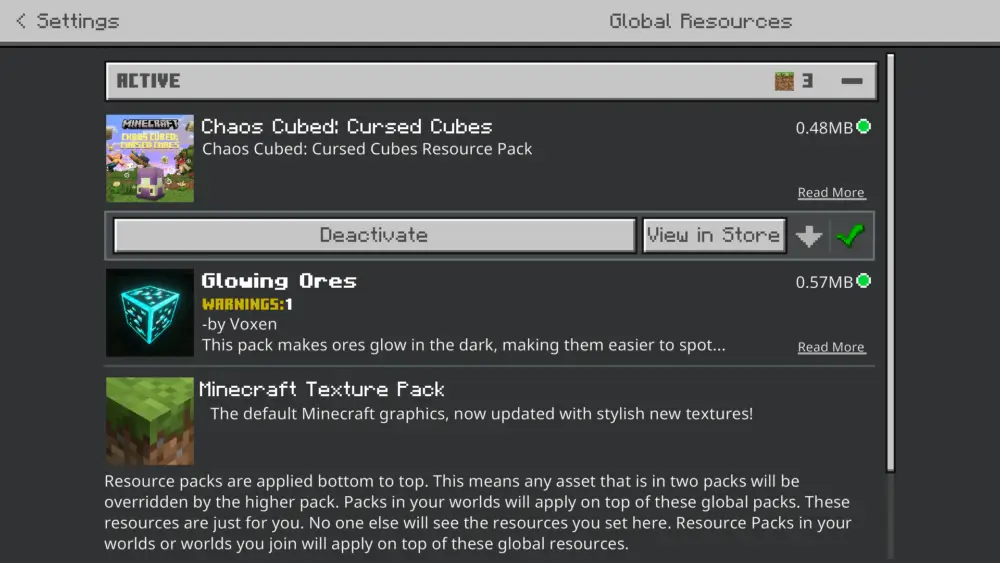
Further, when following the instructions from our Minecraft texture pack guide, you should consider that resource packs may be global and world-specific. Let’s briefly review the key differences between them:
| Difference |
Global Resource Packs |
World-Specific Resource Packs |
| Scope |
Active across all your worlds, realms, and multiplayer servers |
Tied only to a dedicated server environment or specific single-player world |
| Control |
Client-side files managed through your main game settings |
Configured in the particular world’s settings or server properties |
Note that without configuration, global resource packs are typically overridden by world-specific ones.
Minecraft Server Resource Packs
Many custom Minecraft servers also use their own resource packs. These extensions allow the owners of the multiplayer world to create a variety of exciting scenarios:
- Distinct ambiance;
- Unique mini-games;
- Custom player experience;
- Special items.
As a rule, such servers attract new players because they offer a completely new experience without requiring manual downloads, installations, or the activation of third-party files. Do you wonder how to use resource packs on a Minecraft server? The answer directly depends on whether you are just a player or an owner:
| Player |
Owner |
| When you join a server with custom resource packs, it'll prompt you to download them automatically. You can accept or decline, but consider that some servers require specific resource packs to play. |
Upload your file to a direct download host to get the direct download link, then add it to your server.properties file. |
Where to Find Resource Packs Safely
Although now you know how to install texture packs in Minecraft, you may still wonder where you can download the best third-party enhancement for your game. It’s important to choose a reputable online platform if you don’t want to encounter malware that may affect your gaming experience and steal your private data. To avoid such a situation, here are some tips to consider when you work with third-party resource packs:
- Never launch suspicious files or installers;
- Always check version compatibility before downloading a resource or texture pack;
- Stay away from websites that ask you to enter your personal information, Minecraft login and password, or provide links to suspicious files.
If you wonder where to find safe resources and texture packs for Minecraft, you may opt for platforms such as Planet Minecraft, CurseForge, Modrinth, and Vanilla Tweaks.
Where is the Minecraft resource pack folder?
The location of the Minecraft resource pack folder depends on your OS:
-
- Windows: %appdata%\.minecraft\resourcepacks;
- macOS: ~/Library/Application Support/minecraft/resourcepacks;
- Linux: ~/.minecraft/resourcepacks.
Why Your Resource Pack Is Not Working
Have you downloaded the desired files just to discover your Minecraft texture pack not working? There may be several reasons, and each of them requires a separate solution, so let’s have a look at the most common issues:
| Problem |
Solution |
| The Minecraft resource pack isn’t showing up in the Settings. |
1. Ensure that you’ve added the file to the right folder and it features the .zip format (for Java Edition).
2. Verify that a downloaded resource pack is compatible with your current Minecraft version. |
| My resource pack for Minecraft Bedrock Edition can't be automatically imported. |
1. Fully close Minecraft and try double-clicking the .mcpack again.
2. Extract the downloaded files into the resource_packs directory on your device. |
| Two or more resource packs try to change the same file. |
1. Go to Settings, select Resource Packs, check the priority of resource packs, and move the one you want to take effect higher in the list. |
| Old pack format warnings appear. |
1. Find a resource pack for your Minecraft version.
2. Edit the downloaded .mcmeta file using a text editor like Notepad. Find the pack_format number and change it to match the current version of your game. |
| A Minecraft custom server pack can’t be downloaded. |
1. Visit the Minecraft multiplayer server list, find the server you want to join, click Edit, and ensure that Server Resource Packs are set to Enabled or Prompt.
2. Go to Minecraft Settings, open Storage, find Cached Data, and delete the old pack files. Try again. |






 en | USD
 CHAT WITH GODLIKE TEAM