







 en | USD


 CHAT WITH GODLIKE TEAM





Godlike panel’s basic controls
Accessing The Panel
You can access your modded Minecraft server hosting main control panel here.
If you have multiple servers, you can choose which you want to modify from the panel page. Or, simply choose the server you want to control from the drop-down box of each page within the panel.

Server Information
-
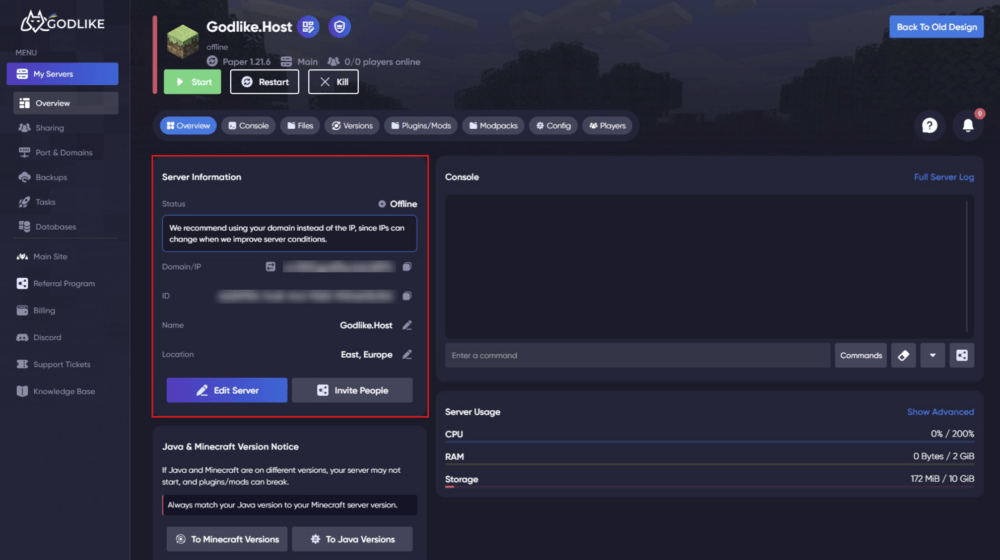
The Server Information section on the main page (Overview) contains all the essential data about your server. Here is what you can find and modify in this block:
-
Status: Displays the current state of your server in real-time (e.g., Offline, Starting, or Running).
-
Domain/IP: Shows the connection address for your server. It is highly recommended to use the domain name instead of the numerical IP address, as IPs may change during hosting infrastructure upgrades, while your domain remains permanent.
-
ID: The unique identifier of your server. You will always need this ID when opening a support ticket so our team can assist you faster.
-
Name: The display name of your server. You can easily change it at any time by clicking the pencil icon next to it.
-
Location: Indicates the region and data center where your server is physically hosted (e.g., East, Europe), which directly affects players' ping.
Quick Action Buttons:
-
Edit Server: Allows you to quickly jump into the server's primary configuration settings.
-
Invite People: Use this feature to securely grant access to your server panel for co-owners, admins, or developers without sharing your personal login credentials.
ㅤ
-

Server Usage
The Server Usage section provides real-time tracking of your server's hardware resource consumption. Monitoring these metrics ensures your server runs smoothly without lags:
-
CPU: Shows the current processor load. High spikes during startup or world generation are normal.
-
RAM: Displays how much random-access memory your server is currently using out of its total limit.
-
Storage: Shows the amount of disk space occupied by your world files, plugins, and mods. It is crucial to keep an eye on this metric - if your storage reaches 100%, the server will not be able to boot or save progress until you clear up some space.
-
Show Advanced: Clicking this link opens detailed interactive graphs for a deeper analysis of network traffic, memory, and processor activity over time.
Console
The Console is your primary tool for monitoring and managing the server in real-time. It displays live server logs, player actions, connection statuses, and potential errors.
-
Enter a command: The input field allows you to send direct commands to the server execution line.
IMPORTANT
When typing commands directly into the console, do not include the forward slash (/). For example, type op playername instead of /op playername.
-
Commands: Click this button to open a quick-access list of predefined popular commands to save time.
-
Eraser Icon (Clear): Clears the current console screen view (this only wipes the text from the current visual window, it does not delete your server log files).
-
Arrow Down Icon (Scroll): Instantly scrolls the console window down to the most recent live log entries.
-
Share Icon: Generates a shareable snippet or link of your current log screen. This is incredibly useful when you need to show an error to a developer or share logs with support.
ㅤ